# Keiki
---
> Keiki puts your company on iMessage and WhatsApp, so your customers can just text you. An agent that knows your product answers, does things in it (books, pays, checks status), and hands off to your team when it should. The same agent also answers on Slack, Telegram, email and phone calls.
---
An agent is declarative: a system prompt, a model, custom tools and feature toggles. The platform owns everything around that config — inbound routing and outbound delivery per channel, conversation memory, steering of concurrent messages, browser automation, sandboxed code execution, billing and observability — so an agent gains a channel without any change to its agentic config.
---
The SDK is `@onkeiki/agents`, with `AgentKit` as the primary API. It runs two ways from the same config: cloud-served, where `kit.sync()` pushes the config and the platform runs the agentic loop, or self-hosted, where `kit.serve()` runs the loop on your own infrastructure. Companies that already have an agent can bring it and get the numbers, channels and team inbox.
---
## When to use Keiki
Use Keiki when a company with a product and customers wants those customers to text it: to ask questions, book, pay, check status or get help, on iMessage, WhatsApp or any other channel, with the team able to see every chat and step in. Keiki handles what makes that work in production: keeping numbers healthy, remembering each customer, acting in the product with approvals, team handoff, and moving a line when a provider fails. Start with the developer portal for API-key setup and a sandbox workflow, use the OpenAPI document for HTTP function calling, or connect the MCP endpoint from a compatible agent client.
---
## Blog
---
Source: https://onkeiki.com/blog/keiki-vs-sendblue
# Keiki vs Sendblue for iMessage AI Agents
Guides · 2026-11-17
Compare Keiki and Sendblue on iMessage delivery, dedicated lines, SMS fallback, agent hosting, and human handoff. See when Linq or Photon fits, too.
Choose Keiki to get your AI agent live with customers on iMessage, whether you build it on Keiki or bring your own. Choose the Sendblue API if you need iMessage, RCS, and SMS delivery and want to handle the rest of the customer experience in your own app.
## Keiki vs Sendblue at a glance
Choose Keiki to get your AI agent live with customers on iMessage, whether you build it on Keiki or bring your own. Choose the Sendblue API if you need texting and already have a way to run the agent, test it, and hand conversations to your team.
| What you're choosing | Keiki | Sendblue API |
| --- | --- | --- |
| Agent runtime | [Hosted agent](/docs/cloud-agents) with memory, tools, and logs. You can also [run the agent in your app](/docs/external-harness). | [Send messages and receive webhooks](https://www.sendblue.com/api). In a raw API integration, your application runs the agent. |
| iMessage and Android fallback | Shared or dedicated iMessage line. SMS or RCS fallback depends on the line provider and recipient. See [Keiki channels](/docs/channels). | Shared sandbox or dedicated line. [Automatic RCS or SMS fallback](https://www.sendblue.com/api). |
| Testing and operations | [Eval Studio](/docs/evals) replays cases and traces tool calls. Teammates can [take over the conversation](/blog/human-in-the-loop-imessage-agent) in Keiki. | [Webhooks](https://docs.sendblue.com/getting-started/webhooks) report messaging events such as inbound messages and delivery status. Agent tests and tool traces belong to the stack you connect. |
| Channels beyond texting | Connect the same agent to [WhatsApp, Slack, Telegram, and email](/blog/one-agent-every-channel). | The messaging API covers iMessage, RCS, and SMS. |
| Messaging plans | Start with a shared inbound number on an active plan or choose a dedicated line. See [Keiki pricing](/pricing). | The [AI Agent plan](https://www.sendblue.com/pricing) is inbound-first. Full outbound messaging is on Enterprise. |
## What does it take to go live after the first text?
Sending a text is the easy part. Getting the agent to do useful work for customers means connecting their accounts, acting on their behalf, and giving your team a way to step in when it gets stuck.
In the [Keiki Labs Lovable demo](/blog/lovable-agent), you text the agent to build an app, connect your own Lovable account from a link in the thread, and get a screenshot and a live URL back. The text is just how the request arrives. Keiki handles the per-user sign-in, background work, and replies for that hosted agent. If you bring an existing agent, its model loop stays in your app while Keiki handles message delivery and records each turn.
You can build the same workflow around Sendblue's [incoming message webhook](https://docs.sendblue.com/getting-started/receiving-messages). The webhook gets the text to your app; your app handles sign-in, jobs, progress updates, and access to the right customer's account.
Test the whole conversation before you go live. Make sure the customer knows the agent got their request, gets an update if the work takes a while, and can reach your team if something goes wrong.
For eligible physical goods and services, Keiki can also send an [Apple Pay card inside Messages](/blog/apple-pay-in-keiki-vault). The customer approves it with Face ID on their iPhone without leaving the thread. This requires Keiki Vault on the customer's iPhone and a business set up to accept payments through Grosso.
## What comes with each plan?
Keiki lets you [start an inbound pilot on a shared iMessage number](/docs/cloud-agents#shared-imessage-number) with an active agent plan. If you need a dedicated line, choose one from your agent's Channels tab. Sendblue's [sandbox](https://www.sendblue.com/pricing) is for testing with verified contacts and doesn't include webhooks. Use a plan with webhooks when your app needs to receive messages automatically.
## Sendblue vs Linq vs Photon: which is best for an iMessage AI agent?
If you only need a messaging API, choose Sendblue for a dedicated inbound-first line, Linq if you need its Partner API for rich group messaging, or Photon to test iMessage with a small group. Choose Keiki if you want to get a new or existing agent live with customers and need more than message delivery.
| If your priority is… | Start with… |
| --- | --- |
| Getting a new or existing agent live with customers, with tools, traces, and human handoff | **Keiki**. Start with the [guide to building iMessage agents](/blog/building-imessage-agents). |
| A dedicated inbound-first number for an agent you already operate | **Sendblue**. Its [AI Agent plan](https://www.sendblue.com/pricing) lists the line price, inbound contact limit, and webhook support. |
| A messaging API that can manage group participants, threaded replies, and delivery events | **Linq**. See the [Partner API docs](https://docs.linqapp.com/channel/imessage/) and [Linq pricing](https://linqapp.com/s/pricing) for tier availability. |
| Testing your own integration before moving to a dedicated number | **Photon**. See its [iMessage plans](https://photon.codes/pricing) for testing tiers and dedicated line availability. |
## FAQ
**Can I keep my iMessage number if I switch to Keiki?**
Keiki offers support-led [number porting](/docs/imessage-porting) for eligible existing numbers. Confirm eligibility before cutting over, and keep your old service active until the port is complete. Plan separately for any history, contacts, or workflows you need to export or rebuild.
**Can I use Keiki if I already built an AI agent?**
Yes. The [external harness](/docs/external-harness) lets your own app keep running the agent's turn loop while Keiki delivers messages to and from connected channels. If you only need raw iMessage webhooks and message sends, compare that setup with using the Sendblue API directly.
**Do Keiki and Sendblue reach people on Android?**
Yes, through RCS or SMS fallback rather than iMessage. Rich iMessage features such as Apple Pay cards do not carry over to Android. Test both paths on the line you plan to use.
## Try a complete conversation before buying a line
[Build an agent on Keiki](/signup) or [bring the one you already run](/blog/how-to-add-imessage-to-your-ai-agent). Before buying a dedicated line, test the full conversation: the customer's first text, a real action, and a handoff to your team. Want to see it from a customer's phone first? [Text the Keiki Labs demo number](/blog/lovable-agent).
---
Source: https://onkeiki.com/blog/one-agent-every-channel
# Run One AI Agent on iMessage, WhatsApp, Slack, Telegram and Email
Guides · 2026-11-17
Connect five channels to one agent, keep the same tools and instructions, and learn where channel features, identity and memory differ.
Keiki runs one AI agent on iMessage, WhatsApp, Slack, Telegram and email when you connect each channel to the same agent in its Channels tab. Instructions and tools stay shared, while each channel keeps its own identity and capabilities and conversations are not merged across channels automatically.
Keiki runs one AI agent on iMessage, WhatsApp, Slack, Telegram and email. You keep the same instructions and tools, then connect each channel to that agent.
For customer reply times, conversation depth and handoffs by channel, read [what we learned from 66,000 messages](/blog/what-we-learned-from-66000-messages).
For example, a bike shop can let customers ask about a repair by text, send a photo on WhatsApp, or email a receipt. Staff can ask the same agent for a repair update in Slack. The repair system stays the source of truth; the channel is where someone asks.
This is a setup guide, not a promise that every channel works identically. A phone number, a Slack app, a Telegram bot and an email inbox are separate identities. Connecting them does not automatically merge private conversations. It's part of our guide to [customer-facing AI agents](/blog/customer-facing-ai-agents).
## What stays the same, and what changes?
The agent's instructions, tools and memory system sit above the channel layer. You don't need five copies of your repair-status tool. The connection and presentation change.
| Channel | What you connect | What the person gets | What to watch |
|---|---|---|---|
| iMessage | A dedicated line, or a shared number with a join code | Messages, with tapbacks and voice notes on supported lines | Features depend on line type; shared numbers only reply to people who text the code |
| WhatsApp | A business number through guided signup, or your existing setup | Text, photos, voice notes and native cards | Replies outside Meta's service window are restricted |
| Slack | An app created from Keiki's manifest | Threaded answers and native cards | Invite the app to channels it should read |
| Telegram | A bot token from @BotFather | A bot with files and voice notes | Groups need their own reply-mode and privacy decisions |
| Email | An inbox, optionally on your domain | Replies in the same thread, with attachments | Custom domains need DNS verification; email has no tapbacks |
See the [channel reference](/docs/channels) for capabilities and limits, and [pricing](/pricing) for current costs.
## Step 1: Give one agent one useful job
Create an agent in the dashboard. Connect the system it needs through tools or an [MCP server](/blog/turn-your-api-into-a-whatsapp-imessage-agent).
For the bike shop, the instructions could be:
> Help customers check repair progress. Look up the repair before answering. Don't invent a completion time. If the customer disputes a charge, get a person involved.
This is an illustrative configuration, not a deployed customer story. Start with a read-only lookup. Decide which actions need [approval](/docs/actions) before adding writes.
Adding a channel doesn't create permissions in your system. Decide how someone proves that a repair is theirs before a tool returns private details.
## Step 2: Connect iMessage and WhatsApp
Open the agent's **Channels** tab. For iMessage, buy a dedicated line or use the shared number and its join link. On a shared number, the contact sends the join code first; this isn't a dedicated identity for your business.
Connect WhatsApp through guided signup: log in with Facebook, choose the business and verify the number. Existing setups have their own connection options in the [channel reference](/docs/channels).
These are separate connections. Don't assume buying an iMessage line also gives you a WhatsApp account on that number. Connecting non-iMessage channels requires an active plan.
Send a real message on both channels. Ask the same repair question and check that both answers use the repair tool rather than guessing from the instructions.
## Step 3: Add Slack, Telegram and email
Connect these identities to the same agent, not to three new agents.
- **Slack:** create the app from Keiki's manifest, install it and invite it to the channel where you want answers. Follow the [Slack setup guide](/docs/slack-agents).
- **Telegram:** create a bot through @BotFather and paste its token into the connection dialog. Keiki sets the webhook.
- **Email:** create an inbox. On your own domain, add the DNS records shown and wait for verification.
Repeat the repair lookup from a Slack thread, a private Telegram chat and an email. Check the email reply lands in the original thread. In Slack, check the app only sees channels it was invited to.
Don't test private customer records in a public channel. Staff and customer tools need explicit access boundaries; separate agents may be the right choice when their permissions differ.
## Remember customers without mixing them up
One agent is not one public memory bucket. Keiki has a common memory system, but conversation memory is scoped to the agent and conversation identity. Slack DM threads use the same DM memory; that is not a blanket merge across every channel.
A Telegram user ID, a phone number and an email address don't prove they belong to the same person. Don't promise that someone can switch from email to Telegram and automatically resume a private conversation.
For the bike shop, keep the repair record in your own system. Verify the customer's account, then let an authorized tool fetch that record on each channel. Continuity comes from the record, not the model guessing that two names match.
[Identity and permissions](/docs/identity) describes the principal and tool-scope contract, its rollout limits and the partner-deployment configuration path. It isn't a switch that merges conversation memory. Groups need extra care: members share the group's conversation.
## Keep the answer useful on each channel
Share the job, not the exact message layout. A repair photo and a short status answer work in a text thread; a receipt belongs naturally in an email attachment.
Keiki uses channel-neutral tools such as `reply` and `send_file`. Native cards render on supported channels, including Slack and WhatsApp. Unsupported channel features return `unsupported` rather than silently sending something else.
For example, ask the agent to explain the repair status in text even when it also sends a card. Don't make the answer depend on an iMessage-only effect or an email reaction that doesn't exist.
## Step 4: Test the boundaries before sharing the links
A successful "hello" proves routing, not that your product is ready. Use a test repair record:
| Test | Expected result |
|---|---|
| Same question on all five channels | The same repair tool returns the same underlying status |
| No matching repair | It says it cannot find the record, without inventing one |
| Lookup service fails | It says it couldn't check, without claiming the repair is ready |
| Another customer's repair | The tool refuses access; a matching display name isn't enough |
| Switch from email to Telegram | It requires verification rather than revealing the email conversation |
| An action needing approval | It waits for the configured approval before running |
| A feature the channel lacks | It can still answer in text without claiming it sent an unsupported feature |
Use real channel messages for this pass. Synthetic Live Test conversations don't read or write conversation memory, so they cannot prove returning-customer behavior.
Start with one channel, then add the others when their checks pass. See [testing an agent before customers](/blog/test-ai-agent-before-customers) for a broader checklist.
## FAQ
**Do I have to build five agents?**
No. One Keiki agent can connect to all five channels. You still configure and authorize each connection separately.
**Is it the same phone number everywhere?**
No. Slack uses an app, Telegram a bot and email an inbox. iMessage and WhatsApp each need their own setup; this guide doesn't promise one number for both.
**Does one agent mean automatic cross-channel memory?**
No. Shared infrastructure isn't automatic identity linking. Use verified customer identity and your own records for continuity across unrelated channel identities.
**Where should I start?**
[Create an agent](/agents/new), connect one channel and test a real lookup. Add the next channel to that agent when the first works.
## Sources
Product behavior checked against Keiki's documentation and implementation for this November 17, 2026 guide:
- [Channels compared](/docs/channels): connection steps, feature differences, plan requirements and limits.
- [Cloud agents](/docs/cloud-agents): one configuration across channels, memory, shared numbers and groups.
- [Slack agents](/docs/slack-agents): installation, channel membership and threaded replies.
- [Identity and permissions](/docs/identity): verified principals, tool scopes and rollout limits.
- [Actions](/docs/actions): tool policies and approvals.
The bike shop and test messages are illustrative, not customer results or a live integration benchmark.
---
Source: https://onkeiki.com/blog/what-we-learned-from-66000-messages
# What we learned from 66,000 messages between people and AI agents
Guides · 2026-11-16
Keiki customer data on reply times, conversation depth, agent handoffs and speed to launch, with time windows and sample sizes.
Across 66,169 messages in 6,576 conversations from 76 companies, median agent reply time was 7.3 seconds and median user reply time was 42 seconds. The window is Aug 21–Nov 16, 2026.
*Keiki customer data, Aug 21 to Nov 16, 2026. Every number below lists its window and sample size. Methodology is at the bottom.*
It's part of our guide, [Customer-Facing AI Agents: What They Are and How to Launch One](/blog/customer-facing-ai-agents).
## The dataset
**66,169 messages across 6,576 conversations from 76 companies.**
That's 12 weeks of customer traffic on Keiki across iMessage, WhatsApp, Telegram, Slack, email and API. 57,766 of those messages (3,527 conversations, 63 companies) went over a real messaging channel. *(Aug 21–Nov 16)*
## People start the conversation
**97.5–100% of conversations were started by the user, not the agent.**
On WhatsApp, Slack and email it was 100%; on iMessage it was 99.5% (1,335 conversations). When an agent has a phone number, people message it first. *(Aug 21–Nov 16, 6,576 conversations)*
## Agents answer in seconds
**Median agent reply time: 7.3 seconds.**
That's across 23,197 replies. Nine in ten arrived within 29 seconds. The median was 7.3s on WhatsApp, 7.3s on iMessage and 8.4s on Telegram. *(Aug 21–Nov 16, 23,197 replies)*
## People reply in under a minute
**Users reply to an agent in a median of 42 seconds.**
That's across 19,452 user replies. On WhatsApp the median was 39 seconds, and on iMessage and Telegram it was under a minute. Messaging gets the kind of attention that apps and email chase. *(Aug 21–Nov 16, 19,452 replies)*
## Conversations keep going
**72% of WhatsApp conversations continue after the agent's first answer. On customer-supplied iMessage lines it's 87%.**
Telegram came in at 70% (273 conversations), Slack at 60% (157) and iMessage on Keiki lines at 52% (1,290). "Continue" means the user writes again after the agent's first reply. *(Aug 21–Nov 16, WhatsApp n=1,684)*
## Messaging threads run long
**Median iMessage conversation: 7 messages (mean 22). WhatsApp: 6 (mean 12).**
On Telegram the median was 5 messages, and on Slack it was 4. People don't text an agent once and leave. They keep talking. *(Aug 21–Nov 16, 6,576 conversations)*
## Agents handle 97% of conversations alone
**96.8% of conversations never needed a human.**
That's out of 6,461 conversations with at least one user message. On iMessage, Telegram and Slack, 98.8% were handled end to end by the agent. *(Aug 21–Nov 16, 6,461 conversations)*
## Agents hand off when people ask for a person
**62% of handoffs happen because the user asked for a human or for contact details.**
Of 681 handoff and escalation reasons written by agents, 421 were a direct request for a person, a phone number or an office. The rest were mostly case reviews and billing questions, which go to the team when that's the right call. *(Aug 26–Nov 16, 681 reasons)*
## Signup to first live customer conversation: under a day
**Median time from creating a Keiki org to the first real user message on a live channel: 23.9 hours.**
The fastest quarter of teams went live within 6.1 hours. *(Orgs created Aug 14–Nov 15; 62 orgs live on iMessage, WhatsApp, Telegram, Slack or email)*
## Photos and threaded replies mean deeper conversations
**Conversations where the user sent a photo ran a median of 21.5 messages, against 4 for the rest.**
That compares 58 photo conversations with 5,384 without photos. Conversations where users replied inline to a specific message ran a median of 57 messages (45 conversations). Rich messaging features go with the most engaged threads. *(Aug 21–Nov 16)*
## Customer snapshots
- **A travel-visa company (WhatsApp): 1,646 conversations and 20,095 messages in 8 weeks**, with 72% continuing after the first reply. *(Sep 17–Nov 14)*
- **A veterinary clinic platform (iMessage): a median of 13 messages per conversation and a mean of 39**, across 87 conversations. *(Sep 17–Nov 9)*
- **An insurance company (iMessage): 151 conversations, 69% continuing after the first reply, and 96.7% resolved without a human.** *(Sep 15–Nov 16)*
- **A consumer app (iMessage): a mean of 127 messages per conversation**, with 76% of 49 conversations continuing. *(Oct 31–Nov 16)*
## Sources
Keiki's read-only production message store, Aug 21–Nov 16, 2026. Queries and exports are kept privately.
## Methodology
Source: Keiki's production message store (read-only), Aug 21–Nov 16, 2026 (UTC).
- **Included:** customer organizations.
- **Excluded:** Mail-0's own consumer app, test, demo and internal organizations, playground sessions, status probes, internal rows and tool-call records.
- **Conversation:** one agent and one user address.
- **Channel:** taken from the address type.
- **Reply rate:** share of conversations where the user wrote again after the agent's first message.
- **Response times:** medians between consecutive user→agent and agent→user turns.
- **Handoff:** a recorded human handoff or escalation.
- **Speed to launch:** organization creation to the first inbound user message on a non-API channel.
- **Anonymization:** customer snapshots are anonymized.
---
Source: https://onkeiki.com/blog/turn-your-website-into-an-agent-customers-can-text
# Turn Your Website Into an Agent Customers Can Text
Guides · 2026-11-16
Your website already has the answers. Here's how to let customers text it instead of digging.
To turn your website into something customers can text, give an AI agent your site's pages as its source, a number on iMessage and WhatsApp, the actions behind your forms, and a way to hand chats to your team. Keiki builds the first version of that agent from your website alone, and you can try it on your own site in about 15 seconds.
Your website already answers most of what customers ask you. Pricing, hours, what you do, how to book, what happens if something goes wrong. The problem is that nobody reads it. They text you "do you do same-day?" instead, or they leave.
So stop asking them to read it. Let them text it.
This guide is for founders and ops leads who have a website and customers who'd rather text than click around. It's part of our guide to [customer-facing AI agents](/blog/customer-facing-ai-agents).
**Want to skip ahead? Put your website in below and text your agent right now.** It reads your site and is ready in about 15 seconds.
## What "texting your website" actually means
It doesn't mean a chat widget in the corner of your homepage. It means a phone number your customers save, on iMessage and WhatsApp, and when they text it, something answers that:
1. **Knows what your website says**, and only that. No made-up policies.
2. **Can do what your website does**: book, check an order, take a payment, not just link to the page that does.
3. **Knows who's texting**, and remembers the last conversation.
4. **Knows when to get a person**, and hands over without making the customer start again.
Most "add texting to your website" tools stop at a number and a widget. The number is the easy part. The four things above are what make customers actually use it.
## Why text beats your website
A website is a place people have to go. A text thread is a place they already are.
| | Your website | A number they text |
|---|---|---|
| Where it lives | A tab they close | The Messages app they open all day |
| How they ask | Find the right page, then the right paragraph | Ask in their own words |
| Coming back | They have to remember you | You're already in their thread |
| Follow-up | Email they won't open | A reply in the same thread |
The difference shows up in who comes back. The average generative AI app keeps 0.9% of its users after 30 days ([AppsFlyer](https://www.appsflyer.com/benchmarks/)). People who text a Keiki agent are 2 to 3 times more likely to still be texting it a month later. When we moved our own assistant from an app to an iMessage line, 30-day retention went from about 1% to roughly 50%, same model, same tools ([full numbers](/blog/imessage-vs-app-retention)).
## How to turn your website into an agent customers can text
### Step 1: Start from your website
Paste your URL. Keiki reads your homepage and the pages that matter most, works out what your company does and what customers come to you for, and writes the first version of the agent: what it's for, how it talks, and what it should hand to your team.
If your site is thin, or it's mostly images, describe your company in a few sentences instead. That works too.
**What breaks first:** the agent fills a gap with a confident guess. A customer asks about a refund policy that isn't on your site, and it answers anyway. Before you share the number, text it your five most common questions, and add a page or a doc for every one it can't answer from a source. Tell it to say "let me check with the team" when the answer isn't there.
### Step 2: Turn your forms into actions
Every form on your website is a job a customer wants done: book a time, request a quote, check an order, pay an invoice. Over text, those become actions the agent takes in the conversation instead of a link to the form.
Connect what's already behind them:
- **Shopify or Stripe**, from the dashboard.
- **Your own API or MCP server**, one tool per job.
> "We plugged our existing MCP server into Keiki and had our iMessage agent texting real customers almost right away."
>
> Perry Raskin, Head of Web & Integrations, Coverdash
**What breaks first:** an action runs that nobody checked. Start with reads allowed and anything that changes money or data set to ask your team first. Switch each one to allow once you trust what you see. See [governed actions](/docs/actions).
### Step 3: Know who's texting
"Where's my order?" only works if the agent knows whose order. Keiki recognizes each customer by their phone number or WhatsApp account, and with [identity](/docs/identity) also by your own user ID. It remembers past conversations, so nobody repeats their order number twice.
**What breaks first:** trusting an ID the agent passes along. Your API should still check that the order belongs to the person texting, the same way your website does when they log in.
### Step 4: Put the number where your website sends people
Get a number on each channel. They're all the same agent:
| Channel | Ready in |
|---|---|
| WhatsApp | About 5 minutes |
| iMessage, dedicated line | Right away to a few days, by line type |
| Slack, Telegram, email | Right away to a few minutes |
| Phone calls | Right away |
Then replace "Contact us" with "Text us". On a phone, an `sms:` link opens Messages with the first text already written:
```html
Text us
```
Put it on your homepage, your pricing page, your order confirmation emails, and anywhere you currently show a phone number or a contact form.
**What breaks first:** texting people who never texted you. Apple judges a line by how it behaves, and cold outreach is the fastest way to get one flagged. On Keiki's iMessage lines over 30 days, over 99% of conversations were started by the customer. Let them text first. More in [will an iMessage API get your number banned?](/blog/imessage-api-banned)
### Step 5: Keep your team in every chat
Every conversation, from every channel, lands in one inbox. When the agent isn't sure, it tells the customer a person is on it and flags the chat. Leave a note and its next reply follows it, or take over and reply yourself.
**What breaks first:** a handoff that loses the thread. Whoever steps in should see the whole conversation and everything the agent already did, so the customer never has to explain twice.
## What it looks like for a few kinds of websites
| If your website is for... | Customers text things like | The agent can |
|---|---|---|
| Appointments (clinics, salons, gyms, services) | "Anything Saturday morning?" | Check times, book, move, send reminders |
| An online store | "Where's my order?" | Look up the order, start a return, take payment |
| A software product | "How do I add a teammate?" | Answer from your docs, do it in the product |
| Quotes and leads (agencies, realtors, contractors) | "How much for a 2-bed?" | Ask the right questions, book a call, hand it to sales |
## The fastest way to find out if it works for you
Don't take our word for it. Put your website in and text the agent it builds. It reads up to four pages of your site and is ready in about 15 seconds: over the last 30 days, the median preview was ready in 13 seconds, and 89 of 91 finished. If you like what you see, hit **Build this agent** to set up the real one and get it a number.
Already have an agent? Keep it. [Bring your own agent](/blog/keiki-on-vercel-connect) and get the numbers, every channel and your team in the chat without rebuilding anything.
## FAQ
**How do I turn my website into an agent customers can text?**
Give an AI agent your website as its source, a number on iMessage and WhatsApp, the actions behind your forms, and a way to hand chats to your team. On Keiki you paste your URL, it builds the first version of the agent from your site, and you connect a number when you're happy with it.
**Do I need to write code?**
No. Paste your website, connect tools from the dashboard, and get a number. There's an SDK and an API if you want them.
**Will it make things up?**
It answers from your website and the docs you add, and you can tell it to hand anything it can't find to your team. Text it your most common questions before you share the number, and fill any gaps with a page.
**Can customers book or pay over text?**
Yes, once you connect the tool behind it, like your booking system, Shopify or Stripe. Anything that changes money or data can ask your team before it runs.
**Is this the same as a chat widget on my website?**
No. A widget only works while someone is on your site. A number lives in their Messages app, so they can text you any time and you can reply in the same thread later.
**How long does it take?**
The preview is ready in about 15 seconds. A WhatsApp number takes about 5 minutes to connect, and a dedicated iMessage line is ready right away to a few days depending on the line type.
---
Source: https://onkeiki.com/blog/psychology-of-tapbacks
# The Psychology of Tapbacks and “On It”
Labs · 2026-11-13
Why a tapback and a one-line “on it” make customers trust your product while it works.
Over text there's no spinner or progress bar, so a tapback and a short "on it" line are the only signs that your product got the message and started working. They turn an uncertain wait into a known one, and in our data people texted "you there?" less than half as often during long tasks when the product sent one line first.
Watch someone text a product that does real work for them, and the thing you notice isn't the answer. It's everything before it. An eyes reaction when it picks the request up, a magnifying glass when it starts researching, a check mark when it's done. **That's the moment it stops feeling like software.**
A tapback and a one-line "on it" are about the cheapest things your product can send over text. They don't do any of the work. But they change how the person on the other end feels while the work happens, and on a long task that feeling is most of the experience. It's the part every product that moves into a text thread has to get right.
## You gave up the screen
When your customers [text your product instead of downloading an app](/blog/put-your-app-on-imessage-and-whatsapp), you gain a lot. No install, no login, no password reset. They're already in iMessage all day.
But you also give up the screen. Everything your app used to say with buttons, checkmarks, toasts and loading states now has to arrive as a text. **The thread is the whole interface**, and the most important thing an interface ever says is "I'm working on it."
## Silence over text means something
In an app, nobody has to tell you that something is happening. You tap a button and get a spinner, a progress bar, a skeleton screen. Designers spent twenty years making waiting visible, because waiting you can't see feels broken.
Over text you get none of that. There's the message you sent, and then there's nothing. And unlike an app, a text thread is a social space. We've all learned what silence means in one: the other person is busy, or annoyed, or didn't see it, or saw it and decided not to answer.
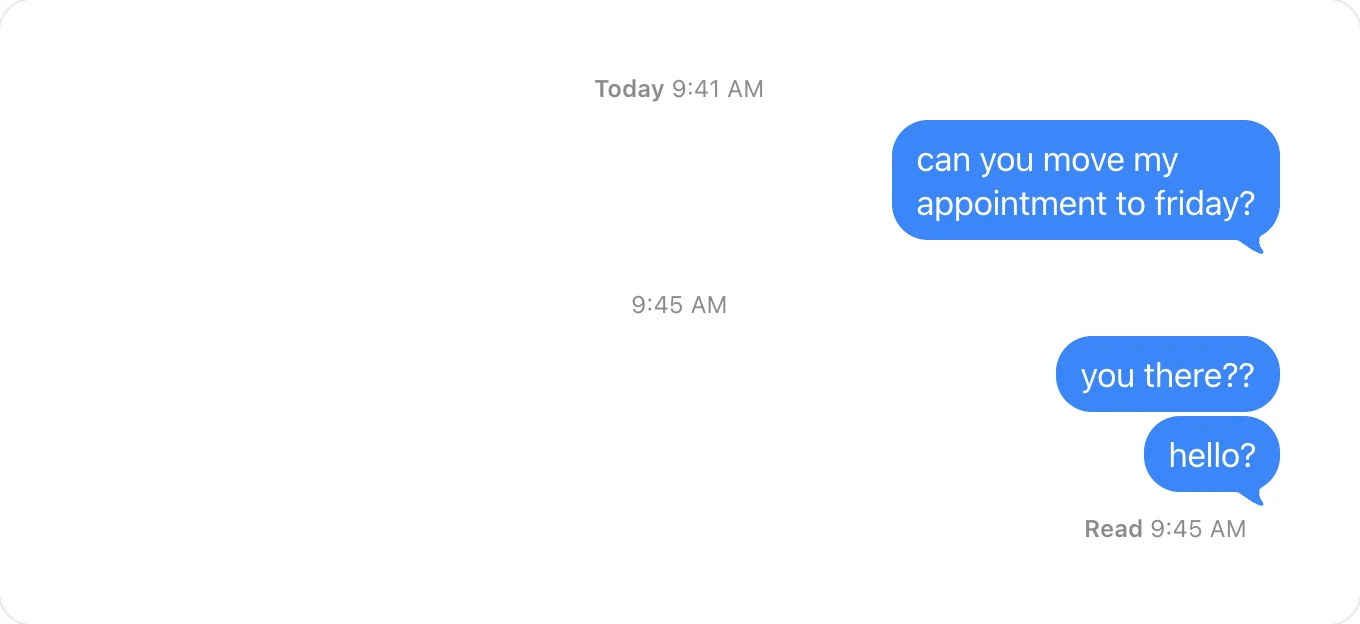
So when someone texts your product "can you move my appointment to Friday" and gets nothing back, they don't think "it's checking the calendar." **They think what they'd think about a person.** Did it get it? Did I say it wrong? Should I just open the app?
One of our customers told us about the first time they showed their product to their mom. They shared the contact, she texted it, and nothing came back. Something on the backend had broken. She didn't report a bug or try again. She waited a bit, assumed it wasn't working, and two days later had forgotten it existed. She never saw the product. She saw the silence.
We can see this in our own data. Across a month of conversations on Keiki, the longer a product stayed quiet after someone's text, the more likely that person was to text again before it answered. A lot of those second texts aren't new information.
Almost nobody texted again when the reply came within ten seconds. Most people did when the silence ran past ten minutes. The second texts are "you there??", "and?", "wya", and my favorite, "why did you stuck?"
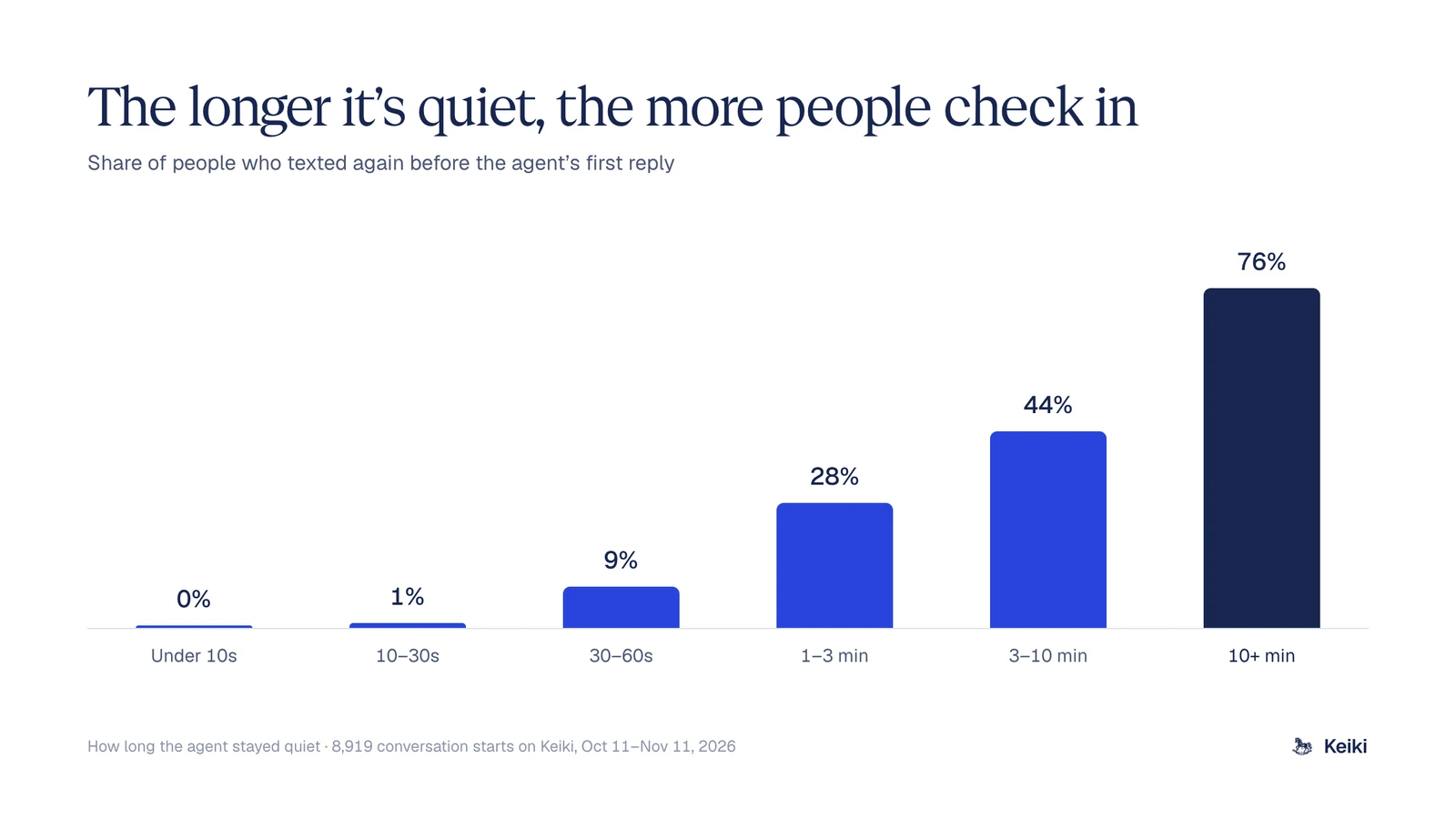
That second text is the person doing the job a progress bar would have done. They're checking whether anything is happening, **because nothing has told them.**
## Waiting has a psychology
None of this is new. It's just new to products you text. In 1985 David Maister wrote a short paper called "The Psychology of Waiting Lines" that every team putting a product on iMessage should read. A few of his propositions could have been written about text threads:
- Unoccupied time feels longer than occupied time.
- Anxiety makes waits seem longer.
- Uncertain waits are longer than known, finite waits.
- Unexplained waits are longer than explained waits.
The best-known story along these lines is from Houston's airport, which Alex Stone told in the New York Times. Travelers complained constantly about the wait at baggage claim. The airport added staff and cut the wait, and the complaints didn't stop. What finally worked was moving the arrival gates farther from the carousels, so people spent the time walking instead of standing. The total time barely changed. How it felt did, and the complaints nearly disappeared.
The research that matters most here is Ryan Buell and Michael Norton's work on what they called the labor illusion. In their experiments, people searching for flights or dates rated a service more highly when it showed them the work it was doing, even when that made them wait longer than an instant result would have. Seeing effort made the result feel more valuable and more trustworthy. A later study by Buell with Tami Kim and Chia-Jung Tsay put cameras in a dining hall so diners could watch their food being made, and diners rated the food higher.
> People don't judge a wait by how long it is. They judge it by whether they know what's going on, and whether they believe someone is working on their thing.
A tapback and a reply line are how your product answers both of those questions over text.
## Why three dots aren't enough
The obvious fix is the typing indicator, and you should send it. But three dots make a specific promise: a reply is a few seconds away. When they sit there for a minute, or disappear and come back, they stop reading as "typing" and start reading as stuck.
One of our customers asked me about this, because their product searches flights and that takes real time. My advice was that speed is the moat, but you can make the wait feel fast. When someone texts "find me the cheapest flights to Barcelona," react to it with a ✈️ right away and reply "looking now." Then go do the work. **If all they see is three bubbles for two minutes, they'll think it's a bug.** If they see the plane, they know it's doing the task.
The typing indicator says someone is at the keyboard. The tapback and the line say someone is on the job.
## What a tapback says
A tapback is the smallest message there is. It doesn't need an answer and it doesn't take up a bubble. But it carries a lot.
The first thing it says is "I got it." On iMessage you already get a read receipt, and Keiki marks the message read the moment it lands. But a read receipt only tells you a message was opened. A reaction tells you someone opened it and responded. **That's the difference between a letter being delivered and someone nodding at you.**
The second thing depends on which tapback it is. When a product uses them consistently, they turn into a small vocabulary. Eyes means I'm looking at it. A thumbs up means done, nothing more to say. A heart means thanks received. People pick this up fast, because it's how they already text their friends. You don't have to teach anyone what 👀 means.
Since iOS 18 a tapback can be any emoji, and that's where it gets good. A ✈️ on "find me flights to Barcelona." A 🍔 on "any good restaurants near the venue?" A 📊 on "can you research this company?" A matching reaction proves the request was understood before a single word comes back, and it feels human in a way a generic thumbs up doesn't.
We saw how much of this kind of texting people do at an event we ran in Vancouver. We put the event's number on the back of a pamphlet. About 80 people came, and they sent it hundreds of texts that day. Most were small asks like "restaurant nearby" or "can I reach out to this person." Each one is a long-ish task hiding inside a casual text, and each one is a chance to react before you answer.
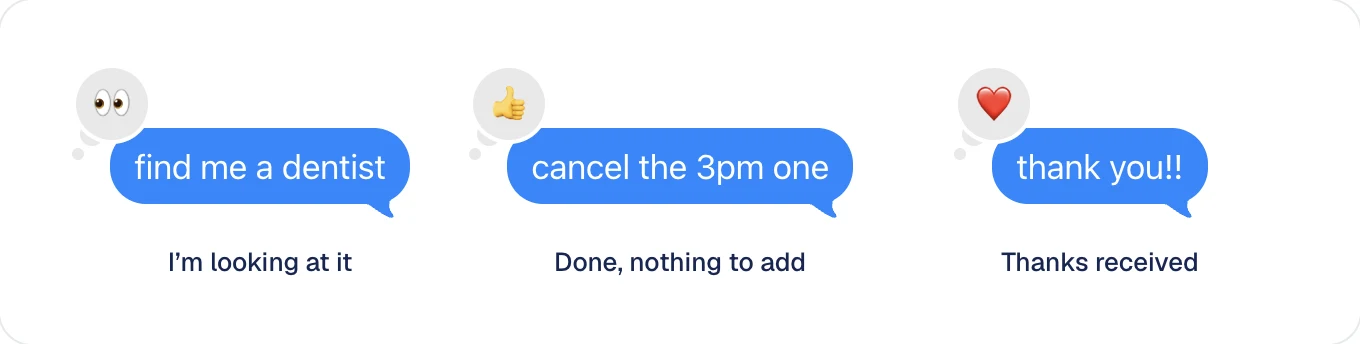
The third thing is restraint. A lot of messages don't need a reply. "Thanks!" doesn't. "Cool, see you then" doesn't. A product that answers every one of those with a full sentence feels like a customer service script. A product that hearts it and moves on feels like a person who respects your time. Ask a product to cancel a reminder, and the right answer is a thumbs up and nothing else. That's exactly what a friend would send.
People do it back, too. On Keiki we store the reactions people leave on replies, and they look like the reactions you'd leave a person. From October 11 to November 11 the most common was 👍 (42 times), then ❤️ (21), then the odd 😂 and 🙏. **Nobody hearts a loading spinner.** People heart someone who did something for them.
## What a reply line says
A tapback works when the answer is coming soon. For a long task you need words. By reply line I mean the short text your product sends before it disappears into the work: "On it, checking when they have a room Friday." "One moment, pulling your policy." "This one takes a while, I'll text you when I have it."
A good one does three things.
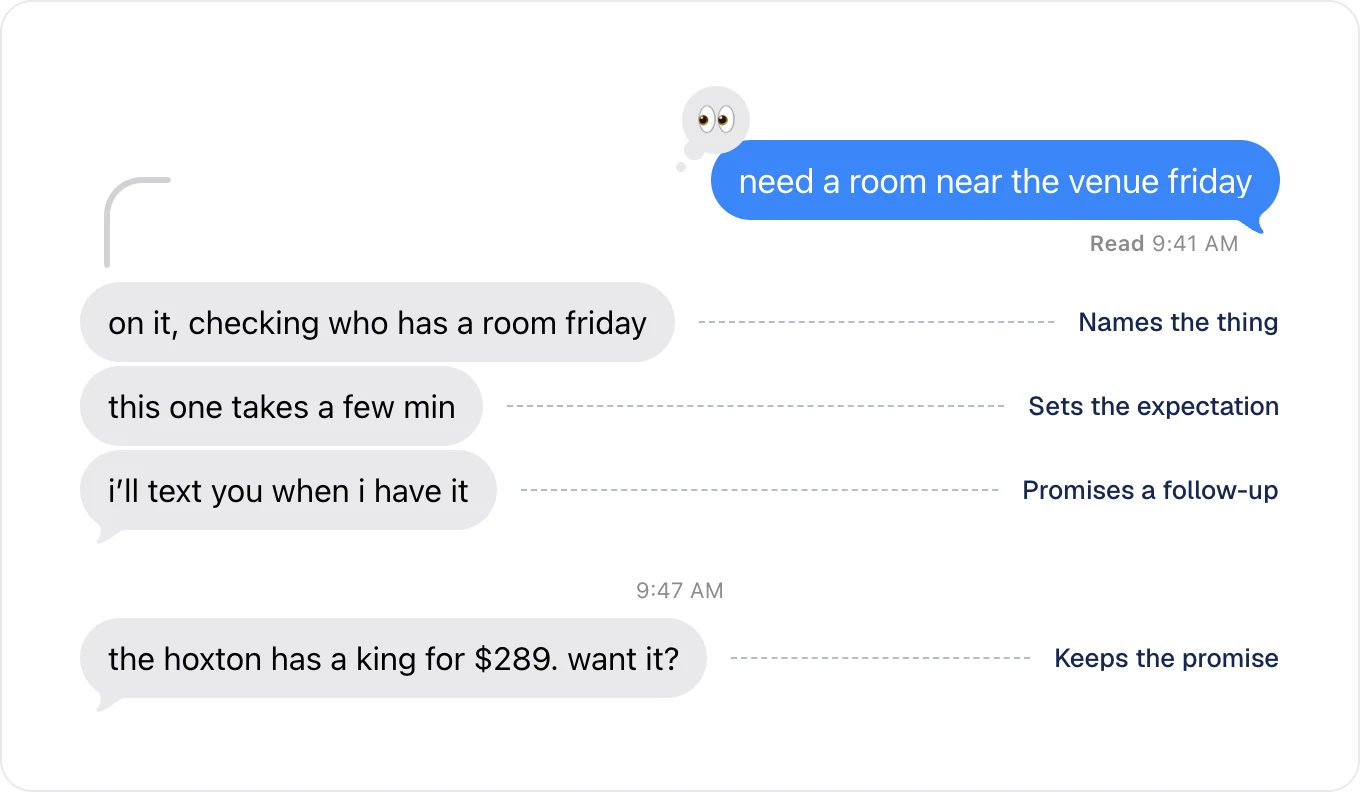
**It names the thing.** "On it" is fine. "On it, checking other five-star hotels nearby" is better, because it proves your product understood the request. If it misunderstood, the person can correct it now instead of finding out ten minutes later. That's Maister's "unexplained waits are longer than explained waits," solved in one line.
**It sets the expectation.** "This one takes a while" turns an uncertain wait into a known one. The person can put their phone down. That's the real gift: they stop supervising.
**It promises a follow-up, and then keeps the promise.** "I'll text you when I have it" only works if the text comes. This is the part that's actually hard to build, and I'll come back to it.
In our data the difference showed up clearly. When a product sent a short "on it" line and then went off to work, people texted again during the wait less than half as often as when it just went quiet for the same length of time. The task took the same time. The person just didn't feel the need to check.
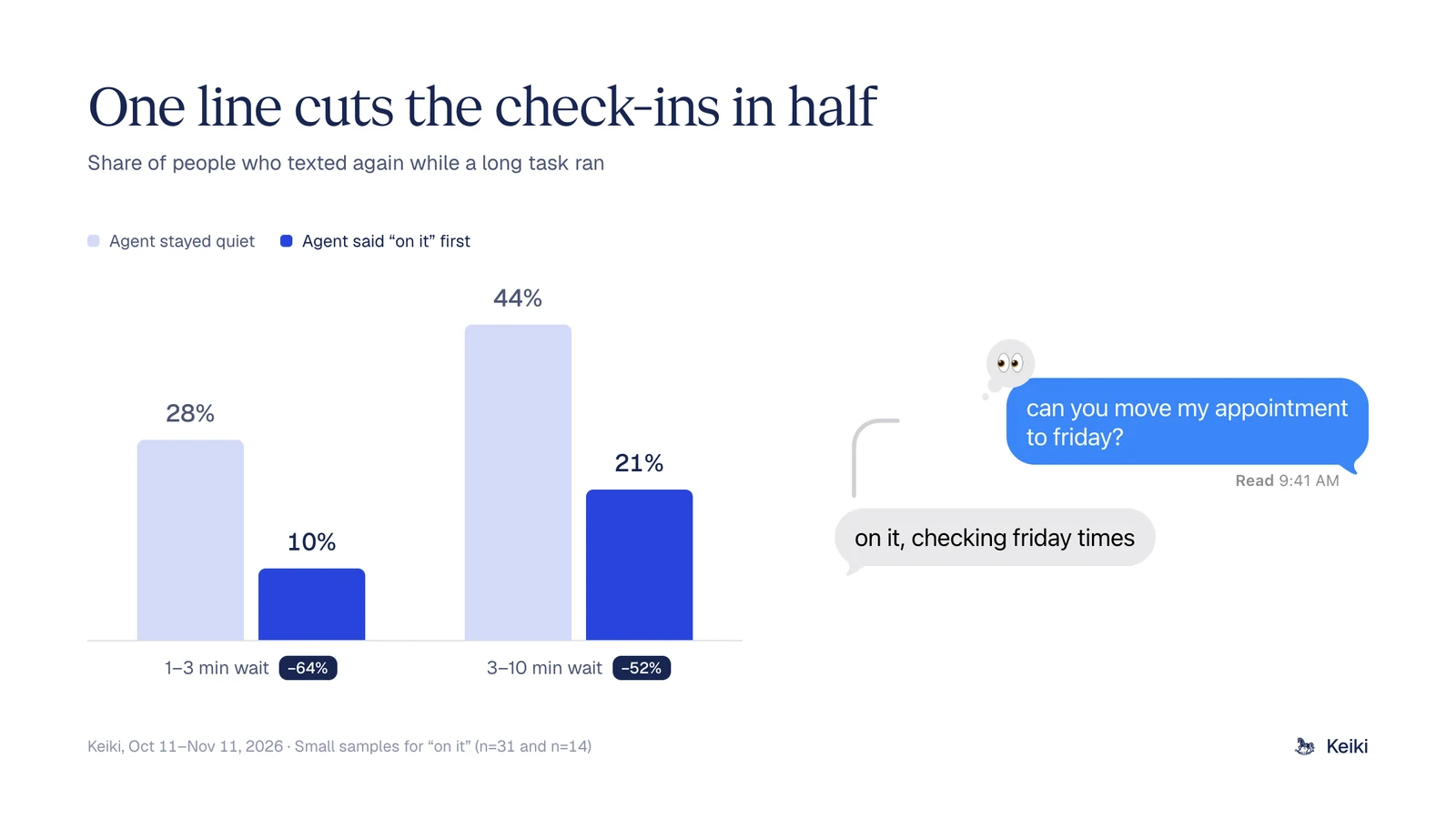
**These are small samples.** Most texts on Keiki get answered quickly, so long tasks are the minority (31 and 14 conversations for the "on it" bars). The direction matched every other time I looked.
## Why it's bigger than manners
You could read all this as politeness. I think it's closer to the core of the product.
A chatbot doesn't need any of this, because it only answers questions, and answers come back fast. The moment your product starts doing things, like booking the room, filing the claim or building the app, the work takes real time and someone is waiting on the other end. **Products that do things need to show that they're doing them.**
When someone texts your product, they're delegating. They're handing over a small piece of their life and trusting you with it. Delegation only feels good if you can stop thinking about the thing you handed off. **If you have to keep checking, you haven't delegated anything.** You've just added a step.
A tapback and a reply line are what let people stop thinking about it. And once people trust that they can, they start handing over bigger things. Someone who starts by asking for a haircut ends up asking it to plan a trip. You give it the next thing because it was clear with you about the last one.
We watched this happen at [Vet Together](/blog/vet-intel-customer-story). Reps said texting the agent felt like texting a friend who was trying to help, so they got comfortable fast and started asking it things it was never set up to answer. Comfort is what turns a tool you try once into one you lean on.
The opposite also compounds. Every unexplained silence teaches the person to supervise. They'll check more, send more "you there?" texts, and eventually go back to calling or opening your app, because those at least show them something happening. That's the opposite of what [moving your app into iMessage](/blog/imessage-vs-app-retention) is supposed to do.
> The tapback isn't decoration. In a text thread, it's what tells people your product is working.
## How to get it wrong
There are a few ways this goes badly, and I've seen all of them.
**Narrating everything.** "Searching… found 3 results… opening the first… reading…" is a progress bar written out as texts, and it's exhausting. A real person doing an errand for you texts at the start and at the end, and maybe once in the middle if something changes. One of our customers put it better than I could: "we definitely do not want to give user a bunch of text, because then we're not saving time, we are wasting time."
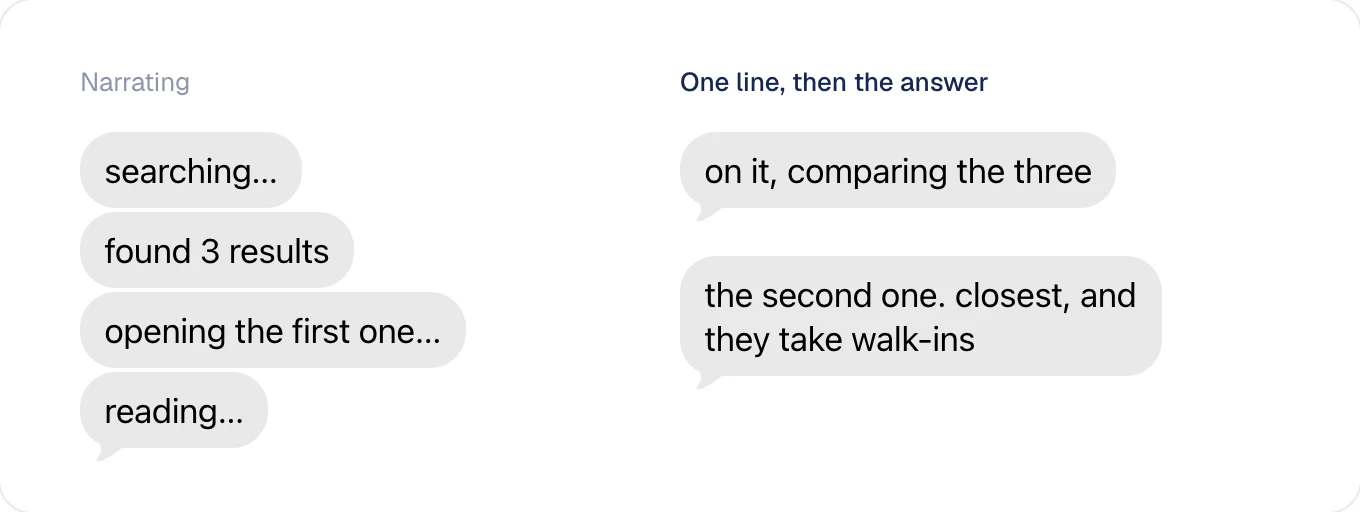
Slack is the exception, because it gives apps a status line under the thread that updates in place. On Keiki your product's steps show up there ("Searching," "Browsing the web") instead of as messages. iMessage and WhatsApp have nothing like it, so one line has to do the job.
**Tapping back on everything.** If every message gets a thumbs up, the thumbs up stops meaning anything. The vocabulary only works if each reaction is a choice. Our Orchid prompt has a rule for this: a tapback on its own is the rare exception, kept for a message with no task in it. A question, an "ok, go" or a finished sign-in always gets words.
**Fake labor.** The labor illusion works because the labor is real. A product that says "on it" and then does nothing is worse than one that said nothing, because now it has broken a promise. Same for a reply line that claims to be checking something it isn't.
**Promising a follow-up you can't deliver.** "I'll text you when it's done" is the most valuable line your product can send and the most dangerous. It only works if the work keeps running in the background and a new message goes out on its own when it's done. If the work stops when the model's turn ends, the promise stops with it.
## Getting the number is the easy part
You can get an iMessage number in an afternoon. Getting the product behind it to act like this with real customers is the hard part, and it's most of what we've spent the last year on.
Each piece needs its own plumbing. The read receipt and typing indicator have to fire before the model even starts, or they come too late to mean anything. The tapback has to land on the exact message it's reacting to, in the native format, which is different on iMessage, WhatsApp, Telegram and Slack. And the reply line only holds up if there's something behind it that can run a task for ten minutes, survive a restart, and text the person when it finishes.
On Keiki, the read receipt and typing indicator go out automatically wherever the channel supports them. Tapbacks are one tool, `react_to_message`, that works the same way everywhere they're supported. And long work runs in the background: your product sends its line, ends its turn, and the result comes back to the conversation as its own message when it's ready.
```ts
import { create } from '@onkeiki/agents'
const kit = create({
apiKey: process.env.KEIKI_API_KEY!,
name: 'Concierge',
agent: {
model: '',
systemPrompt: () =>
`Reply like a person texting. Short bubbles.\n` +
`A message that needs no answer gets a tapback, not a sentence.\n` +
`Before long work, send one line that names the task and says you'll follow up. Then follow up.`,
// background work texts the person on its own when it finishes
executor: { enabled: true, timeout: '10 minutes', onComplete: 'notify' },
},
})
await kit.sync()
```
The code is the easy part. What you have to work out yourself is the judgment: which messages deserve a reaction, which deserve words, and what your product should sound like when it says "on it." **That's what people will remember about it.**
## FAQ
**What is a tapback on iMessage?**
A tapback is a reaction left on a specific message, like a heart, a thumbs up or, since iOS 18, any emoji. For a product people text, it's the lightest way to say "got it" without sending a new message.
**Why do customers text again when a product goes quiet?**
Because nothing told them the work started. In a text thread, silence reads as "didn't get it" or "broken," so people check in with "you there?" or give up. In our data, people checked in less than half as often during long tasks when the product sent one short line first.
**Is a typing indicator enough during a long task?**
No. Three dots promise a reply in seconds. Past that they look like a stall. Pair the indicator with a tapback and one line that names the task and says you'll follow up.
**Should a product react to every message?**
No. Reactions only mean something if each one is a choice. Use them for messages that don't need words, like "thanks!" or "cool, see you then," and for acknowledging a request before a short wait. When in doubt, reply.
**What should a product text before a long task?**
One line that names the task, sets an expectation and promises a follow-up, like "on it, checking who has a room Friday. This one takes a few minutes, I'll text you when I have it." Then send the follow-up.
## Sources
- David H. Maister, ["The Psychology of Waiting Lines"](https://davidmaister.com/articles/the-psychology-of-waiting-lines/) (1985)
- Ryan W. Buell and Michael I. Norton, ["The Labor Illusion: How Operational Transparency Increases Perceived Value"](https://doi.org/10.1287/mnsc.1110.1376), *Management Science* (2011)
- Ryan W. Buell, Tami Kim and Chia-Jung Tsay, ["Creating Reciprocal Value Through Operational Transparency"](https://doi.org/10.1287/mnsc.2015.2411), *Management Science* (2017)
- Alex Stone, ["Why Waiting Is Torture"](https://www.nytimes.com/2012/08/19/opinion/sunday/why-waiting-in-line-is-torture.html), *The New York Times*, August 18, 2012
- Keiki conversation data: 8,919 conversation starts in 1,543 conversations across 42 companies on iMessage, SMS, WhatsApp and Telegram, October 11 to November 11, 2026. Internal and test accounts excluded.
---
Source: https://onkeiki.com/blog/heysurf-customer-story
# How HeySurf Put Its AI Assistant on iMessage and Telegram
Customer stories · 2026-11-12
Surf used to live in a browser tab. Now people just text it.
HeySurf (Surf), built by the three-person team at Novisurf Labs, is a proactive personal AI assistant that people text on iMessage, Telegram or the web, and it messages them first when something needs them. Novisurf kept its own agent and memory and used Keiki for the channels, putting Surf on Telegram in about a day and on iMessage within three days, so reminders now land in the thread people already read instead of a browser tab they closed.
HeySurf is a proactive personal AI assistant you text on iMessage and Telegram. Novisurf Labs, the three-person team behind it, launched Surf on the web, where **a proactive assistant in a tab you closed can't reach you.** So the founders kept their own agent and memory, used Keiki to put Surf on Telegram in about a day and on [iMessage](/blog/how-to-add-imessage-to-your-ai-agent) within three days, and **now Surf texts its users first.**
## What is HeySurf?
HeySurf (Surf for short) is a proactive personal AI assistant that you text instead of opening an app. It remembers you, acts before you ask, and has its own computer to actually finish tasks: browsing, filling things in, building. It's for busy people who want an assistant, not another app to manage.
The job people give it is simple: **"handle this for me."** Reminders, follow-ups, looking something up and acting on it, all without opening anything.
Novisurf Labs is bootstrapped, with three founders. HeySurf went live in production on October 28, 2026, iMessage and Telegram launched the next day, and HeySurf 3.0 shipped on November 6. Novisurf is representing at APICTA 2026 in Jakarta, December 7–11, and has applied to Y Combinator.
## Why a web-only AI assistant gets forgotten
**An assistant in a browser tab only works while the tab is open.** At launch, Surf was web-only: you opened the site, signed in, and came back to a tab. Native iOS and Android apps were on the roadmap, but the team deferred them over cost.
Signups came in. People didn't come back.
> "An assistant that lives in a browser tab gets forgotten by week two. The proactive messages Surf sent had nowhere to land unless the user had the site open."
>
> Bob, CEO of Novisurf Labs
That's a hard problem for a product whose whole point is acting before you ask. A reminder only works if it reaches you, and Surf had no way to reach anyone who wasn't already looking at it.
## Why put an AI assistant on iMessage and Telegram instead of an app?
**Texting removes every step between a person and the assistant.** There's no install, no login screen and no new habit to build: you save a number and say hi. And a proactive message finally has somewhere to land, in the thread people already check 100 times a day.
The founders watched other proactive agents launch behind US-only waitlists and app downloads, and went the other way. The data on app retention points the same direction ([why text keeps users an app loses](/blog/imessage-vs-app-retention)).
> "With an app, most of our signups would have dropped at the download step. With a login wall, a proactive reminder is a notification you swipe away. Once Surf could text you first, being proactive actually meant something."
>
> Bob, CEO of Novisurf Labs
## Why not build iMessage and Telegram in-house?
**Owning the messaging layer doesn't make an assistant smarter.** Novisurf looked at doing it themselves. Telegram meant building on the raw Bot API, and iMessage had no clean path at all. Either way the list was the same: webhooks, line registration, delivery, retries, signing and rate limits. For a three-person team, that's weeks of plumbing.
> "Owning messaging plumbing doesn't make Surf smarter. With Keiki we keep our own agent, memory and history, and Keiki handles the channels."
>
> Bob, CEO of Novisurf Labs
So Surf's brain stayed Novisurf's. Surf runs as its own agent on Novisurf's servers, and Keiki carries each message between Surf and the person on the other end, on whichever channel they picked ([how to bring your own agent](/docs/channels)).
## How HeySurf works over text
You text Surf's number. It replies in short, natural bubbles, links your account with a code, and from then on it's **one continuous chat that shares memory across iMessage, Telegram and the web.** Ask it something and it searches, uses its own browser, or sets a reminder. Later, it messages you first when something needs you.
Once Surf lived in people's messages, the team tuned it for the channel:
- **Reminders go back where they came from.** A reminder or proactive message goes to whichever channel you created it on, with the web as a backup.
- **Replies reach the phone, not just the web.** Novisurf added a reliable delivery outbox after seeing replies land on the web but not on the phone.
- **Bubbles feel like texting.** The team trimmed pacing to two or three bubbles per reply on iMessage.
Next is a contact card, so Surf shows up by name instead of as a bare number.
## Before and after Keiki
## How people use an AI assistant they can text
**People talk to Surf like a person once it's in their messages.** That was the founders' biggest surprise. Messages got shorter and more casual, and people came back unprompted.
> One HeySurf user wrote: "It's amazing that Surf knows what I usually do and prepared me a CSV sheet for my latest financial records."
## The results
Surf can now reach people first. Reminders and proactive check-ins land in the thread people already read, not a tab they closed, and **anyone with a phone can try Surf in 10 seconds.**
- **Telegram went live in about a day**, and iMessage had a working round trip within three days of Novisurf getting its line.
- **More than 850 messages** have passed between people and Surf over iMessage and Telegram, measured by Keiki.
- **About 20% of Surf's messages now arrive by text.** Most users still start on the web, but more of them move to iMessage every week.
- HeySurf has about **53 signups**, roughly **7 new users a week** since the channel launch, and has processed about **46 million tokens**.
> [!NOTE]
> **Signups, new users, the 20% share and token usage are founder-reported.** Keiki measured only the message count.
The support mattered as much as the build.
> "Fast and hands-on. Nizzy reached out with a line and credits before we asked. When iMessage was arriving as green SMS and our handler rejected the channel, the team debugged it with us the same day."
>
> Bob, CEO of Novisurf Labs
## What's next for HeySurf
Novisurf is rolling out Surf's contact card and taking HeySurf to APICTA 2026 in Jakarta. Its advice for other teams building an AI assistant is short.
> "If you're building an agent and you want it where people actually live, use Keiki. Keep your own brain and let Keiki handle the pipes. It's the difference between shipping channels this week and shipping them next quarter."
>
> Bob, CEO of Novisurf Labs
## FAQ
**What is HeySurf?**
HeySurf (Surf) is a proactive personal AI assistant from Novisurf Labs that you text on iMessage, Telegram or the web. It remembers you, acts before you ask, and uses its own computer to browse, fill things in and build.
**Can you text an AI assistant on iMessage and Telegram?**
Yes. You save Surf's number or open its Telegram chat and say hi. There's no app to install and no login screen; Surf links your account with a code in the chat.
**Does HeySurf remember you across iMessage, Telegram and the web?**
Yes. All three share one continuous chat and one memory, so you can start on the web and pick up on your phone.
**How long did it take HeySurf to launch on iMessage and Telegram?**
Telegram was live in about a day. iMessage had a working round trip within three days of Novisurf getting its line.
**Did Novisurf have to replace its own agent to use Keiki?**
No. Novisurf kept its own agent, memory and history. Keiki handles the iMessage and Telegram channels around it.
**Why text instead of building a native app?**
Texting needs no install, no login and no new habit, and it gives a proactive assistant somewhere to land. Novisurf expected most signups to drop at an app's download step, and deferred native apps over cost.
## Put your AI assistant in their messages
If your product does its best work before people ask, it needs a way to reach them. Bring your own agent, give it a line, and let people start with a single text.
[Start building on Keiki](/signup), or read [how to build a personal assistant on iMessage](/blog/how-to-build-a-personal-assistant-on-imessage) and [Building iMessage Agents: The Complete Guide](/blog/building-imessage-agents).
---
Source: https://onkeiki.com/blog/put-your-app-on-imessage-and-whatsapp
# Put Your App on iMessage and WhatsApp
Guides · 2026-11-11
Your customers won't download another app. Here's how to let them text yours instead.
To put your app on iMessage and WhatsApp, give an AI agent your product's docs and actions, a number on each channel, memory of every customer and a way to hand chats to your team. Keiki puts your company on iMessage and WhatsApp with all of that built in, so your customers can just text you.
Your customers already text all day: friends, family, the dentist. Most of them will never download your app or open your chat widget, but they will text you. The work is giving them something on the other end that knows your product, can actually do things in it, and knows when to bring in your team.
This guide is for founders and ops leads who already have a product and customers. It's part of our guide to [customer-facing AI agents](/blog/customer-facing-ai-agents).
## Can you put your app on iMessage?
Yes, as a number your customers text, not as something they install. Apple has no public API for iMessage bots, so there are three real ways to show up in Messages:
| Way in | What customers see | What it takes |
|---|---|---|
| A dedicated iMessage line | A number they save, like any contact | Ready right away on Keiki |
| Apple Messages for Business | Your verified name and logo | Apple's review, usually weeks |
| A Mac running Messages | A personal Apple ID | A Mac that has to stay awake and signed in |
An iMessage line is the one most companies start with, because either side can text first and nobody has to approve it. WhatsApp works the same way from a WhatsApp number. The rest of this guide puts one agent on both. (For the full list of options, see [Is there an iMessage API?](/blog/imessage-api))
## What you need
- A product with customers, and the five things they ask you about most. For example: "Where's my order?", "Can I move my appointment?", "How much do I owe?"
- Your website, docs or help center.
- Optional: your API or an MCP server, so the agent can do things in your product and not only answer.
- [A Keiki account](/signup). No code is required. There's an SDK if you want one.
## How to put your app on iMessage and WhatsApp
### Step 1: Tell it about your company
Describe the job in a sentence or two, then point it at your sources:
> "You answer customers for Acme. Help with orders, deliveries and returns. Send anything about refunds to the support team."
Add your website, docs and policies. You can also start from your website alone, and Keiki builds the first version of the agent from it.
**What breaks first:** the agent fills a gap with a guess. A customer asks about a policy you never wrote down, and it sounds sure anyway. Give it the sources for your top five questions before you share the number, and tell it to say "let me check with the team" when the answer isn't there.
### Step 2: Connect your product
Answering questions is half the job. The other half is doing things: booking, paying, checking an order. Connect what you already have:
- **Shopify or Stripe**, from the dashboard.
- **Your API**, one endpoint per job.
- **Your MCP server**, if you have one. Its tools become the agent's tools.
> "We plugged our existing MCP server into Keiki and had our iMessage agent texting real customers almost right away."
>
> Perry Raskin, Head of Web & Integrations, Coverdash
If you're writing tools in code, each job is one tool. Anything that changes money or data asks a person first:
```ts
import { defineTool } from '@onkeiki/agents'
import { Effect, Schema } from 'effect'
export const rescheduleBooking = defineTool({
name: 'reschedule_booking',
description: 'Move an existing booking to a new time',
input: Schema.Struct({ bookingId: Schema.String, startsAt: Schema.String }),
policy: { approval: 'ask' },
execute: (input) => Effect.promise(() => acme.bookings.reschedule(input.bookingId, input.startsAt)),
})
```
**What breaks first:** a write runs that nobody checked. Start with reads allowed and writes set to ask, then switch tools to allow one at a time as you trust what you see. See [governed actions](/docs/actions).
### Step 3: Know who's texting
A customer asking "where's my order?" should only ever see their own orders. Each conversation on Keiki carries who the person is, recognized by their phone number or WhatsApp account, and with [identity](/docs/identity) also by your own user ID and permissions. Per-customer memory means the agent remembers past chats, so nobody has to repeat their order number every time.
**What breaks first:** trusting an ID the agent passes in. Your API should still check that the order belongs to the person texting, the same way it does in your app.
### Step 4: Share your number
The agent is set up once. Each channel is just another place your customers can reach it:
| Channel | Ready in |
|---|---|
| iMessage, dedicated line | Right away to a few days, by line type |
| WhatsApp | About 5 minutes |
| Slack, Telegram, email | Right away to a few minutes |
| Phone calls | Right away |
| Apple Messages for Business | After Apple's review (early access) |
Then put the number where customers already are. On your site, an `sms:` link opens Messages with the first text filled in:
```html
Text us
```
**What breaks first:** texting people who never texted you. Apple judges a line by how it behaves, and cold outreach is the fastest way to get one flagged. On Keiki's iMessage lines over 30 days, over 99% of conversations were started by the customer. Let them text first. See [will an iMessage API get your number banned?](/blog/imessage-api-banned)
### Step 5: Keep your team in every chat
Chats from every channel land in one inbox. When the agent isn't sure, it tells the customer a person is on it and flags the chat for you. From there, leave a note and the agent's next reply follows it, or take over and reply yourself. On Slack, your team can take over right in the thread.
**What breaks first:** a handoff that drops the context. Whoever steps in should see the whole conversation and what the agent already did, so the customer doesn't start over.
### Step 6: Text it before your customers do
Text the agent your five most common questions. Then text it the way people actually do: three messages in a row, a typo, "actually, make it Saturday." Before you change the agent later, [replay](/docs/replay) past conversations against the new version so one fix doesn't break five other answers.
## The line is the easy part
Anyone can get a number. Getting an agent to work with real customers is the hard part, and it's what Keiki does:
| What goes wrong | What Keiki does |
|---|---|
| It gets flagged as spam | Paces sends and keeps your number healthy: 7,000 messages and 50 new conversations per line per day, never in bursts |
| It forgets who's texting | Knows each customer and remembers past chats |
| It can't do anything | Books, pays and checks status in your product, with approval on anything risky |
| It says something wrong | Your team sees every chat and can step in |
| It only works on iMessage | The same agent on WhatsApp, Slack, Telegram, email and phone calls |
| It breaks at 2am | Watches line health, pauses a conversation at risk, and moves sends to a healthy line |
## Why customers text instead of downloading
An app is a place people have to remember to go. The average generative AI app keeps 0.9% of new users after 30 days ([AppsFlyer](https://www.appsflyer.com/benchmarks/)). People who text a Keiki agent are 2 to 3 times more likely to still be texting it a month later. When we moved our own assistant from an app to an iMessage line, 30-day retention went from about 1% to roughly 50%, with the same model and the same tools. That's a daily-use assistant, the best case, and the [full numbers are here](/blog/imessage-vs-app-retention).
## Already have an agent?
Keep it. [Bring your own agent](/blog/keiki-on-vercel-connect) to Keiki and you get the numbers, every channel and your team in the chat, without rebuilding anything.
## FAQ
**Is there an official iMessage API for businesses?**
Not for bots. Apple's official business channel is Apple Messages for Business, which needs Apple's review and a person reachable in every chat. Most companies start with a dedicated iMessage line, which works like any phone number.
**What's the best way to add iMessage to my app or AI agent?**
Give the agent a dedicated iMessage line, connect it to your product, and keep your team able to step in. Keiki does all three, and the same agent also answers on WhatsApp, Slack and email.
**How do I add an AI agent to WhatsApp?**
Connect a WhatsApp number through WhatsApp's guided signup in Keiki, which takes about 5 minutes. The agent you already set up for iMessage answers there too, with the same tools and memory.
**Will texting customers from an iMessage line get my number banned?**
Not if customers text first and you never send in bursts. Keiki caps each line at 7,000 messages and 50 new conversations a day, and over 99% of conversations on its iMessage lines are started by the customer.
**Do I need a Mac or an iPhone?**
No. Keiki runs the line for you, so there's no Mac to keep awake and no Apple ID to manage.
**Do I need to write code?**
No. Describe the job, add your website and connect Shopify, Stripe or your API from the dashboard. There's a TypeScript SDK if you want to write tools in code.
**Does it work for customers on Android?**
Yes. An iMessage line falls back to SMS/RCS on the same number for Android users, with plain text and files. WhatsApp works the same on every phone.
**How long does it take?**
A dedicated iMessage line can be ready right away and WhatsApp takes about 5 minutes. Most of the time goes into testing your top questions, which is worth doing before you share the number.
## Sources
- [AppsFlyer app retention benchmarks](https://www.appsflyer.com/benchmarks/), Q3 2026
- [Apple Messages for Business](https://register.apple.com/resources/messages/messaging-documentation)
- Keiki line traffic: 31 active iMessage lines, 30 days, from [will an iMessage API get your number banned?](/blog/imessage-api-banned)
- Keiki retention: aggregated and anonymized, from [iMessage beats apps on retention](/blog/imessage-vs-app-retention)
---
Source: https://onkeiki.com/blog/changelog-2026-11-09
# Slack and Teams cards, A2A agents, shared iMessage
Changelog · 2026-11-09
New on Keiki, Oct 30 to Nov 8: native Slack Block Kit, Teams Adaptive Card and WhatsApp cards, A2A agents, shared iMessage numbers and Live Activities.
Keiki added native cards on Slack, Teams and WhatsApp, A2A so other agents can call yours, shared iMessage numbers with join codes, Keiki Vault notifications and Live Activities, email replies to escalations, and consent webhooks. Developers also get Alchemy resources, files on the external harness, and return links.
This update covers October 30 to November 8, following our [October 29 Changelog](/blog/changelog-2026-10-29). First, the changes you can use from the dashboard. Then, the tools for developers building on Keiki.
## What's new
### Native Slack, Teams and WhatsApp cards from one spec
Agents can now send structured cards: a title, fields, a table and buttons. The agent writes the card once and Keiki renders it the way each channel expects: Block Kit on Slack, an Adaptive Card on Teams, and reply buttons, a list or a link button on WhatsApp. When someone taps a button, the agent sees who pressed it and what they chose, on all three channels.
There's nothing to turn on. Cards are a built-in tool, offered only in Slack, Teams and WhatsApp conversations. On other channels the agent replies with text instead. [Read about native cards](/docs/native-cards), or start with [how to add an AI agent to Slack](/blog/how-to-add-an-ai-agent-to-slack).
### Make your agent callable over A2A (Agent2Agent)
Your agent now speaks **A2A**, the open Agent2Agent protocol. Turn it on and any A2A client can find your agent by its Agent Card and send it messages. Every call is an ordinary turn of your agent, with the same tools and memory, stored, traced and billed like any other conversation.
Open an agent's **Channels** and select **Turn on** on the **A2A** row. It's off by default, and callers need an API key from your organization. [Read the A2A launch post](/blog/introducing-a2a-on-keiki).
### Put your agent on iMessage with a shared number
You no longer need a dedicated line to try your agent on iMessage. The **Channels** tab shows a **Shared iMessage number** with a join code like **K-7QF2MD** and a **Copy link** button. The link opens Messages with the code already typed. Once a contact sends it, their later messages on that number reach your agent without the code.
A shared number needs an active plan. The agent only replies to people who texted it first, and contact cards aren't sent from a shared number. When you want your own number, buy a dedicated line. The purchase dialog now asks for a line type, **Instant**, **Standard** or **On request**, instead of a provider. [Read about shared numbers](/docs/cloud-agents#shared-imessage-number), or see [how to add iMessage to your AI agent](/blog/how-to-add-imessage-to-your-ai-agent).
### Agent updates as iPhone notifications and Live Activities
Keiki Vault can now show your agent's updates as notifications and **Live Activities** on the Lock Screen and in the Dynamic Island. A check-in that's waiting on an airline, a build that's running, an order on its way: the recipient can follow it without opening the chat.
Connecting is a Face ID tap, not a code. The agent sends a card in Messages; approve it with Face ID and Vault opens straight to that agent's consent. Each agent has its own consent, and a recipient can disconnect an agent any time from Vault. Setting up a new iPhone with the same number works the same way. Updates never approve actions or payments. [Set up Keiki Vault](/docs/keiki-vault) or read [Introducing Keiki Vault](/blog/introducing-keiki-vault).
### Reply to an escalation by email
When your agent escalates by email, your team can reply to the alert email and the reply reaches the customer in their original chat, whether that's iMessage, WhatsApp, Telegram or SMS. Handoff replies on email conversations now reach the customer too, from the dashboard, Slack or email.
### Exact STOP opt-outs and consent webhooks
A contact opts out only when they send exactly **STOP**. Ordinary replies like "cancel", "end" or "stop texting me" no longer opt someone out by accident. A message that is exactly **START** opts them back in.
To keep your own systems in sync, add an endpoint in **Settings → Webhooks** and enable **Consent change events**. Each opt-out and opt-in arrives as a signed webhook, with retries for 72 hours. You can inspect every payload and attempt, and resend a delivery. [Read the webhooks guide](/docs/webhooks).
### Dashboard improvements
- **Conversations** is easier to scan. Threads waiting on a person get a blue dot, status shows only when something is off, and every contact carries its channel.
- **Logs** has a new **Turn events** row: what came in, each tool the agent used, and how it ended. A failed turn now says "Stopped after 12 seconds" instead of "Completed".
- **Add knowledge** is one dialog everywhere, and it now takes PDFs and web pages, with drag and drop.
- The **model picker** fits one model per line, with context size and price lined up.
- A channel that needs fixing shows its steps and a **Reconnect** button in a popover on its status badge, instead of a red box.
- New workspaces open on a **Get started** page that walks you from your first agent to a working number, with or without code.
### Preview your product as an iMessage agent
Paste your website on the [homepage](/) and Keiki builds a preview agent in a real Messages phone. If people use your product themselves, the preview now texts as your product, working on an example account, instead of acting as a help desk. While it builds, you see each step: reading your site, writing its instructions, writing its first text.
### More reliable agent behavior
- Agents now see the date each message was sent, so an old "tomorrow is Saturday" isn't read as today.
- Agents stay on the job you gave them. Asked to run pasted code or test their own tools, they say what they can help with instead, and never explain how they run.
- When a person's connected account loses its sign-in, the agent asks them to sign in again instead of treating it as a typo.
- Agents see each connected tool's inputs up front, so they get calls right the first time instead of guessing and retrying.
## For developers
### Deploy Keiki agents as code with Alchemy
The new **@onkeiki/alchemy** package lets you declare Keiki agents and channels as [Alchemy](https://alchemy.run) resources, next to the infrastructure your agent runs on. **alchemy deploy** creates or updates them, and **alchemy destroy** removes them. Each stage gets its own agent, and a Worker that moves updates the agent's dispatch URL on the next deploy.
```ts
export const Support = KeikiCloudflare.Agent('Support', { worker: Api })
export const Line = Keiki.IMessage('Line', { lines: 1 }).pipe(Layer.provide(Support))
```
Underneath, partner deployments now accept an external harness config, and you can detach one channel without touching the rest of a deployment. [Read the Alchemy guide](/docs/alchemy).
### Send and receive files from your own agent runtime
Agents running in your own app can now read the files customers send and send their own. Incoming messages list their attachments with a short-lived download link, and you can upload a file of up to 100 MB and send it with **send_file**. The helpers ship in **@onkeiki/channels** 0.1.6 as **turn.downloadAttachment**, **turn.uploadFile** and **turn.sendFile**. [Read the turn API](/docs/external-harness).
### Handle WhatsApp's 24-hour window with return links
Some channels stop accepting messages until the recipient replies, like WhatsApp's 24-hour window. Those refusals now come back as **recipient_reply_required**, not a generic delivery failure, and they aren't retried.
To bring the person back, ask for a **return link** with **turn.returnLink('Done')** or the **get_return_link** tool. It opens your agent's conversation with a reply already typed, so one tap on Send reopens the chat. Show it on the completion screen of a login or checkout page. [Read about return links](/docs/external-harness).
### Push Live Activities from your backend
Notifications and Live Activities are also in the cloud client. Call **cloud.vault.notify** for a one-off update, or **cloud.vault.activity.start**, **update** and **end** for a task with a beginning and an end. Hosted agents get the same as tools: **notify**, **activity_start**, **activity_update** and **activity_end**. Remote starts need iOS 17.2 or later. [Read the Vault guide](/docs/keiki-vault).
### Long streaming turns stay open
Streaming turns on the OpenAI- and Anthropic-compatible endpoints and on A2A now send a heartbeat, so a turn that stays quiet for over a minute, say during a long tool call, isn't cut off. SDKs ignore the heartbeat, so there's nothing to change in your client. For long turns, stream. [Read the agent API](/docs/agent-api).
[Open the dashboard](/agents) to try these changes. Plan details and line costs are on the [pricing page](/pricing).
## FAQ
**Can one AI agent send native cards to Slack, Microsoft Teams and WhatsApp?**
Yes. On Keiki, the agent writes one card and it renders as Slack Block Kit, a Microsoft Teams Adaptive Card, or WhatsApp reply buttons, a list or a link button. Button taps come back to the agent with who pressed them and what they chose.
**How do I make my AI agent callable by other agents?**
Turn on the A2A channel on your Keiki agent. It publishes an Agent Card that any A2A v1.0 or v0.3 client can discover and call with an API key from your organization.
**How do I test an AI agent on iMessage without buying a number?**
Use a shared iMessage number. Your agent gets a join code, and anyone who texts it to the shared number is routed to your agent from then on. Shared numbers need an active plan.
**What does recipient_reply_required mean?**
The channel won't deliver a message until the recipient replies, as with WhatsApp's 24-hour customer service window. Keiki returns recipient_reply_required instead of a generic delivery failure, so you can send the person a return link.
---
Source: https://onkeiki.com/blog/imessage-vs-app-retention
# iMessage Beats Apps on Retention
Guides · 2026-11-10
The average AI app keeps 0.9% of users after 30 days. Text lines keep 2 to 3 times more.
iMessage and WhatsApp lines keep more users than apps because there's nothing to download and every reply lands in a thread people already check all day. The average generative AI app keeps 0.9% of new users after 30 days, while people who text a Keiki agent are 2 to 3 times more likely to still be texting it a month later.
Most apps lose almost everyone in their first month, and AI apps lose the most. We learned that the hard way with our own product, then watched the same pattern play out with nearly 200 organizations building agents on Keiki. The fix that moved our numbers the most wasn't a feature. It was the channel.
Across iMessage, WhatsApp, Slack and Telegram, the channel decides whether people come back, often more than the features do. This post covers the public benchmarks, what we see across our customers, and when adding a line is worth it.
If you're new to agents on iMessage, start with our guide to [building iMessage agents](/blog/building-imessage-agents).
## The numbers at a glance
| | Day 7 | Day 30 | Source |
|---|---|---|---|
| Average generative AI app | 3.1% | 0.9% | [AppsFlyer benchmarks](https://www.appsflyer.com/benchmarks/), Q3 2026 |
| iMessage and SMS lines on Keiki | 10.4% | 2.3% | Keiki, aggregated and anonymized |
| Telegram agents on Keiki | 37.5% | 10.0% | Keiki, aggregated and anonymized |
## Case study: Orchid, from app to iMessage
We launched Orchid, our personal assistant, in July 2026. It started where most AI products start: an app with a chat screen. People signed up, tried it, liked it, and left. About 1% of new users were still active 30 days later, right in line with the 0.9% AppsFlyer reports for the average generative AI app.
Then we put the same assistant on an iMessage line. We didn't change the model, the tools or the prompts. The only new code was the part that receives a text and sends the reply.
| Orchid | Where people used it | 30-day retention |
|---|---|---|
| Launch, July 2026 | App | about 1% |
| After the move | iMessage line | roughly 50% |
What changed was everything around the agent:
- **Signup went away.** Texting a number replaced downloading an app and creating an account.
- **Orchid could text first.** Reminders, follow-ups and finished tasks showed up in Messages, next to texts from friends, instead of in a push notification people had turned off.
- **Usage became a habit people already had.** Nobody had to remember to open Orchid. They just texted it, the way they text everyone else.
Orchid is a daily-use assistant, which is the best case for a line. That's why we also looked at every kind of agent on Keiki, below.
## How to read these numbers
Our numbers come from message timestamps aggregated across Keiki customers. They're anonymized: no customer, agent or person can be identified, and nobody read a conversation to produce them.
Two notes so you read the benchmarks fairly. App benchmarks count people who opened the app on that exact day. Our numbers count people who sent another message 7 or 30 days after their first one, which is a little more generous. And our customer numbers include every kind of line: support desks, lead capture and booking agents that people are supposed to text once. Even with all of that mixed in, the average line keeps 2 to 3 times more people than the average AI app.
## What our customers saw
The same thing shows up when customers move from an app or a website to a thread.
**Vet Intel skipped the app entirely.** The Veterinary Intelligence Company needed to brief sales reps before back-to-back meetings at a conference. Instead of an app, reps scanned a QR code and got an iMessage thread: no download, no login. Vet Intel planned for 15 vendors. 49 signed up, more than three times the plan, and the agent briefed more than 1,000 meetings. [Read the Vet Intel story](/blog/vet-intel-customer-story).
> "You can use AI to actually create more human experiences. It's not about reducing that or eliminating the humanity. We're getting to what matters to you more quickly."
>
> Adam Little, The Veterinary Intelligence Company
**Veeza AI went where its customers already were.** Veeza AI helps people with weaker passports apply for tourist visas across the Global South. Its customers don't browse websites. They message on WhatsApp, so that's where its agent lives. [Read the Veeza AI story](/blog/veeza-customer-story).
> "For a regular person in the Global South, WhatsApp is the gateway to the internet. You can't force your customers to follow things you believe in. You need to meet them where they are."
>
> Aly Moursy, founder of Veeza AI
## Why apps lose almost everyone
An app asks for a lot before it gives anything back:
1. Find it in the App Store and download it.
2. Create an account and verify an email.
3. Allow notifications. About half of iOS users don't: the median push opt-in rate on iOS was 48.85% in [Airship's 2025 benchmarks](https://growth.airship.com/rs/313-QPJ-195/images/Airship-2025-Push-Notification-Benchmarks-EN.pdf).
4. Remember the app exists next week.
Every step loses people, and step 4 is the one that kills retention. An app is a place people have to remember to go. The moment they forget, it becomes one more icon on page three, and they mute the notifications they did allow after the second one that wasn't urgent.
AI apps have it worst. AppsFlyer puts the average generative AI app at 0.9% after 30 days, the lowest of the 25 categories it tracks. Orchid's app sat right there at about 1%.
## Why a messaging line keeps people
The biggest reason is the simplest one: the app is already on their phone. Messages ships on every iPhone and WhatsApp is on most phones everywhere else, and they're the apps people use most to talk to other people. Texting is how people already ask for things, follow up and get answers. Texting an agent the same way isn't a new behavior to learn. It's the next step after texting a friend, a coworker or a business.
A line flips every one of those steps:
- **No download.** The app is already installed. The "install" is saving a contact. Someone texts a number and they're in.
- **No new habit.** People already open Messages or WhatsApp many times a day to talk to the people in their life. Your agent sits in the same list as their friends and family.
- **People actually read it.** The median WhatsApp brand gets 72% of its campaign messages opened ([Chatarmin, 414 brands, 2026](https://chatarmin.com/en/studies/whatsapp-open-rate-benchmark)), and that's for marketing. A reply someone asked for gets read every time.
- **The thread is the memory.** Scrolling up shows everything the agent already did. There's no dashboard to rebuild context from.
- **The agent can text first.** A reminder, a status update, a question that needs one tap. An app can only wait to be opened.
That's what happened with Orchid. The assistant didn't change. It stopped waiting to be opened.
## What actually changed in the code
Very little. The product didn't change, only the surface it ran on:
```ts
// Before: the agent answered inside our app's chat screen
app.post('/chat', async (req) => reply(await agent.run(req.body.message)))
// After: the same agent answers texts on a line
line.onMessage(async (msg) => line.send(msg.from, await agent.run(msg.text)))
```
Everything else stayed: the model, the tools, the memory. The hard parts of a line are the parts around that one call (provisioning a number, delivery receipts, typing indicators, media, group chats, rate limits, opt-outs), which is what Keiki runs for you. See [how to add iMessage to your AI agent](/blog/how-to-add-imessage-to-your-ai-agent).
## Add a line even if you already have an app
A line doesn't replace your app. It catches the people your app was going to lose.
- **Your app is where people do the work. The line is where you reach them.** Use the thread for the moments that bring people back: a finished task, a reminder, a question that needs one tap.
- **Onboarding is your biggest leak.** Letting people text a number before they download anything means they get value in the first minute instead of after a signup form.
- **Half your users never allowed notifications.** A text from your agent with something useful in it doesn't need permission to show up.
- **Hand off when you need a screen.** When a task needs a form, a calendar or a payment, the agent sends a link or a card, and the person finishes it there. See [iMessage apps vs. iMessage bots](/blog/imessage-apps-vs-imessage-bots).
The setup most teams land on: the app stays the full product, and the line becomes the front door and the follow-up.
## What it depends on
The channel isn't magic, and not every agent gets Orchid's jump. Across Keiki, how often people come back depends on what the agent is for:
- **Agents people use every day** (personal assistants, coaches, team assistants) get the biggest lift. Telegram agents on Keiki, which are mostly this kind, keep 37.5% of people a week later.
- **Agents for one-off jobs** (booking, support, lead capture) get one good conversation and then nothing, which is the right outcome. The person got their answer. Measure those on whether the job got done, not on day-30 retention.
- **The agent has to be good in a thread.** Short replies, one question at a time, and following up only when it has something worth saying. An agent that spams gets muted like an app does.
A line removes the reasons people forget you. It can't make people need something they don't need.
## How to measure it on your own line
Track three numbers, by the first day each person texted:
1. **Day-7 and day-30 return rate:** the share of people who send another message 7 or 30 days after their first.
2. **Active days:** the share of people who texted on two or more different days. On Keiki's iMessage and SMS lines it's 20.6%.
3. **Replies to agent-started messages:** how often a follow-up from the agent brings someone back.
```sql
-- day-30 return rate, by each person's first message
with firsts as (
select phone, min(created_at) as first_at, max(created_at) as last_at
from messages
where api_key = $1 and line_number = $2 and direction = 'inbound'
group by phone
)
select round(100.0 * avg((last_at >= first_at + interval '30 days')::int), 1) as d30
from firsts
where first_at < now() - interval '30 days';
```
Keiki's dashboard shows every conversation and trace, so you can see which follow-ups brought people back.
## FAQ
**Is iMessage retention really higher than app retention?**
Usually, yes. The average generative AI app keeps 0.9% of users after 30 days, while messaging lines on Keiki keep 2 to 3 times that on average, and daily-use agents keep far more. Our own assistant, Orchid, went from about 1% 30-day retention as an app to roughly 50% on iMessage with the same agent.
**What is a good retention rate for an AI app?**
AppsFlyer's Q3 2026 benchmarks put the average generative AI app at 3.1% on day 7 and 0.9% on day 30, the lowest of the 25 categories it tracks.
**Do I need to rebuild my product to put it on iMessage?**
No. If your product already has an agent or an API, the agent call stays the same and the line becomes a new way in. Keiki handles the number, delivery and media, so the work is mostly connecting your agent once.
**Should I shut down my app if the line works better?**
No. Keep the app for tasks that need a screen and use the line to bring people back to it. The agent can send a link or a card into the thread whenever a task needs one.
**Does this work on WhatsApp too?**
Yes. The same agent can run on iMessage, SMS and WhatsApp at once. iMessage reaches iPhone users, and WhatsApp reaches most people outside the US.
## Sources
- [AppsFlyer app marketing benchmarks](https://www.appsflyer.com/benchmarks/), AppsFlyer, Q3 2026
- [App retention rate benchmarks 2026 by category and platform](https://spreadcast.app/resources/app-retention-benchmarks), Spreadcast, checked November 2, 2026
- [Mobile app push notification benchmarks for 2025](https://growth.airship.com/rs/313-QPJ-195/images/Airship-2025-Push-Notification-Benchmarks-EN.pdf), Airship
- [WhatsApp open rate 2026: benchmark from 382 brands](https://chatarmin.com/en/studies/whatsapp-open-rate-benchmark), Chatarmin
---
Source: https://onkeiki.com/blog/introducing-a2a-on-keiki
# Introducing A2A on Keiki: Agent2Agent for your agents
Announcements · 2026-11-06
Your Keiki agent now speaks A2A. Turn it on and any Agent2Agent client can find it by its Agent Card and call it, with the same tools and memory.
A2A on Keiki lets any agent that speaks the open Agent2Agent protocol find your Keiki agent by its Agent Card and send it messages. Turn on the A2A channel, hand the caller an API key, and every call runs as an ordinary turn of your agent, stored, traced and billed like any other conversation.
Your support agent knows your orders, your policies and your customers. Then a partner's agent needs to ask it something. A procurement agent wants a delivery date, or a travel agent wants to change a booking. Until now the choice was a custom integration for each caller, or leaving their agent out.
**Starting today, every Keiki agent can speak [A2A](https://a2a-protocol.org), the open Agent2Agent protocol.** Turn it on, and any A2A client finds your agent by its Agent Card and sends it messages. That covers the official SDKs and agents from other vendors. Your agent answers with the model, instructions, tools and memory it already uses on iMessage, SMS, WhatsApp, Slack and email. You don't need a new deployment or a second agent.
## What is the A2A protocol?
The Agent2Agent (A2A) protocol is an open standard that lets AI agents talk to each other, even when different vendors built them on different frameworks. An agent describes itself in an **Agent Card**, a JSON file at a well-known URL. The card lists its name, its skills, where to send messages and how to authenticate. A client reads the card, then sends **messages** over JSON-RPC. Each message becomes a **task**, and the task ends with the agent's reply.
Agents call each other as black boxes. The caller never sees your prompt, your tools or your customer data. It sees only the answer your agent chooses to give.
### A2A vs MCP
The two protocols do different jobs. [MCP](/docs/mcp) connects an agent to **tools and data**. A2A connects an agent to **other agents**. On Keiki they work together. Your agent calls tools over MCP inside its turn, and other agents reach it over A2A.
| | MCP | A2A |
|---|---|---|
| Connects | An agent to tools and data | An agent to other agents |
| The other side is | A server of functions | An agent with its own reasoning |
| You get back | A tool result | The agent's reply, as a task |
## What you get
- **An Agent Card for every agent.** Keiki publishes the card for you at `https://onkeiki.com/a2a//.well-known/agent-card.json`. It carries your agent's name, its description and a `chat` skill. The address uses the agent's id, so renaming the agent never breaks a saved URL.
- **One agent, every protocol.** An A2A message is one ordinary turn of your agent. It uses the same model, tools and memory as a text from a customer.
- **A2A v1.0, plus v0.3 for older clients.** Keiki answers both from the same address. A client that sends `A2A-Version: 0.3`, or sends no version header, gets the v0.3 card and wire format.
- **Streaming.** `SendStreamingMessage` streams the reply as it's written. While your agent is busy with a long tool call, Keiki sends an SSE comment every 15 seconds, so proxies don't close the stream.
- **Conversations that remember.** Messages that share a `contextId` are one conversation, so your agent remembers what the caller said three turns ago.
- **Traces and billing you already have.** Each A2A conversation is stored, traced and billed like one that arrived over SMS. You debug it in the same trace view.
## How to turn on A2A for a Keiki agent
1. **Turn on the channel.** Open **Agents**, pick your agent, go to **Channels**, and select **Turn on** on the **A2A** row. The row then shows the Agent Card URL with a copy button. While the channel is off, the agent has no card and every call is refused.
If you deploy from code, add the channel to `sync` instead:
```ts
import { createCloudClient } from '@onkeiki/agents/cloud'
const cloud = createCloudClient({ apiKey: process.env.KEIKI_API_KEY! })
const deployment = await cloud.sync({
externalRef: 'support',
agent: { name: 'Support', model: '', system_prompt: 'You answer order questions.' },
tools: [],
channels: [{ type: 'a2a' }],
})
const cardUrl = `https://onkeiki.com/a2a/${deployment.agent.id}/.well-known/agent-card.json`
```
2. **Give the caller an API key.** Callers authenticate with one of your organization's developer API keys, sent as a bearer token. Create one under **Settings → API Keys**. If you scope the key to a single agent, its holder can call only that agent. Revoke the key and its A2A access ends.
3. **Call your agent from any A2A client.** Here's the official JavaScript SDK sending a message:
```ts
import { Role } from '@a2a-js/sdk'
import { ClientFactory, DefaultAgentCardResolver, JsonRpcTransportFactory, createAuthenticatingFetchWithRetry } from '@a2a-js/sdk/client'
const authFetch = createAuthenticatingFetchWithRetry(fetch, {
headers: async () => ({ Authorization: `Bearer ${process.env.KEIKI_API_KEY}` }),
shouldRetryWithHeaders: async () => undefined,
})
const client = await new ClientFactory({
transports: [new JsonRpcTransportFactory({ fetchImpl: authFetch })],
cardResolver: new DefaultAgentCardResolver({ fetchImpl: authFetch }),
}).createFromUrl('https://onkeiki.com/a2a//.well-known/agent-card.json', '')
const result = await client.sendMessage({
tenant: '',
message: {
messageId: crypto.randomUUID(),
contextId: 'order-1234',
taskId: '',
role: Role.ROLE_USER,
parts: [{ content: { $case: 'text', value: 'Where is my order?' }, mediaType: 'text/plain', filename: '', metadata: undefined }],
metadata: undefined,
extensions: [],
referenceTaskIds: [],
},
configuration: undefined,
metadata: undefined,
})
```
The task completes with your agent's reply in two places: the final status message and a `reply` artifact. Send the next message with the same `contextId` and the conversation carries on.
The full reference is in the [A2A docs](/docs/a2a).
## Let other agents find yours
Keiki also publishes a card of its own at [`onkeiki.com/.well-known/agent-card.json`](https://onkeiki.com/.well-known/agent-card.json). It works as a directory. Send it a message with your API key, ask "Which agents can I talk to?", and it answers with the Agent Card URL of every A2A-enabled agent that key can reach. A partner gets one key and one address, and finds the rest on their own.
## How tasks map to conversations
A2A has its own vocabulary. Here's how each piece maps onto Keiki:
- **Every message starts a task.** `GetTask`, `ListTasks` and `CancelTask` see only tasks created with the same API key. Finished tasks are kept for 30 days.
- **Cancelling stops the turn.** `CancelTask` on a running task stops your agent's turn, not only the stream.
- **Contexts are private to a key.** Two keys that send the same `contextId` get two separate conversations, so one caller can never read into another caller's thread.
- **One message per context at a time.** If a caller sends a new message while your agent is still answering in that context, Keiki marks it `rejected`. The caller sends it again once the earlier task finishes.
- **Text, data and file links.** Keiki reads text and data parts. Files sent by URL reach your agent as links. A message can be up to 100,000 characters, and a request body up to 1 MB.
## What's not supported yet
Push notifications, `SubscribeToTask` and the gRPC and REST bindings aren't available yet, and inline file bytes aren't accepted. Every call goes over JSON-RPC, with streaming over SSE. We'll update the [A2A docs](/docs/a2a) as each one ships.
## Who it's for
A2A is for teams whose agent has to work with someone else's agent:
- **Partners and marketplaces.** List your agent where other agents look for help, and let them book, quote or check status without a custom API.
- **Multi-agent systems.** An orchestrator built on another framework can hand off to your Keiki agent for the jobs it owns, such as support, scheduling or account questions.
- **Your own stack.** Internal agents in LangGraph, CrewAI or the AI SDK can call the Keiki agent your customers already text, so both answer from one source of truth.
Already have an agent somewhere else and want it on Keiki's channels? That's the other direction: see [Keiki on Vercel Connect](/blog/keiki-on-vercel-connect) and [How to Turn Your API into a WhatsApp and iMessage Agent](/blog/turn-your-api-into-a-whatsapp-imessage-agent).
## Turn it on
A2A is live for every Keiki agent today. Open your agent's **Channels**, turn on **A2A** and copy the Agent Card URL. New to Keiki? [Talk to us](/demo) and we'll help you set up your first agent.
## FAQ
**What is the A2A protocol?**
A2A, short for Agent2Agent, is an open protocol for AI agents to talk to each other across vendors and frameworks. An agent publishes an Agent Card describing its skills and endpoint. Other agents send it messages over JSON-RPC and get its reply back as a task.
**What is an A2A Agent Card?**
An Agent Card is a JSON document at a well-known URL. It lists an agent's name, description, skills, endpoint and how to authenticate. On Keiki, each agent's card is at `https://onkeiki.com/a2a//.well-known/agent-card.json` while its A2A channel is on.
**What's the difference between A2A and MCP?**
MCP connects an agent to tools and data. A2A connects an agent to other agents, which reason for themselves and answer as tasks. A Keiki agent can use both: MCP tools inside its turn, and A2A for agents that call it.
**Which A2A versions does Keiki support?**
A2A v1.0, and v0.3 for older clients. Keiki picks the version from the `A2A-Version` header. If the header is missing, Keiki treats the client as v0.3.
**How do callers authenticate?**
With one of your organization's Keiki developer API keys, sent as `Authorization: Bearer sk_live_…`. A key scoped to one agent can call only that agent, and revoking the key revokes its A2A access.
**Does the agent remember earlier messages?**
Yes. Messages that share a `contextId` are one conversation. Contexts are private to the API key that started them.
**How is A2A billed?**
Each A2A message is one ordinary turn of your agent, billed the same way as a conversation that arrives over SMS or any other channel.
---
Source: https://onkeiki.com/blog/introducing-apple-messages-for-business
# Introducing Apple Messages for Business on Keiki
Announcements · 2026-11-04
Your Keiki agent can now answer customers in Apple Messages for Business, under your verified name and logo, with Apple’s own pickers and your team one message away. Early access is open.
Apple Messages for Business on Keiki lets your customer-facing agent answer people in the Messages app under your Apple-verified name and logo. Customers start the chat from Apple Maps, your site or your phone number, the agent replies in seconds with native list pickers, quick replies and time pickers, and your team takes over from Slack. Join the early access waitlist at onkeiki.com/apple-messages-for-business.
It's 9:38 on a Tuesday morning. A guest finds their hotel on Apple Maps, taps **Message**, and types the question they'd rather not call about: "any chance of a late checkout tomorrow?" The thread opens with the hotel's logo and a verified check next to its name. The answer arrives before they've put the phone down, with three checkout times they can tap. They pick one. Done.
That's Apple Messages for Business, and starting today it runs on Keiki. Your customer-facing agent can answer people in the Messages app under your verified name and logo, with Apple's own pickers in the thread and your team one message away. We're opening it in small groups, and the [early access waitlist is open now](/apple-messages-for-business#waitlist).
## What is Apple Messages for Business?
Apple Messages for Business (it used to be called Apple Business Chat) is Apple's channel for conversations between a business and its customers inside the Messages app. It isn't a regular iMessage number. Apple verifies your brand before you launch, customers see your name and logo instead of a phone number, and Apple keeps their number private unless they choose to share it.
Customers reach you from the places they already look: your listing in Apple Maps, the **Message** button next to your phone number when they search for you, and buttons or QR codes on your site and in your app. Nobody downloads anything, makes an account or saves a number.
If you're deciding between this and a regular iMessage line, [Apple Messages for Business vs iMessage](/blog/apple-messages-for-business-vs-imessage) walks through the rules side by side. Keiki runs both, on the same agent, and [Building iMessage Agents: The Complete Guide](/blog/building-imessage-agents) covers the rest of what goes into one.
## What your customers get
- **Your name, verified by Apple.** The thread shows your logo and a verified check, so people know it's really you before they type a word.
- **Taps, not typing.** Choices arrive as Apple's list pickers, quick replies and time pickers. Booking a table, picking a size or choosing a checkout time is one tap.
- **Answers in seconds, any hour.** Your agent knows your menu, your policies and your systems, and it replies while the customer is still holding their phone.
- **A person when they want one.** Apple requires that typing "agent" or "help" reaches a human. On Keiki, that human is your team, taking over from Slack.
## What your team gets
- **One agent, every channel.** The agent that answers your iMessage line, SMS, WhatsApp and email now answers Apple Messages for Business too. Same prompt, same tools, same knowledge.
- **Takeover from Slack.** When a conversation needs a human, it shows up in Slack. Your teammate replies in the thread, the agent pauses, and it picks up again when they're done. See [human-in-the-loop for iMessage agents](/blog/human-in-the-loop-imessage-agent).
- **Apple's rules, handled.** Customers start the conversation. When someone closes the chat, Keiki records it and holds every message until they write again. You stay inside Apple's guidelines without building any of it.
- **Native pieces from the tools you already call.** Keiki renders your agent's choices natively on each channel, so the same code works everywhere:
```ts
// One call. Apple Messages for Business shows a list picker or quick replies,
// iMessage shows a poll, Slack shows buttons.
ask_question({
question: 'What can we help with?',
options: ['Book a table', 'Change a booking', 'Hours and parking', 'Something else'],
})
// Apple Messages for Business only: Apple's native time picker.
// The customer's pick comes back as an ISO start time for your agent to book.
// Slots must be in the future, so swap in your own times.
offer_times({
title: 'Late checkout',
slots: [
{ start: '2026-11-05T13:00:00-05:00', duration_minutes: 30 },
{ start: '2026-11-05T15:00:00-05:00', duration_minutes: 30 },
],
})
```
## How to get Apple Messages for Business on Keiki
1. **Join the waitlist.** Tell us about your business and what customers message you about on the [Apple Messages for Business page](/apple-messages-for-business#waitlist).
2. **We set you up with Apple.** When your spot opens, we register your brand through an Apple-approved messaging provider and take you through Apple's review. Apple's review usually takes a few weeks, and we handle the back and forth.
3. **Connect your agent.** The channel appears in your agent's **Channels**, next to iMessage and SMS. Connect it, and your agent starts answering under your verified name.
Already on Keiki? You can also choose **Request access** on the Apple Messages for Business row in your agent's Channels settings.
## Who it's for
Apple Messages for Business fits any business that customers come to with questions: hotels and restaurants, retail and e-commerce, home services, travel, banking and insurance. If people already call, email or DM you to book, change, track or ask, this is the front door where they'll find you.
It's less suited to agents that need to message people first, join group chats or run with no human behind them. For those, use a [regular iMessage line](/blog/imessage-agent-without-a-mac), or run both: a verified inbound channel for customers who find you, and a number for reminders and follow-ups, on one agent.
## Get early access
We're bringing teams on in small groups so every launch gets a person on our side, from Apple's review to your first conversation. [Join the Apple Messages for Business waitlist](/apple-messages-for-business#waitlist), and we'll email you when your spot opens.
## FAQ
**Is Apple Messages for Business the same as iMessage?**
No. Both live in the Messages app, but Apple Messages for Business is a registered business channel: your brand is verified by Apple, customers see your name and logo rather than a number, and their own number stays hidden. A regular iMessage line is a phone number with no business program behind it.
**Is Apple Messages for Business the same as Apple Business Chat?**
Yes. Apple renamed Business Chat to Apple Messages for Business. It's the same channel.
**Can an AI agent answer on Apple Messages for Business?**
Yes, as long as people can reach a person. Apple requires the bot to say it's automated and a live agent to be available. On Keiki, your agent handles most conversations and your team takes over from Slack whenever a customer asks.
**Can my agent message customers first?**
No. On Apple Messages for Business the customer starts the conversation. After that, your agent can send updates in their direct interest, like booking confirmations. If you need to message people first, add an iMessage line to the same agent.
**How long does it take to go live?**
Apple's review usually takes a few weeks. Keiki handles the registration and review with you, and you can build and test your agent on iMessage while you wait.
**What does it cost?**
Apple doesn't charge for Apple Messages for Business. Pricing on Keiki is shared when your early access spot opens. [Talk to us](/demo) if you need numbers sooner.
---
Source: https://onkeiki.com/blog/slack-ai-agent-business-questions
# How to Set Up a Slack AI Agent That Answers Business Questions
Guides · 2026-11-02
Set up a Slack AI agent that answers business questions from your docs, threads and tools, cites its sources in the thread, and stays quiet otherwise.
To set up a Slack AI agent that answers business questions, connect it to the places your answers live (Slack history, docs, CRM, warehouse) through MCP servers or APIs, require it to cite a source for every claim, and limit each answer to what the person asking may see. On Keiki you start from the Company Brain template, connect Slack and your sources, and put the agent in one channel; it answers when asked, links the thread or record it used, and says nothing when it was not addressed.
It's Monday morning and Priya, an account executive, has a renewal call at ten. She types in #sales: "@Keiki what did we promise Acme on the SLA last quarter?" A few seconds later the agent replies in the thread: "99.9% uptime with a 4-hour response for P1 incidents, agreed in March. Here is the thread where Sam confirmed it." The permalink is right under the sentence. Priya opens it, checks the date, and goes to her call. Nobody else in the channel was pinged.
That is the whole job of a Slack agent for business questions: answer from what your company actually wrote down, show where it came from, and stay out of the way the rest of the time.
You'll learn:
- Why answers grounded in your own sources beat a model's memory
- How to connect Slack history, docs and business tools through MCP
- How to make the agent cite its source in the thread
- When the agent should say nothing at all
This is one of the step-by-step guides in [How to add an AI agent to Slack](/blog/how-to-add-an-ai-agent-to-slack), our main guide to Slack agents.
## Why business questions need a grounded agent
Most questions people ask in Slack are lookups: who owns the staging cluster, what we told a customer. The answer already exists in a thread, a doc or a CRM record, and the cost is finding it. A [2012 McKinsey Global Institute report](https://www.mckinsey.com/industries/technology-media-and-telecommunications/our-insights/the-social-economy) estimated that interaction workers spend nearly 20 percent of their week looking for internal information or tracking down colleagues who can help.
People are already asking AI to do this work. Salesforce's [Slack Workforce Index from June 2025](https://www.salesforce.com/news/stories/daily-ai-workforce-use-growth/), a survey of more than 5,000 desk workers in six countries, found that 60% of them use AI and 40% have worked with an AI agent.
The catch is that a language model on its own answers from training data, not from your company. Retrieval fixes part of that. The original [retrieval-augmented generation paper](https://arxiv.org/abs/2005.11401) from Facebook AI Research and UCL (Lewis et al., 2020) showed that pairing a model with a searchable index made its answers more factual and specific, and named provenance, showing where an answer came from, as an open problem.
Retrieval alone is not enough, though. In a [preregistered 2024 study from Stanford and Yale](https://arxiv.org/abs/2405.20362), legal research tools built on retrieval still hallucinated between 17% and 33% of the time, including answers that cited a source that did not support the claim. So a business agent needs three things together: access to the right sources, a link for every claim so people can check it, and permission to say "I can't find that."
## Step 1: Start from the Company Brain template
On Keiki, the fastest start is the Company Brain template. Its instructions already cover the behavior this guide describes:
- Answer first, then the source, then the caveat. No narrating the search.
- Every factual claim about the company carries a permalink, a ticket id or a doc name.
- Say "I can't find that" as soon as it is true, and say what would settle it: the channel to ask in, or the person who was in the thread.
- Never present an inference as a team decision. "Based on the code it looks like 3" is a different sentence from "the retry limit is 3."
The template also remembers what a channel has settled. When a question takes three threads to answer, the agent saves the conclusion with its source, so the same question next month costs one message. Keiki is invite-only for now, so request access at [onkeiki.com](https://onkeiki.com/signup) if you don't have an account yet.
## Step 2: Connect Slack and pick one home channel
Create the Slack app from the manifest Keiki generates, install it, and paste the bot token and signing secret back into Keiki. Then invite the bot to one channel and make it the agent's home.
Channel membership is what the agent can read. Once the app is in a channel, the Company Brain template indexes new messages as people post them, one index per Slack workspace, and searches it with a `company_search` tool. Each hit comes back with the permalink to the original message. For history from before the agent joined, a `company_index_channel` tool backfills a channel a page at a time.
The index is filtered in code, not by instruction. A hit passes the same Slack read check as a direct channel read, so something said in a private channel is only ever returned inside that channel. Slack asks the same of every agent: its [agent design guidelines](https://docs.slack.dev/concepts/agent-design/) say an agent shouldn't read or use information the user who invoked it couldn't access on their own.
## Step 3: Connect your business data through MCP
Slack threads hold the discussion. The numbers, contracts and tickets live elsewhere. The [Model Context Protocol](https://www.anthropic.com/news/model-context-protocol), which Anthropic open-sourced on November 25, 2024, is the standard way to connect an agent to those systems: each system exposes an MCP server, and any MCP client can discover and call its tools. Slack now ships its own: the [Slack MCP server and Real-time Search API](https://docs.slack.dev/changelog/2026/02/17/slack-mcp/) launched on February 17, 2026, with separate search scopes for public channels, private channels and DMs.
On Keiki, MCP integrations are a capability you turn on for the agent. You can connect a source in three ways:
- **From the dashboard**, as a shared connection for the whole workspace: your CRM, your issue tracker, your analytics warehouse.
- **From the conversation.** A person can ask the agent to add a source, and it connects as that person's own connection. If the source needs OAuth, the agent sends a link to authorize it once.
- **From code**, with the `mcp()` plugin from the SDK. It runs inside the agent's sandbox, so `sandbox()` comes with it:
```ts
import { AgentKit } from '@onkeiki/agents'
import { sandbox, mcp } from '@onkeiki/agents-plugins'
const kit = AgentKit.create({
apiKey: process.env.KEIKI_API_KEY!,
name: 'Company Brain',
agent: {
model: '',
maxSteps: 12,
historyLimit: 40,
systemPrompt: () => 'Answer business questions from connected sources. Cite every claim.',
tools: [],
},
plugins: [
sandbox({ persistent: true }),
mcp({
maxServers: 5,
userCanAdd: true,
servers: [{ url: 'https://crm-mcp.example.com/mcp' }],
}),
],
})
```
The agent reaches every connected source through one tool, `mcp_execute`, which runs a short program against the sources' tools. It looks a tool up and reads its shape before calling it, instead of guessing arguments. If an authorization has expired, the call returns a reconnect link, and the agent sends that exact link instead of making up the data it would have returned.
Shared and personal connections answer differently, and the template keeps them apart. A personal connection runs with that person's access. A write on a shared connection runs as the agent, so the agent names who asked for it ("filed by request from @sam") rather than acting as if they did it themselves. If you publish your own MCP server for other teams, package it as an `mcp` [capability](/docs/capabilities) with its URL, auth headers and the secrets the installer provides.
## Step 4: Make every answer cite its source in the thread
Without a link, people either trust the agent blindly or ask again in the channel. With one, they can check the answer in a click.
The Company Brain template's rules for citation are short:
- One link, inline, next to the claim. Not a list of sources at the bottom.
- When sources disagree, give both with their dates and say which one the agent is choosing.
- Quote the team's own words for anything contested.
- If the answer exists only in a private channel, say that it exists and offer to answer in that channel. Don't summarize it in a public one.
The agent replies in the thread of the message that asked, so the channel stays readable. While it works, its status message in the thread carries a **Stop** button, and typing "stop" ends the turn too.
## Step 5: Teach it when to stay quiet
An agent in a channel is not automatically in every conversation. Keiki classifies each Slack event before the model sees it. Direct messages and mentions are always answered. Replies in a thread the agent has joined reach the agent, which decides whether it is being addressed. Channel chatter, joins and reactions are ignored and never reach the model. The full contract is in the [Slack agents docs](/docs/slack-agents).
Inside a thread, the rules are simple:
- Addressed to it, through a mention, a DM, or a follow-up to its last answer: answer.
- Two people talking to each other, or someone tagging a colleague: say nothing.
- Unsure: stay quiet. A missed message costs a re-ask. An interruption costs trust.
The Company Brain template is stricter about speaking up unasked. It chimes in at most once per thread, and only with a fact that has a source, a correction, or the link to the discussion people are about to repeat. It never joins a disagreement between people. A quiet turn posts nothing, not even a reaction, but it is still recorded in the trace, so you can see what the agent chose not to say.
## Step 6: Gate the actions, not just the answers
"What's Acme's plan?" quickly becomes "upgrade them to annual." Reads can run freely. Anything that writes should wait for a person.
Mark those tools with `approval: "ask"` in their policy. The agent then posts a card in the thread with what it is about to do and **Approve** and **Decline** buttons. Approval runs the exact stored call, so the agent can't rephrase it between "yes" and the tool running. MCP tools set to ask go through the same approval records. Slack's own [guidance on agent governance](https://docs.slack.dev/ai/agent-governance/) asks agents to require confirmation for high-impact actions; Keiki's [governed actions](/docs/actions) are how you get that without building approval UI. To check each speaker's own permissions in your system, add an [identity webhook](/docs/identity) and list `requiredScopes` on each tool.
For a longer look at approvals and handoffs, read [How to add human-in-the-loop to an iMessage agent](/blog/human-in-the-loop-imessage-agent). The same approval records work in Slack.
## Test it before you roll it out
Ask the agent ten questions you already know the answers to, in its home channel. Check that each answer has a link, that the link supports the claim, and that it says "I can't find that" for the question nobody wrote down. Then talk between two teammates in a thread it has joined and make sure it stays out.
You can also run the same check from Claude, Cursor or Codex through [Keiki Code Mode](/docs/mcp-codemode): its `talk_to_agent` call sends a message to your agent as a real user and returns the reply, with every tool call running for real. Once it holds up in one channel, invite it to the next.
For a Slack agent in production, read how [Arc brings qualified leads into Slack](/blog/arc-customer-story). The same agent can also answer customers on WhatsApp or iMessage, as covered in [how to turn your API into a WhatsApp and iMessage agent](/blog/turn-your-api-into-a-whatsapp-imessage-agent).
## FAQ
**How do I set up an AI agent in Slack to answer business questions?**
Connect the agent to the places your answers live: Slack history, docs and business tools through MCP servers or APIs. Require a source link on every claim, and limit answers to what the person asking can see. On Keiki you start from the Company Brain template, install the Slack app Keiki generates, connect your sources, and put the agent in one channel.
**How do I add an AI search coworker to Slack?**
Install a Slack app that can search your workspace and connected tools, and invite it to the channels it should learn from. Keiki's Company Brain template indexes the channels it is in as people post, searches that index with each person's own Slack access, and answers in the thread with a permalink to the original message.
**Will the agent see private channels or DMs?**
Only the ones the app is in. Results from a private channel are only returned inside that channel, and the agent won't carry content from a DM or private channel into another room.
**What happens when the answer isn't written down anywhere?**
The agent says it can't find it and suggests what would settle it, such as the channel to ask or the person who was in the original thread. It doesn't present a guess as a company decision.
**Can it take actions as well as answer questions?**
Yes, through the tools you connect. Set any tool that changes data to ask for approval, and the agent posts an Approve and Decline card in the thread before it runs.
## Sources
- [The social economy: Unlocking value and productivity through social technologies](https://www.mckinsey.com/industries/technology-media-and-telecommunications/our-insights/the-social-economy), McKinsey Global Institute, July 2012
- [New Slack Workforce Index reveals higher daily AI use](https://www.salesforce.com/news/stories/daily-ai-workforce-use-growth/), Salesforce (Slack Workforce Index), June 26, 2025
- [Retrieval-Augmented Generation for Knowledge-Intensive NLP Tasks](https://arxiv.org/abs/2005.11401), Lewis et al., Facebook AI Research, UCL and NYU, arXiv, 2020
- [Hallucination-Free? Assessing the Reliability of Leading AI Legal Research Tools](https://arxiv.org/abs/2405.20362), Magesh et al., Stanford University and Yale University, arXiv, May 2024
- [Introducing the Model Context Protocol](https://www.anthropic.com/news/model-context-protocol), Anthropic, November 25, 2024
- [Announcing the Slack MCP server and Real-time Search API](https://docs.slack.dev/changelog/2026/02/17/slack-mcp/), Slack Developer Docs changelog, February 17, 2026
- [Agent design](https://docs.slack.dev/concepts/agent-design/), Slack Developer Docs
- [Managing governance and trust](https://docs.slack.dev/ai/agent-governance/), Slack Developer Docs
---
Source: https://onkeiki.com/blog/slack-ai-bot-per-user-access
# How to Give a Slack AI Bot Each User's Own Level of Access
Guides · 2026-11-02
Give a Slack AI bot per-user access: resolve who is speaking, check their scopes before every tool call, and call your APIs with their own credentials.
To give a Slack AI bot each user's own level of access, keep the bot token for reading and posting in Slack, and decide every action by the person speaking. Resolve each Slack user to an account in your system, check that person's scopes before any tool runs, and call your APIs with credentials issued to that person, never one shared admin key.
Maya runs finance at a 40-person company. She asks the agent in #billing to move a customer to the annual plan, and it does. Ten minutes later, an intern in the same channel types "@agent refund the last three invoices for Acme." The agent has the same billing tool and the same API key it used for Maya. Nothing in its setup knows the difference between the two of them, so it runs the refunds.
That is the default shape of most Slack bots. They are installed once, with one token and one set of API keys, and every person who can mention them gets everything the bot can do. This guide explains why that breaks, and how to build a Slack agent where each person gets exactly their own level of access. You'll learn:
- Why a shared bot token is fine for Slack but wrong for your tools
- What the confused-deputy problem is, and how prompt injection makes it worse
- The three pieces of a per-user setup: identity, scopes and per-user credentials
- How to set it up on Keiki in four steps
If you haven't put an agent in Slack yet, start with [how to add an AI agent to Slack](/blog/how-to-add-an-ai-agent-to-slack), the guide this one builds on.
## Two kinds of tokens, two different jobs
Slack gives an app two main kinds of tokens. Slack's own [token documentation](https://docs.slack.dev/authentication/tokens) says bot tokens "represent a bot associated with an app installed in a workspace" and are "not tied to a user's identity." User tokens "represent workspace members" and carry the same access that person has to the workspace.
For the Slack side of an agent, a bot token is the right choice. The agent reads the channels it was invited to, posts replies and keeps working when the person who installed it leaves. Slack recommends bot tokens for exactly that reason.
The trouble starts one layer down, in your own systems. When the agent calls your billing API, your CRM or your database, it needs a credential there too. The easy path is one service key with admin rights, stored next to the bot token. Now the agent acts with the widest access anyone in the company has, on behalf of whoever happens to be typing.
## The confused deputy in your Slack channel
Security people have a name for this. AWS describes the [confused deputy problem](https://docs.aws.amazon.com/IAM/latest/UserGuide/confused-deputy.html) as "a security issue where an entity that doesn't have permission to perform an action can coerce a more-privileged entity to perform the action." The intern can't issue refunds. The agent can. The intern asks the agent.
The OWASP GenAI Security Project lists this pattern in its 2025 Top 10 for LLM applications as [LLM06: Excessive Agency](https://genai.owasp.org/llmrisk/llm062025-excessive-agency/). One of its examples is almost word for word the Slack bot above: an extension "designed to perform operations in the context of an individual user accesses downstream systems with a generic high-privileged identity." OWASP's fix is to run those calls in the user's own context, with the minimum privileges they need.
The Model Context Protocol has reached the same conclusion for tool servers. Its [security best practices](https://modelcontextprotocol.io/specification/2025-06-18/basic/security_best_practices) cover confused-deputy attacks and forbid "token passthrough," where a server forwards a token it never checked was issued to it.
### Prompt injection makes it worse
A model can be talked into things. In August 2024, the security firm PromptArmor [showed that Slack AI could be tricked](https://promptarmor.substack.com/p/data-exfiltration-from-slack-ai-via) into leaking data from private channels. An attacker posted instructions in a public channel, and when a victim later asked Slack AI a question, the answer included a link that carried the victim's private API key to the attacker. [The Register reported](https://www.theregister.com/2024/08/21/slack_ai_prompt_injection/) on August 21, 2024 that Salesforce investigated and deployed a patch, and said it had no evidence of unauthorized access to customer data.
The lesson for anyone building a Slack agent: you can't rely on the model to refuse. If a message, a file or a pasted webpage can steer the agent, the only safe limit is one the model can't move. That means permissions checked outside the model, against a person the platform identified, not one the model was told about.
## What per-user access needs
A Slack agent that respects each person's access needs three things.
1. **A verified speaker.** Who sent this message, according to Slack, not according to the message text. Slack signs every request it sends with your app's [signing secret](https://docs.slack.dev/authentication/verifying-requests-from-slack), so the user id on a verified event is trustworthy. A name typed into the chat is not.
2. **That person's permissions in your system.** Slack knows who someone is in Slack. Only your product knows whether that person may refund invoices. You need a way to map the Slack user to your own user, role and scopes.
3. **That person's credentials for your tools.** When the agent calls an API on their behalf, it should use a token issued to them, so your API applies its own rules too. If the model is fooled, the worst it can do is what that person could already do.
## How Keiki resolves who is talking
On Keiki, the Slack app's bot token handles Slack: reading the channels it was invited to and posting replies. Everything about who may do what comes from the person speaking.
When a message arrives, Keiki checks Slack's signature first. It then takes the sender from the verified event: the Slack team id and user id. That pair becomes the turn's principal, the speaker every check is run against. The model never chooses it, and a message can't change it.
To learn what that person may do, Keiki calls an [identity webhook](/docs/identity) you run. It sends the Slack team id, user id and display name (and the email, if your app has the `users:read.email` scope), signed with HMAC-SHA256 under your secret. You answer with your own user id, role and scopes. Keiki caches the answer for the `ttlSeconds` you return, 15 minutes by default.
Three details matter for security:
- **Failures are visible, never "allow."** If your webhook errors or times out, the turn still runs, but every tool that needs a scope is refused and the agent tells the person it could not verify who they are.
- **Unknown people get no scopes.** Someone your system doesn't know still gets answers to general questions, but every gated tool stays out of reach.
- **The model sees names and scopes, not secrets.** The agent knows the speaker's name, role and scopes, so it can answer "can I do this?" without trying. It never sees an email, a token or a header value.
The [Slack agents docs](/docs/slack-agents) cover the rest of the speaker model, including how the agent notices when a new person joins a thread.
## How to give each Slack user their own access on Keiki
You'll need a Keiki agent connected to Slack and a backend that knows your users. The identity webhook is set on a [partner deployment](/docs/partner-deployments) today.
### Step 1: Answer the identity webhook
Your endpoint verifies the request, looks up the Slack user, and returns their scopes. It can also return headers for the agent's MCP connections, so the person is authorized and credentialed in one round trip.
```ts
import { verifyWebhook, type IdentityWebhookAnswer, type IdentityWebhookRequest } from '@onkeiki/agents/cloud'
export async function handleIdentity(request: Request): Promise {
const body = await request.text()
if (!(await verifyWebhook(request, body, process.env.KEIKI_IDENTITY_SECRET!))) {
return new Response('invalid signature', { status: 401 })
}
const { sender } = JSON.parse(body) as IdentityWebhookRequest
const user = await findUserBySlackId(sender.teamId, sender.userId)
if (!user) return Response.json({ userId: null, scopes: [] } satisfies IdentityWebhookAnswer)
return Response.json({
userId: user.id,
role: user.role,
scopes: user.scopes, // e.g. ['billing:read'] for the intern, ['billing:read', 'billing:write'] for Maya
ttlSeconds: 300,
mcpHeaders: {
'Acme API': { Authorization: `Bearer ${await issueTokenFor(user.id)}` },
},
})
}
```
`findUserBySlackId` and `issueTokenFor` are your own functions. Keep the mapping from Slack ids to accounts in your database, created when a person links their Slack account to your product. Don't match on display names, which anyone can change.
To keep people outside your company out entirely, return no scopes for a `teamId` that isn't yours. Slack Connect guests can then still ask questions and be told, by name, that they can't run a write.
### Step 2: Declare the scopes each tool needs
Give every tool that reads private data or changes something a `requiredScopes` policy. Keiki checks the speaker's scopes before the tool runs, on any channel. A call that fails the check never reaches the tool, and the model is told who lacked which scope.
```ts
import { Effect, Schema } from 'effect'
import { defineTool } from '@onkeiki/agents'
export const refundInvoice = defineTool({
name: 'refund_invoice',
description: 'Refund one invoice. Only people with billing:write can use this.',
input: Schema.Struct({ invoiceId: Schema.String }),
policy: { requiredScopes: ['billing:write'], approval: 'ask' },
execute: (input) =>
Effect.promise(() =>
acme.refunds.create({ invoiceId: input.invoiceId }).then((refund) => ({ id: refund.id, status: refund.status })),
),
})
```
Here `acme` stands in for your own API client. It runs with one service credential, so `requiredScopes` is the only check between a speaker and a refund. When your billing API should also enforce each person's access, serve the tool from your MCP server and call the API with that person's own credentials, as in Step 3. With `approval: 'ask'`, a person decides before the refund runs, and Keiki checks the approver's scopes too, not just the requester's. An **Approve** press from someone without `billing:write` is refused, and the card stays pending for someone who has it. [Governed actions](/docs/actions) covers approvals in detail.
A turn with no verified speaker refuses every tool with `requiredScopes`, so you can declare scopes before the webhook is live without opening anything up.
### Step 3: Call your APIs with each person's own credentials
Scopes stop the agent from trying. Per-user credentials make sure that even a call that gets through runs with the right person's access, and your API enforces its own rules as a second line.
There are two ways to give Keiki those credentials:
- **Per-sender MCP headers.** Return `mcpHeaders` from the identity webhook, as in Step 1, or set them any time with `PUT /api/v1/developer/deployments/:external_ref/mcp-senders`, keyed by the Slack team and user. These headers go to the MCP call, never into the prompt. The gateway never forwards headers from the chat itself.
- **Personal secrets.** When a tool needs a person's own API key, declare it as a [personal secret](/docs/user-secrets). The agent sends that person a single-use link that expires after 15 minutes. In a Slack thread, everyone shares one workspace folder, but each key belongs to the person who saved it, and it reaches only their sandbox commands. A Slack message that can't be attributed to a person gets no personal secrets at all.
### Step 4: Revoke access when someone leaves
Answers are cached for `ttlSeconds`. To cut someone off sooner, call `DELETE /api/v1/developer/deployments/:external_ref/identity/cache` with their Slack team and user id; their next message asks your webhook again. Remove their MCP headers with the matching `DELETE …/mcp-senders` call. Use `ttlSeconds: 0` when a revocation has to take effect on the very next message.
## A checklist for any Slack agent
Whatever you build on, a few rules hold:
- Use the bot token for Slack only. Never let it stand in for a person in your own systems.
- Take the speaker from the signed Slack event, never from the message text or a tool argument the model filled in.
- Check permissions outside the model, before the tool runs, and again for whoever approves.
- Fail closed and say so. "I couldn't verify who you are" is better than a silent drop or a silent yes.
- Keep secrets out of the prompt, the transcript and the traces.
Keiki's [security overview](/docs/security) lists how the platform handles the rest: encryption at rest, tenant isolation and signed webhooks in both directions. If you're running an agent outside Slack too, the same identity model carries over; [human-in-the-loop for iMessage agents](/blog/human-in-the-loop-imessage-agent) shows approvals on a phone, and [how to turn your API into a WhatsApp and iMessage agent](/blog/turn-your-api-into-a-whatsapp-imessage-agent) shows the tool side.
## FAQ
**How do I set up a Slack AI bot that uses each user's own level of access?**
Keep the bot token for Slack itself, and resolve every message to the person who sent it. Map their Slack user id to an account in your system, return their scopes, check those scopes before every tool call, and call your APIs with a credential issued to that person. On Keiki, the identity webhook, `requiredScopes` and per-sender MCP headers do these three jobs.
**How can I securely connect Slack to my AI agent?**
Verify Slack's request signature on every event, invite the app only to the channels it needs, and keep tool credentials per user rather than one shared admin key. Check permissions outside the model, require approval for actions that change data or money, and make sure secrets never reach the prompt or the logs.
**Should my Slack AI bot use a bot token or a user token?**
Use a bot token to read and post in Slack. Slack recommends it because it isn't tied to one person and survives that person leaving. For actions in your own systems, use credentials issued to the person speaking, so the agent can never do more than they could.
**What happens when someone without permission asks the agent to do something?**
On Keiki, the tool call is refused before it runs, and the model is told who lacked which scope, so the agent can explain the refusal instead of failing silently.
**Can prompt injection get around per-user permissions?**
Injection can change what the model tries to do, but not who the speaker is or which scopes they hold. Those come from the signed Slack event and your identity webhook, and they're checked before the tool runs. The worst an injected instruction can do is ask for something the speaker could already do, which is why approvals still matter for high-risk actions.
## Sources
- [Token types](https://docs.slack.dev/authentication/tokens), Slack developer documentation, accessed October 2026
- [Verifying requests from Slack](https://docs.slack.dev/authentication/verifying-requests-from-slack), Slack developer documentation, accessed October 2026
- [The confused deputy problem](https://docs.aws.amazon.com/IAM/latest/UserGuide/confused-deputy.html), AWS Identity and Access Management User Guide, accessed October 2026
- [LLM06:2025 Excessive Agency](https://genai.owasp.org/llmrisk/llm062025-excessive-agency/), OWASP GenAI Security Project, Top 10 for LLM Applications 2025
- [Security best practices](https://modelcontextprotocol.io/specification/2025-06-18/basic/security_best_practices), Model Context Protocol specification, version 2025-06-18
- [Data exfiltration from Slack AI via indirect prompt injection](https://promptarmor.substack.com/p/data-exfiltration-from-slack-ai-via), PromptArmor, August 20, 2024
- [Slack AI can leak private data via prompt injection](https://www.theregister.com/2024/08/21/slack_ai_prompt_injection/), The Register, August 21, 2024
---
Source: https://onkeiki.com/blog/test-ai-agent-before-customers
# How to Test an AI Agent Before It Talks to Customers
Guides · 2026-11-02
How to test an AI agent before launch: write cases from real failures, mock tools, grade with checks, run on the real channel and replay real traffic.
To test an AI agent, write a small set of cases drawn from real conversations and failures, run each one as a real turn with mocked tools, and grade it with specific pass or fail checks instead of a single score. Run the cases several times and across models, then check them again on the real channel and against recorded production traffic before you ship a change.
In December 2023, people visiting a Chevrolet dealer's website found its new chatbot could be talked into almost anything. One of them got it to [agree to sell a 2024 Tahoe for $1](https://www.businessinsider.com/car-dealership-chevrolet-chatbot-chatgpt-pranks-chevy-2023-12), as Business Insider reported. A month later, an update to the parcel company DPD's support bot made it [swear at a customer and call DPD "the worst delivery firm in the world"](https://www.bbc.com/news/technology-68025677), and DPD disabled the AI part of its chat. In February 2024, a Canadian tribunal ordered Air Canada to [pay a customer C$650.88](https://www.theguardian.com/world/2024/feb/16/air-canada-chatbot-lawsuit) after its chatbot told him he could claim a bereavement fare after he flew.
None of these needed a new model to prevent. Each was one conversation that nobody had tried before customers did. That is what testing an agent is for: you have the bad conversation first, in private, and you find out what the agent does. It's also the step in [launching a customer-facing AI agent](/blog/customer-facing-ai-agents) that teams most often skip.
This guide covers how to do that. You'll learn:
- Why testing an agent is different from testing ordinary software
- How to turn real failures into test cases
- How to grade an answer so a failure tells you what to fix
- The eight steps to test an agent before and after it talks to customers
## Why testing an agent is different
Ordinary code gives the same output for the same input. An agent doesn't. It reads a message, decides which tools to call, reads what they return and decides again. A change to the prompt or the model can fix one conversation and quietly break another.
Research shows how wide that gap can be. [τ-bench](https://arxiv.org/abs/2406.12045), a 2024 benchmark that simulates customer service conversations with real policies and tools, found that state-of-the-art function-calling agents like GPT-4o succeeded on under half of its tasks. Run the same retail task eight times, and they got it right every time on under a quarter of them. The paper calls this metric pass^k: the chance that an agent succeeds on all k tries, not just one.
Anthropic's January 2026 guide, [Demystifying evals for AI agents](https://www.anthropic.com/engineering/demystifying-evals-for-ai-agents), describes what happens without tests. Teams catch problems only in production, "where fixing one failure creates others," and when users say the agent feels worse after a change, the team is "flying blind." OpenAI's [evaluation best practices](https://developers.openai.com/api/docs/guides/evaluation-best-practices) give the same warning a name: "vibe-based evals," where "it seems like it's working" is the whole test plan.
So a test for an agent has three jobs. It runs the agent the way production does. It checks behavior, not just wording. And it runs often enough to catch the agent being inconsistent.
## What to test
Before writing any cases, decide what failure looks like for your agent. For most customer-facing agents it falls into four groups:
- **Wrong action.** It called the wrong tool, called the right one twice, or skipped it and guessed.
- **Wrong words.** The facts are right but the reply is wrong for the channel: Markdown that shows up as literal asterisks in a text message, or three bubbles where one would do.
- **Dishonesty under failure.** A tool times out and the agent says it's done anyway, or promises to follow up and never schedules anything.
- **Saying yes to the wrong thing.** The $1 Tahoe. The agent agrees to an offer, a refund or a policy it has no right to.
Each step below maps to one or more of these.
## Step 1: Write down what a good answer looks like
A test needs a definition of passing. For each job your agent does, write the expected behavior as plain statements: "looks up the order before answering," "answers in one message," "never confirms a price it didn't get from the catalog." If two people on your team would grade the same reply differently, the statement isn't specific enough yet.
Anthropic's guide makes the same point: early on, evals force a team to say what success means. You'll reuse these statements as checks in Step 4.
## Step 2: Turn real failures into test cases
You don't need hundreds of cases to start. Anthropic suggests that "20-50 simple tasks drawn from real failures is a great start," and that if you're already in production, your bug tracker and support queue are the place to look. OpenAI's advice is to "log everything" so you can mine your logs for good cases.
Good first cases come from:
- Conversations a customer complained about
- Questions your support team answers every day
- Requests the agent should refuse, like a discount it can't give
- Multi-turn conversations where the customer changes their mind halfway
On Keiki, the [Eval Studio](/docs/evals) on an agent's **Improve** tab drafts a first suite from the agent's own spec: a tool case, a repeat case, a failing-tool case, a conversation-context case and channel-conformance cases. It can also suggest cases from your recent conversations, built from turns that went wrong. When Keiki's quality loop applies a fix for a recurring production failure, that failure is frozen as a regression case, so the suite remembers it happened.
## Step 3: Mock the tools, including the ones that fail
A case should run as a real turn through your agent, with its real instructions and tools, but with tool results you control. That makes the run repeatable, and it lets you test the paths that are hard to trigger on purpose: a timeout, an error, an empty result.
Here is a case for a refund agent, in the shape the Eval Studio stores. The tool name is an example. Use your agent's own.
```json
{
"name": "Refund lookup fails twice, then works",
"prompt": "Has my refund for order 4417 gone through?",
"world": "mock",
"channel": "sms",
"stubs": {
"get_refund_status": {
"reply": "Order 4417: refunded, $42.00 to the original card",
"failTimes": 2
}
},
"checks": {
"callsAtLeast": { "get_refund_status": 3 },
"callsAtMost": { "get_refund_status": 4 },
"mentions": ["42"],
"absent": ["I'll get back to you"],
"replies": 1,
"noMarkup": true
}
}
```
The stub fails the first two calls and then answers. The case passes only if the agent calls the tool at least three times (two failures, then the answer), stops before it loops, gives the real amount, doesn't stall, and answers in one plain-text message. A stub can also fail every call (`fails`) to test whether the agent admits it couldn't check, or add delay (`latencyMs`) to test what it does under a deadline.
Eval turns on Keiki run in a playground: outbound messages are blocked, usage isn't billed and the run stays out of your conversations. When you want to prove the real integrations work, switch the case to the `live` world, which runs the agent's actual capabilities. Keep mocks for comparing models, because a live run partly measures which candidate got the slower page.
## Step 4: Grade with checks, not a single score
A score of 0.62 doesn't tell you what to fix. "Called the refund tool 0 times" does. Grade each case with separate checks, each with its own pass or fail and reason:
- **Tool use.** Exact call counts, minimums, maximums and order.
- **Content.** Text the reply must contain, and text it must not, like stall phrases or internal notes.
- **Format.** No Markdown on channels that show it literally, no lists in a chat, and a limit on how many messages one turn may send.
- **Effects.** State the turn had to leave behind, like a reminder it promised to schedule.
- **Judgment.** For open-ended answers, a model grades the reply against criteria you write.
Use model grading only where a rule can't decide. OpenAI's guide recommends calibrating automated scoring against human judgment, so read a sample of judged replies yourself before you trust the grader.
In the Eval Studio, a case passes only when every check holds. The fractional score exists to rank candidates against each other, not to turn a failure into a pass.
## Step 5: Run cases more than once, and across models
One passing run doesn't prove much when the agent is not deterministic. Run the suite again after every prompt or model change, and watch for cases that pass sometimes and fail other times. Those are the τ-bench problem in your own agent: the customer who gets the wrong answer on the third try.
The same suite is also how you pick a model. On Keiki, **Find best model** runs every case against a shortlist of up to 20 candidate models, so each one faces identical cases and checks. Ranking is in strict order: pass rate first, then mean score, judge score, real cost and median latency. A cheap model that fails a delegation case doesn't win on price. Keiki never switches the model for you. **Use this model** is the only thing that changes the agent.
## Step 6: Test on the real channel
A reply can pass every check in process and still arrive wrong. The Markdown the model wrote reaches the customer as literal `**`, or one answer lands as three bubbles. Only a test over the real channel sees what a customer sees.
[External-channel evals](/docs/external-channel-evals) on Keiki grade the same cases on what was actually delivered. A driver sends each prompt as a real inbound message from a test contact's account, the agent answers over its real line, and the checks run against the messages as they arrived. For iMessage, the driver is a macOS app that drives Messages, and Keiki runs hosted drivers for some channels so you don't need a machine of your own. These are real turns with real tool calls and real usage, so send them from a designated test contact.
If you're building on iMessage, [Building iMessage agents](/blog/building-imessage-agents) covers the channel rules these checks enforce.
## Step 7: Replay real traffic before you change the prompt
Test cases are situations someone imagined. Before you ship a prompt change, you also want to know how it would have handled the conversations that actually happened.
[Replay](/docs/replay) on Keiki saves finished production turns as tapes once you turn capture on for an agent: the prompt the turn ran with, the messages it answered and every tool call with its exact output. A replay run re-runs the current prompt, then your proposed one, then the current one again on part of the tapes to measure how often it disagrees with itself. A result counts as better or worse only if it clears that noise by a clear margin. Otherwise the run is inconclusive, which is the honest default.
## Step 8: Keep testing after launch
Testing doesn't end at launch. Customers will find conversations your suite didn't. Two things help.
First, watch how customers react. Keiki's [signals](/docs/signals) score each user message for mood and flag frustration, corrections, task failures and claims the agent made without a tool call to back them up. A sharp mood drop points to the reply that caused it, and that reply is your next test case.
Second, put a person in front of the actions a test can't fully cover. Approvals before refunds, and a handoff to your team when the agent is out of its depth, catch the conversation your suite missed before it reaches a tribunal. [How to add human-in-the-loop to an iMessage agent](/blog/human-in-the-loop-imessage-agent) shows how to set both up.
## FAQ
**What is an eval studio?**
An eval studio is a place to write test cases for an AI agent, run them as real turns and see which checks passed. Keiki's Eval Studio is on each agent's Improve tab. It runs cases with mocked or live tools, grades each check separately and can rank candidate models on the same cases.
**What are AI agent evals?**
AI agent evals are automated tests for an agent's behavior. Each one gives the agent an input, often a multi-turn conversation, and grades what it did: which tools it called, what it said, and what state it left behind. Unlike a benchmark, your evals are built from your own agent's jobs and failures.
**How do you test an AI agent?**
Define what a good answer looks like, write cases from real conversations and failures, run them with mocked tools and grade them with specific checks. Then run them repeatedly and across models, check them on the real channel, and replay recorded traffic before shipping a change.
**How many test cases does an AI agent need?**
Fewer than most teams expect to start. Anthropic suggests 20 to 50 simple tasks drawn from real failures. Add a case every time the agent fails in production, so the same failure can't come back unnoticed.
**Can I test an AI agent without sending real messages?**
Yes. Keiki runs eval turns in a playground where outbound messages are blocked and usage isn't billed. Use an external-channel run only when you need to see exactly what a customer would receive.
## Sources
- "A Chevy dealership added an AI chatbot to its site. Then all hell broke loose." Business Insider, December 18, 2023. https://www.businessinsider.com/car-dealership-chevrolet-chatbot-chatgpt-pranks-chevy-2023-12
- "DPD error caused chatbot to swear at customer." BBC News, January 19, 2024. https://www.bbc.com/news/technology-68025677
- "Air Canada ordered to pay customer who was misled by airline's chatbot." The Guardian, February 16, 2024. https://www.theguardian.com/world/2024/feb/16/air-canada-chatbot-lawsuit
- Yao et al., "τ-bench: A Benchmark for Tool-Agent-User Interaction in Real-World Domains." arXiv 2406.12045, June 17, 2024. https://arxiv.org/abs/2406.12045
- "Demystifying evals for AI agents." Anthropic Engineering, January 9, 2026. https://www.anthropic.com/engineering/demystifying-evals-for-ai-agents
- "Evaluation best practices." OpenAI API documentation, accessed October 25, 2026. https://developers.openai.com/api/docs/guides/evaluation-best-practices
---
Source: https://onkeiki.com/blog/imessage-apps-vs-imessage-bots
# iMessage Apps vs. iMessage Bots: When You Need a Messages Extension
Guides · 2026-11-02
An iMessage app is a Messages extension people install; an iMessage bot is an agent on a number. Here's how they differ and when you need both.
An iMessage app is a Messages extension that runs inside Messages and gives people stickers, cards or a small interface in a thread, while an iMessage bot is an agent on a phone number that reads texts and replies from a server. You need both when the conversation needs a screen, such as a calendar, a form or a Face ID approval, and on Keiki the agent sends that screen as a card in the Keiki Vault iMessage app, so you don't ship your own extension.
A customer texts your cleaning company: "Can you come Thursday instead?" Your agent checks the calendar and finds six open slots across three days. It could list all six in a text bubble and ask the customer to type one back. Or it could send a small calendar the customer taps, right inside the thread.
That second option is where teams start asking whether they need "an iMessage app". The phrase means two different things. Sometimes people mean an iMessage bot, an agent that answers texts. Sometimes they mean an iMessage app in Apple's sense, a Messages extension installed from the App Store. They are built differently, run in different places and solve different problems.
This guide covers:
- What an iMessage app (Messages extension) is
- What an iMessage bot is, and why Apple's framework doesn't give you one
- How the two compare side by side
- When you need both, and how Keiki gives an agent an iMessage app without you building one
It's part of [Building iMessage agents](/blog/building-imessage-agents), our complete guide. If you want the options for getting an agent onto iMessage at all, start with [what the iMessage API does and doesn't offer](/blog/imessage-api).
## What an iMessage app is
An iMessage app is an extension that runs inside the Messages app on an iPhone or iPad. Apple opened Messages to developers in iOS 10. Its [June 13, 2016 iOS 10 announcement](https://www.apple.com/newsroom/2016/06/apple-previews-ios-10-biggest-ios-release-ever/) said the release "brings the power of the App Store to Messages", with stickers, payments and scheduling as early examples.
You build one with Apple's [Messages framework](https://developer.apple.com/documentation/messages), which Apple describes as a way to "create app extensions that allow users to send text, stickers, media files, and interactive messages." The extension's main screen is a subclass of `MSMessagesAppViewController`, and it can show:
- **A compact view** below the transcript, about the height of the keyboard.
- **An expanded view** that fills most of the window.
- **A live bubble in the transcript**, drawn by your extension through [`MSMessageLiveLayout`](https://developer.apple.com/documentation/messages/msmessagelivelayout).
Apple's [design guidance for iMessage apps](https://developer.apple.com/design/human-interface-guidelines/imessage-apps-and-stickers) frames them as tools for a conversation in progress: sharing a shopping list or a trip itinerary, or a simple shared task, like deciding where to eat.
Three facts about iMessage apps matter for anyone building an agent:
1. **The person installs it.** An iMessage app ships through the App Store, alone or inside your iOS app. Apple's live layout docs say you need an alternative layout for devices that don't have your app installed, or that can't run iMessage apps at all, such as SMS devices.
2. **It runs on the phone.** Its code runs on the device of the person using it, against the conversation they have open.
3. **The person acts first.** Someone opens your app from the app drawer or taps a message your app made. Nothing in the framework lets your server read the thread or text someone on its own.
So an iMessage app is interface. It isn't a bot.
## What an iMessage bot is
An iMessage bot, or iMessage agent, is software on the other end of the conversation. A customer texts a number, the message reaches a server, a model decides what to do and calls your tools, and a reply comes back as a blue bubble. Nobody installs anything.
Apple doesn't publish an API for sending and receiving iMessages from an ordinary phone number on a server. Its official business channel is [Apple Messages for Business](https://register.apple.com/resources/messages/messaging-documentation/), where your company registers a business account and connects through an Apple-approved Messaging Service Provider. That works well for brands built around customer support. It doesn't give you an agent on a phone number that people text like a friend.
That gap is why agents run on hosted iMessage lines. [How to run an iMessage agent without a Mac](/blog/imessage-agent-without-a-mac) explains how that works, and the [iMessage API guide](/blog/imessage-api) compares the routes.
## iMessage app vs. iMessage bot at a glance
| | iMessage app (Messages extension) | iMessage bot (agent on a number) |
| --- | --- | --- |
| What it is | An extension inside Messages | A server that reads and sends texts |
| Where the code runs | On the recipient's iPhone or iPad | On your server or a platform |
| How people get it | Install from the App Store | Text a phone number |
| Who starts | The person, from the app drawer or a bubble | Either side, in a normal thread |
| What it's good at | Taps, forms, pickers, stickers, live bubbles | Questions, decisions, follow-ups, calling your APIs |
| What you build | A native iOS extension, plus App Review | Instructions, tools and a line |
An iMessage app has a screen but no voice. A bot has a voice but only text, images and links.
## When you need both
Most of the time, an agent on a number is enough. Text handles questions, status checks, simple choices and handoffs. For answers with several parts, an agent can send a swipeable stack of images instead of a wall of text, which is how [carousels](/blog/introducing-carousels) work, using [rich cards](/docs/cards).
You need a screen when the person has to do something text does badly:
- **Choose from a lot of options.** Times across a week, seats on a plane, sizes and colors.
- **Fill in a form.** An address with validation, a booking with several fields, a support ticket with a photo.
- **Review before committing.** An order summary, a quote or a contract with line items.
- **Approve something risky.** A payment or a cancellation where a typed "yes" isn't proof enough.
In each case the conversation still matters. The agent works out what the customer needs, prepares the page, sends it at the right moment and picks up again after the tap. The bot decides when; the app gives the customer the screen.
Building that pair yourself means two products: an agent on a line, and a native Messages extension your customers install, submitted through App Review and kept current with iOS. The agent also has to know whether each customer has the extension, and fall back when they don't.
## How Keiki gives an agent an iMessage app
Keiki runs the agent and ships the iMessage app. [Keiki Vault](https://apps.apple.com/us/app/keiki-vault/id6823504083) is Keiki's own iOS app with a Messages extension, published on the App Store by Zero Email, Inc. Every agent on Keiki uses the same app, so there's no per-agent build and nothing to submit to Apple. Your customer installs it once.
The extension opens two kinds of cards, both described in the [Keiki Vault docs](/docs/keiki-vault):
- **Presentation cards** load your HTTPS page in a web view inside Messages.
- **Approval cards** show **Approve** and **Decline**, both behind Face ID, before a gated tool runs.
### Turn on Dynamic UI
Presentation cards need the **Dynamic UI** add-on, under **Abilities** in the agent form. They are sent only from a dedicated iMessage line bought through Keiki, in a one-to-one conversation. Imported, shared and pool lines, group chats and other channels don't get cards. The full rules are in the [iMessage Apps docs](/docs/imessage-apps).
### Return a presentation from a tool
Any tool that isn't a Keiki builtin, whether a webhook, code, capability or MCP tool, can ask for a card by returning a `presentation` beside its normal result. With the TypeScript SDK:
```ts
// src/tools.ts
import { Effect, Schema } from 'effect'
import { defineTool } from '@onkeiki/agents'
export const reviewBooking = defineTool({
name: 'review_booking',
description: 'Prepare a rebooking for the customer to review. Returns a review page URL.',
input: Schema.Struct({ bookingId: Schema.String }),
policy: { requiredScopes: ['bookings:write'] },
execute: (input, ctx) =>
Effect.promise(async () => {
const res = await fetch('https://api.acme.com/rebookings', {
method: 'POST',
headers: {
Authorization: 'Bearer ' + process.env.ACME_API_KEY,
'Content-Type': 'application/json',
},
body: JSON.stringify({ phone: ctx.phone, bookingId: input.bookingId }),
})
const draft = (await res.json()) as { id: string; url: string }
return {
status: 'ready',
url: draft.url,
presentation: {
type: 'app',
id: 'rebooking-' + draft.id,
url: draft.url,
caption: 'Pick a new time',
subcaption: 'Tap a slot to confirm',
},
}
}),
})
```
The `id` names the card. The same tool, `id` and `url` in one conversation send once, so a retry doesn't send a second bubble. Keiki adds `presentationDelivery` to the result the model reads, with a state of `accepted`, `unavailable`, `failed` or `unknown`. Keep `url` in the result, so the agent can send it as a normal link whenever the card isn't accepted. The agent can also send a card directly with the `imessage_send_app` builtin.
### Build the page for a card
The page is an ordinary web page, which makes it much faster to change than an App Store build. A few rules from the docs:
- **Keep the whole flow on one origin.** Same-origin links load in the card; a link to another origin opens outside Messages, so a sign-in or payment step on another domain leaves the card.
- **Keep `live` off for anything interactive.** `live: true` draws the page in the transcript bubble, and transcript views don't take taps.
- **Don't treat opening as approval.** Opening a card isn't an approval. Your page still authorizes whatever the customer does there. For tools that need a decision, set `approval: 'ask'` and Keiki sends its own Face ID card. See [governed actions](/docs/actions).
Send cards only after the customer has replied at least once. A plain-text first message is one of the [iMessage best practices](/docs/imessage-best-practices) that keep a line in good standing, and links preview properly once the conversation is established.
## When to build your own Messages extension anyway
Keiki Vault covers web cards and approvals for agents. Build your own extension when the extension itself is the product: sticker packs, games played turn by turn in a thread, features for group chats, your own icon in the app drawer, or native device features beyond a web view. Expect to go through App Review, keep an alternative layout for people without your app, and plan for customers who never install it.
If what you need is an agent that sometimes hands the customer a screen, start with the agent. Add cards when a text reply stops being enough.
## FAQ
**Is an iMessage app the same as an iMessage bot?**
No. An iMessage app is a Messages extension people install from the App Store that runs on their iPhone or iPad. An iMessage bot is an agent on a phone number that receives texts on a server and replies. One adds interface to a conversation; the other takes part in it.
**Can a Messages framework app extension work as a bot without a public server API?**
Not on its own. The Messages framework runs your extension on the recipient's device and acts in the conversation they have open, so it can't receive texts on your server or start a conversation. To answer texts you need an agent on an iMessage line, and Apple doesn't publish a server API for that from an ordinary number.
**What are iMessage apps used for?**
Stickers, games, shared lists, payments, scheduling and other small interfaces inside a thread. For an agent, the useful part is a card the customer taps to pick a time, review an order or approve an action without leaving Messages.
**Is there an iMessage API for bots?**
Apple offers Apple Messages for Business, which connects a registered business account through an Apple-approved Messaging Service Provider. For an agent on a regular phone number, teams use a hosted line. Our [iMessage API guide](/blog/imessage-api) compares the options.
**Do my customers need to install anything to get cards from a Keiki agent?**
Yes, once. The first time, they install Keiki Vault from the App Store, and after that every Keiki agent's cards open in it. On a line or channel that can't carry cards, nothing is sent, and the agent can share the page as a normal link instead.
## Sources
- [Apple previews iOS 10, biggest iOS release ever](https://www.apple.com/newsroom/2016/06/apple-previews-ios-10-biggest-ios-release-ever/), Apple Newsroom, June 13, 2016
- [Messages framework documentation](https://developer.apple.com/documentation/messages), Apple Developer
- [MSMessageLiveLayout](https://developer.apple.com/documentation/messages/msmessagelivelayout), Apple Developer
- [iMessage apps and stickers, Human Interface Guidelines](https://developer.apple.com/design/human-interface-guidelines/imessage-apps-and-stickers), Apple Developer
- [Apple Messages for Business documentation](https://register.apple.com/resources/messages/messaging-documentation/), Apple Business Register, version 3.1, updated July 21, 2026
- [Keiki Vault on the App Store](https://apps.apple.com/us/app/keiki-vault/id6823504083), Zero Email, Inc.
---
Source: https://onkeiki.com/blog/imessage-api-banned
# Will an iMessage API Get Your Number Banned?
Guides · 2026-11-02
Why iMessage numbers get flagged, the daily limits that keep a line healthy, and 30 days of real traffic from 31 iMessage lines running AI agents on Keiki.
An iMessage API won't get your number banned on its own. Apple flags a line by how it behaves (bursts, one-way blasts, cold outreach), and a line that waits for users to text first and stays under about 50 new conversations a day stays healthy.
If you've searched for an iMessage API, you've seen the worry: Apple has no official
bot API (we covered why in [Is There an iMessage API?](/blog/imessage-api)), so every
option looks like it could get your number shut off. That question decides whether you
build on iMessage at all, so here is what actually gets a line flagged, the limits we
enforce, and what 30 days of real traffic look like on our lines.
This guide is part of [Building iMessage Agents: The Complete Guide](/blog/building-imessage-agents).
## How Apple flags an iMessage line
Apple publishes no sending limits for iMessage. Messages are end-to-end encrypted, so
Apple can't judge a line by what it says. It judges the line by how it behaves: who
starts conversations, how fast messages go out, and whether people write back.
A flagged line doesn't usually vanish overnight. It delivers less, then gets cut off.
In practice, almost every flagged line did one of these in the hour before:
1. **Bursts.** A hundred or more messages from one line within a few minutes, or several
messages to one person within seconds.
2. **One-way traffic.** Broadcasting to people who don't reply.
3. **Chasing silence.** Following up again and again with someone who stopped answering.
4. **Cold outreach.** Messaging people who never asked to hear from you.
5. **Odd hours.** Sending in the middle of the recipient's night.
Volume on its own rarely flags a line. High volume combined with few replies does.
A line that suddenly sends far more than usual, or wakes up after a quiet stretch, also
gets extra scrutiny for about a week.
## What healthy traffic looks like: 30 days on Keiki
These are the numbers from the 31 active iMessage lines on Keiki over the last 30 days
(excluding test and internal traffic):
| | Last 30 days |
|---|---|
| Conversations | 566 |
| Conversations where the user sent the very first message | 565 (over 99%) |
| Messages sent by agents | 6,451 |
| Messages sent by people | 3,579 |
| Sent-to-received ratio | about 1.8 to 1 |
| Median messages per line per day | 16 |
| Busiest single line in a day | 585 messages |
| Most new conversations one line opened in a day | 33 |
The ratio matters more than the totals. Agents send more than they receive because
answers are often split into a couple of messages, but people keep writing back: about
one reply for every two messages sent. That two-way pattern is what Apple reads as a
real conversation. Even the busiest line-day, 585 messages, sits far below the daily
ceiling below.
## The limits that keep a line healthy
| | Plan for | Keiki enforces |
|---|---|---|
| Messages per line per day | up to 5,000, sent and received combined | 7,000 sent messages, then every send is refused |
| New conversations per line per day | fewer than 50 | 50, then only sends that would open a new conversation are refused |
| Active users per line | 400–500 for conversational use, 200–400 for heavy use | not capped |
| Messages per hour | no fixed number; spread sends out and never burst | not capped |
Keiki's two hard ceilings reset at midnight UTC. On your own lines they are pooled, so
one busy line can borrow headroom from a quiet one. A shared Keiki number is the
exception: its ceilings count every organization's sends on that number, and it can't
borrow from your other lines. A new conversation is the first
message a line sends to someone it has never messaged; replies in an existing
conversation don't count toward the 50.
To size your lines, divide 5,000 by the messages an average user sends and receives in a
day. At 10 a day, a line holds about 500 users; at 25 a day, about 200. Stop adding users
at 70–80% of that, and add the next line before you need it.
## How to keep your iMessage number in good standing
### Step 1: Let the user text first
A conversation the user starts carries far less risk than one your line starts. That's
why all but one of the conversations above began with the user. Put an `sms:` link on your site,
in your app or in an email, with the first message filled in:
```html
Text us
```
On an iPhone this opens Messages addressed to your agent's line, ready to send.
### Step 2: Keep the first message plain
Send links, media and [iMessage app cards](/docs/imessage-apps) only after the user has
replied, so they preview and open properly. Share a [contact card](/docs/contact-cards)
after the first exchange so the user can save the agent.
### Step 3: Get three replies early
A conversation where the user has written back at least three times is treated as
trusted. Open with a simple question that's easy to answer, not a wall of text.
### Step 4: Write like a person, not a broadcast
Send one message rather than three in a row, and space out multi-part answers. Aim for
about one reply for every two messages the agent sends, which is close to the 1.8 to 1
our lines run at.
### Step 5: Back off when someone goes quiet
Wait about a day, then follow up once. If there's still no reply, wait a few more days
and try once more. Then send one last message that makes stopping easy ("Want me to stop
checking in?") and send nothing more until they reply. Never more than two or three
follow-ups, spaced over days, not hours.
### Step 6: Honor STOP immediately
When someone replies with exactly `STOP`, Keiki suppresses the contact and refuses every
further send to them, so your agent can't keep messaging by mistake. Exactly `START`
from the same person opts them back in. Ordinary words like "cancel" or "end" stay normal
replies, because in a booking conversation they usually mean the appointment, not the
messages.
A refused send tells you why, so your code can tell a cap from an opt-out:
```ts
// a refused send comes back failed, with the reason
{ status: 'failed', error: 'send_blocked: opted_out' } // the contact replied STOP
{ status: 'failed', error: 'send_blocked: daily_line_volume_reached' } // today's 7,000 / 50 ceiling
```
If you keep your own CRM, turn on **Consent change events** in Settings → Webhooks and
mirror opt-outs from the [`keiki.conversation.opt_status_changed`](/docs/webhooks) event (trimmed):
```json
{
"type": "keiki.conversation.opt_status_changed",
"conversationId": "+14155550100",
"channel": "imessage",
"previousOptedOut": false,
"optedOut": true,
"reason": "keyword"
}
```
### Step 7: Spread the load and grow new lines slowly
Onboard users across several lines; one line taking a wave of new users draws attention
even when they text first. Ramp a new line's daily volume over its first weeks instead
of moving an existing audience onto it at full pace. If a line starts to struggle, slow
it down and work on reply rates rather than abandoning it, because moving its users moves
the same sending pattern to a new line. And keep every line active: a line with no
traffic for about two months can be deactivated.
## FAQ
**Can using an iMessage API get my number banned?**
Not by itself. Lines get flagged for behaviour (bursts, cold outreach, one-way traffic,
ignoring people who stopped replying), not for being connected to an API. A line where
users text first and keep replying stays healthy.
**How many iMessages can one number send per day?**
Plan for up to 5,000 messages a day per line, sent and received combined, and fewer than
50 new conversations. Keiki hard-stops at 7,000 sent messages and 50 new conversations
per line per UTC day, pooled across your own lines (a shared number has its own count).
**Is there an official iMessage API?**
No. Apple has no public server-side API for iMessage bots. See
[Is There an iMessage API?](/blog/imessage-api) for what developers can use instead.
**What happens when someone texts STOP?**
Keiki stops all further messages to that person and refuses sends with `opted_out`
until they text exactly `START`.
**Can I do cold outreach over iMessage?**
You shouldn't. Messaging people who never asked to hear from you is one of the fastest
ways to get a line flagged. Have users start the conversation with an `sms:` link instead.
For the full rule set, see [iMessage best practices](/docs/imessage-best-practices).
## Put your agent on a line that stays healthy
[Start building on Keiki](/signup) or pick an [agent template](/templates), add an iMessage line, and share an `sms:` link so your first users text you first.
---
Source: https://onkeiki.com/blog/keiki-on-vercel-connect
# Keiki on Vercel Connect: your Vercel agent, on every channel
Announcements · 2026-10-30
Keiki is now on Vercel Connect. Keep your agent on Vercel, grant it one agent's channels, and Keiki brings it iMessage, SMS, WhatsApp, Slack, Telegram and email. Here's how it works and the code behind it.
Keiki on Vercel Connect lets an agent you deploy on Vercel answer on iMessage, SMS, WhatsApp, Slack, Telegram and email while its code and model stay on Vercel. Add Keiki as a connector, pick the Keiki agent on the consent screen, and one call on deploy points that agent at your route, with no channel credentials or Keiki secrets stored in the project.
You built an agent on Vercel. It runs on the AI SDK or eve, calls your model through AI Gateway and answers in your app's chat. Then a customer asks if they can just text it, and someone on your team wants it in Slack. Each of those is its own project: buy a number, apply for a sender, register a bot, store its tokens, verify its webhooks, keep every one of them working.
**Now Keiki is on [Vercel Connect](https://vercel.com/connect/keiki), so your Vercel agent can answer on iMessage, SMS, WhatsApp, Slack, Telegram and email.** Your agent's code, model and deployment stay on Vercel. Keiki runs the channels around it. Your project never stores a channel credential or a Keiki secret.
## How it works
1. **Add Keiki to Vercel Connect.** Create a connector from [Keiki's page on Vercel Connect](https://vercel.com/connect/keiki). Connect finds Keiki's sign-in and registers itself, so there's no OAuth app to set up.
2. **Pick one agent.** On Keiki's consent screen, you choose the Keiki agent your app gets, or name a new one. The grant reaches that agent's channel setup and nothing else in your workspace.
3. **Your app points the agent at itself.** On deploy, your code asks Connect for a token and tells Keiki where your turn route lives. It only writes when the URL changes.
4. **Keiki brings the messages.** When someone texts the agent's number or mentions it in Slack, Keiki sends your route a signed turn. Your route runs the model, and Keiki delivers the reply on the channel the message came in on.
## Why this matters
- **No channel credentials in your project.** Phone lines, Slack apps, WhatsApp numbers and Telegram bots belong to the Keiki agent. Your Vercel project only holds the route.
- **No Keiki secrets either.** Connect gets a short-lived token at the moment your code needs it. Keiki signs every turn with its own key, and the handler checks that signature against Keiki's published keys, so there's no signing secret to store or rotate.
- **One grant, one agent.** The token can set up one agent's channels. It can't read your other agents, your contacts or your billing. If the agent is deleted, the token stops working.
- **Your agent loop stays yours.** Keep your model, your prompt and your framework. Keiki handles what happens on the channel: delivery, message history and the turn trace.
## Who can use it
It's for teams who already run an agent on Vercel and want people to reach it where they already talk: a support agent that should answer texts, an internal agent your team should @mention in Slack, or a product agent that should work on WhatsApp in markets where everyone uses it.
You need a Vercel project with your agent, a Keiki account on a plan (the plan is needed to grant access), and a route the agent can be reached at. Your agent can be built on the [AI SDK](https://ai-sdk.dev) or [eve](https://eve.dev).
## How to get started
1. Open [vercel.com/connect/keiki](https://vercel.com/connect/keiki) and select **Create Connector**, or run `vercel connect create keiki --name acme-keiki` from the CLI.
2. Authorize it. On Keiki's consent screen, pick the agent this project gets, or name a new one.
3. Add the turn route below to your app and deploy.
4. In the Keiki dashboard, open the agent's **Channels** tab and add a line, Slack, WhatsApp, Telegram or an email inbox. Every channel reaches the same route, so nothing changes in your app.
## For developers
The turn route is one handler from `@onkeiki/ai-sdk`. `waitUntil` lets the function answer Keiki with `202` right away and keep running the model:
```ts
// app/api/keiki/route.ts
import { createKeikiHandler, keikiDelivered } from '@onkeiki/ai-sdk'
import { waitUntil } from '@vercel/functions'
import { stepCountIs, streamText } from 'ai'
export const maxDuration = 300
export const POST = createKeikiHandler({
waitUntil,
onTurn: async ({ instructions, messages, tools, prepareStep, abortSignal }) =>
streamText({
model: 'openai/gpt-5.4-nano',
instructions,
messages,
tools: await tools(),
prepareStep,
stopWhen: [keikiDelivered, stepCountIs(10)],
abortSignal,
}),
})
```
`tools()` returns the turn's Keiki tools, such as `reply`, authorized for that agent and that turn only. `keikiDelivered` stops the turn once the reply is delivered, so the answer isn't sent twice.
Then point the agent at the route. `connectKeikiDispatch` from `@onkeiki/channels` gets the token from Connect, reads the agent's current setup and only writes when the URL changed, so it can run on every deploy:
```ts
import { connectKeikiDispatch } from '@onkeiki/channels'
import { getToken } from '@vercel/connect'
await connectKeikiDispatch({
token: () => getToken('keiki/acme-keiki', { subject: { type: 'app' } }),
dispatchUrl: 'https://your-app.vercel.app/api/keiki',
})
```
`keiki/acme-keiki` is your connector's name in Connect. If the grant has expired or been revoked, the call throws `KeikiConnectError` with Keiki's message, so your app can ask the user to connect again.
On eve, mount the Keiki extension and use `https:///keiki/v1/dispatch` as the `dispatchUrl`:
```ts
// agent/extensions/keiki.ts
import keiki from '@onkeiki/eve'
export default keiki()
```
The same token can also add channels. `POST /api/v1/agent-channels/channels` takes a list of channel specs. A Telegram bot connects from its token, and a channel that needs a browser step, like Slack or WhatsApp, comes back with a link to finish it.
## What's next
Add Keiki to your project at [vercel.com/connect/keiki](https://vercel.com/connect/keiki). Read the [Vercel Connect docs](/docs/vercel-connect) for every step, and [What's the Best Way to Add iMessage to Your AI Agent?](/blog/how-to-add-imessage-to-your-ai-agent) for how Keiki runs channels around an agent you already have.
---
Source: https://onkeiki.com/blog/vet-intel-customer-story
# How The Veterinary Intelligence Company briefed 1,000+ conference meetings using Keiki
Customer stories · 2026-10-29
The Veterinary Intelligence Company gave Vet Together vendors an iMessage agent: scan a QR code, get a brief before every meeting. A third of vendors signed up.
The Veterinary Intelligence Company (Vet Intel) provides the veterinary industry with go-to-market intelligence, and at the Vet Together conference it gave vendors a Keiki agent they reached by scanning a QR code, which texted a brief on each clinic, answered event questions and took voice notes after meetings. About a third of the show's vendors signed up, three times the plan, and briefs for more than 1,000 scheduled meetings were delivered by text or viewed online.
At Vet Together, vendors don't wander a show floor. They run dozens of 15-minute meetings with veterinary practices, back to back, with a few minutes to walk between them. The Veterinary Intelligence Company (Vet Intel) had the data to prepare every one of those meetings. **The hard part was getting it to a rep in the two minutes before they walked in.** So Vet Intel put an agent on Keiki that reps reached by scanning a QR code: no app, no login, just an iMessage thread that briefed them on each clinic. It planned for 15 vendors. **49 signed up, more than three times the plan and about a third of the show.**
## The company
The Veterinary Intelligence Company provides the veterinary industry with go-to-market intelligence. Its customers are the businesses that sell to, buy or operate veterinary clinics: diagnostics, nutrition, clinic groups and the technology vendors around them. Vet Intel tracks clinics and gives those companies' go-to-market teams the data behind territory planning, CRM cleanup, strategy and, increasingly, the AI tools they work with.
The market has changed fast. Selling to vets used to be relationship-driven: one rep knew one clinic for years, and a practice dealt with a handful of vendors. Now AI has made new products cheap to build, and a vet who once had five or 10 vendor relationships can have dozens, all competing for attention over email and social. Bad CRM data makes the noise worse, and reps lose hours researching each clinic by hand.
So one question matters more than most: **I'm about to speak to this clinic. What do I need to know, what's my opportunity, and are they using a competitor?** Vet Intel's answer is the meeting brief.
## The event

Vet Together matches practices with vendors ahead of time, based on what each practice says it wants, and runs the show as scheduled one-on-one meetings. For a vendor, that means 30, sometimes 90, conversations in a few days, 15 minutes each. There's no time to wing it.
Reps were already spending hours before events like this, piecing practices together from Google and ChatGPT. Vet Intel offered to do that work for them: a short dossier on every practice a vendor was meeting, built from its data.
It had web pages for preparing beforehand. For the event itself, it wanted more than a one-way scheduled message. **It wanted reps to be able to chat with their briefs**: share their goals, ask for opening questions, work out how to pitch. An agent that went with them through the whole event. That's where Keiki came in.
## No app, no login: a QR code that opens a text thread
Vendors joined by scanning a QR code at Vet Intel's table. It opened an [iMessage thread with the agent](/blog/how-to-add-imessage-to-your-ai-agent), and from then on the agent came to them: a brief before each meeting, with the next one already lined up.
The QR code mattered more than anyone expected. Event-specific apps can be hard for attendees to navigate, and they usually mean another download and another login. The QR code onboarding was smooth: at Vet Intel's table, vendors kept saying how easy it was, and how glad they were not to install anything. Many had assumed meeting intelligence would be expensive and hard to use. This was the opposite.
That's the point Adam Little at Vet Intel keeps coming back to. People in tech will put up with apps, logins and two-factor codes. Most people won't, and that friction caps the value of whatever sits behind it, including Vet Intel's data. **Texting removed it.** The friction was zero, and the ceiling was high: reps could give the agent context and push it further. If joining had meant downloading an app and creating a login, Adam thinks people wouldn't have used it at all.
## Adding voice notes and event info mid-conference
Texting the agent felt like texting a friend who was trying to help, so reps got comfortable fast and started asking it things it was never set up to answer, like questions about the event itself.
Because it was an agent, Vet Intel could keep up. **About a day in**, it added the schedule, locations and general event information. Then it saw reps leaving the agent notes and asking for reminders, so it added voice memos: a rep could record a one-minute note walking out of a meeting, and the agent filed it with that practice and pulled out the next steps.
Over the show, Vet Intel also added reminders, morning recaps, note sharing and a better signup flow. Reps recorded **more than 170 meeting notes**, some of them dozens each, and some kept using the agent after the event.
That changed what the product was. **The brief got reps into the meeting; what they really wanted was help with everything after it.** And the notes gave Vet Intel something it never had before: a view of what actually came out of the conference. A traditional event app wouldn't have surfaced any of that. The text thread did, because people used it however they wanted.
What surprised people most was watching it happen.
> "It's really powerful to go back to a person and say: that thing you tried to do a moment ago that I couldn't do? Now it's like Neo in The Matrix. 'I know kung fu.' People do not expect things to get better at all, let alone in that time period, let alone for the exact thing they tried to do a moment ago. From a business perspective, it just puts you in a different camp. You come across as a company that is actually investing in and supporting its users, because they're seeing the product get better so much more quickly for the thing they specifically needed."
>
> Adam Little, The Veterinary Intelligence Company
## Before and after Keiki
## Why not build it in-house
Keiki built and shipped the agent in a few weeks, against the conference date. For Vet Intel, doing it alone was never a real option.
> "Point blank: without you guys, it doesn't get built. It would take a lot of time, but the urgency and the opportunity are such that there's no shape of our team to be able to do this really well. It would have been a massive distraction, taking our really limited engineering resources, who are focused on the data side, to build out a system that may or may not work. The other thing is that you just end up building it wrong. There are all these components that go into making one of these things work. Being able to focus on the part of the experience we're good at, and have the infrastructure work around us, is really critical."
>
> Adam Little, The Veterinary Intelligence Company
It also had to be right on day one. Each company could only view its own briefs ([how Keiki ties a conversation to a person](/docs/identity)). And people have had enough bad AI assistants that refuse or don't help; this one carried Vet Intel's name.
Then the engagement went from "I hope anybody uses it" to "can we keep up?" Vet Intel ran a mission control during the show, watching messages come in so it could flag issues, while Keiki shipped new features and fixes alongside it. Adam says that support mattered as much to the relationship as the build itself.
## Why it worked
- **It met people where they already were.** A QR code and a text thread replaced the app and login everyone expected. Most of the 49 vendors signed up at the event, after seeing how simple it was or hearing about it from other vendors.
- **It felt human, so people pushed it.** Reps asked it anything, and their questions showed Vet Intel what to build next.
- **It got better while people watched.** New features landed during the show, and people's expectations of Vet Intel went up with them.
- **The event made the data urgent.** With 30 to 90 meetings in a few days, a good brief at the right moment was the difference between walking in prepared and walking in blind.
- **Everyone in the room benefited.** A prepared rep doesn't waste a practice's 15 minutes, and the practices could tell who had done their homework.
- **It was safe to put in front of customers.** Each company saw only its own briefs, and support was there when usage outgrew the plan.
## The impact
Briefs for **more than 1,000 scheduled meetings** were delivered by text or viewed online, across the iMessage agent and Vet Intel's web pages. Using general assumptions about prep time per meeting, Vet Intel estimates **approximately 175 hours of potential research time saved.**
- **58 reps used the agent actively**, some more than 10 times, and reps and the agent exchanged **more than 2,700 messages.**
- **49 vendors signed up**, more than three times the 15 planned, and about a third of the show.
- **Reps recorded more than 170 meeting notes**, and kept using the agent after the event.
The results went past the show. Vet Together **laid the groundwork for an expanded relationship in 2027**, and it showed Vet Intel's existing data in a new light, not just its new product. It also gave Vet Intel a story to tell when it launches the next dataset.
It also fit what Vet Together is for. The conference exists to bring people together for conversations that matter, and the agent didn't take anything away from that.
> "You can use AI to actually create more human experiences. It's not about reducing that or eliminating the humanity. We're getting to what matters to you more quickly."
>
> Adam Little, The Veterinary Intelligence Company
## What's next
Vet Intel is running the agent at its next conference, and at others after that. The bigger change is in how it delivers its intelligence.
Until now, Vet Intel has sold top-down, to larger companies. But data is only as valuable as its ability to reach a rep when they need it, and a top-down rollout puts a lot of layers between the purchase and the rep walking into a clinic. Vet Together showed the other way: **a personal assistant for every person who sells to clinics**, shaped to their own context and tools, rather than one more platform their company bought. Give people that, and new uses show up fast: meeting notes, follow-ups, their own information mixed in with Vet Intel's. It also lets people adopt it at their own pace.
> "You can have five people within a company where one has never used ChatGPT and another is 3D printing something at home. If you try to create the same experience for all of them, you'll probably fail at all of them. Now an early adopter can take it really far, and the reluctant person just gets curious."
>
> Adam Little, The Veterinary Intelligence Company
Vet Intel is also preparing a new workforce dataset, the people behind each practice, which powered part of the Vet Together briefs. The plan for launching it uses the same agent, with a simple call to action: **"click here, we'll brief you on your first meeting."**
## FAQ
**Can conference attendees use an AI agent without downloading an app?**
Yes. At Vet Together, vendors scanned a QR code at Vet Intel's table, which opened an iMessage thread with the agent. There was no app to install and no login, and from then on the agent texted them a brief before each meeting.
**What did the agent do for reps at the event?**
It texted a brief on each veterinary practice before the meeting, answered questions about the schedule and venue, and took voice notes after each meeting, filing them with that practice and pulling out next steps. It also sent reminders and morning recaps.
**How long did it take to build?**
Keiki built and shipped the agent in a few weeks, against the conference date, and kept adding features during the show, including voice memos, event information, reminders and note sharing.
**How were briefs kept private between vendors?**
Each company could only view the briefs written for it.
**What were the results?**
About a third of the show's vendors signed up, three times the plan, and briefs for more than 1,000 scheduled meetings were delivered by text or viewed online. 58 reps used the agent actively, and Vet Intel estimates approximately 175 hours of potential research time saved.
## Put your data where your users already are
If your product's value depends on reaching someone at the right moment, put it in the thread they already have open. Connect your data, give your agent a line, and let people start with a single text.
[Start building on Keiki](/signup) or read [Building iMessage Agents: The Complete Guide](/blog/building-imessage-agents).
---
Source: https://onkeiki.com/blog/changelog-2026-10-29
# Phone calls, Face ID approvals, and payments
Changelog · 2026-10-29
What changed from October 10 to 29: more ways to reach your agent, approve its work, take payments, and bring a person into the conversation.
Keiki added phone-call availability, Face ID approvals in Messages, payment tools, Auto model selection, and a queue for human handoffs. Developers also get a fetch-only cloud client, Code Mode MCP, shared Slack apps, and more native channel actions for externally run agents.
This update covers October 10–29, following our [October 9 Changelog](/blog/changelog-2026-10-09). First, the changes you can use from the dashboard. Then, the tools for developers building on Keiki.
## What's new
### Let your agent answer phone calls
Phone calls are out of early access. Give your agent a number and it can answer callers using the prompt, tools, and rules you already set up. Choose an area code and a voice, and connect more than one line to an agent.
Open an agent's **Channels → Phone calls → Buy line**. The monthly line cost is shown before you buy. [Read about phone calls](/blog/introducing-voice-calls).
### Approve actions with Face ID in Messages
Keiki Vault brings approval requests into your iMessage conversation. When an action needs permission, you can approve or decline it with Face ID instead of leaving the chat. Afterward, the card shows the result.
The recipient needs the Keiki Vault iPhone app. Cards work in one-to-one chats on a dedicated iMessage line bought through Keiki; other lines and channels don't receive them. Builders choose which actions require approval. [Set up Keiki Vault](/docs/keiki-vault).
### Take payments through your agent
The **Payments** ability lets an agent sign up a business, send its customers payment links, and check whether they've paid. The business owner approves payment limits and refund requests. Each business receives money through its own Stripe connected account; Keiki doesn't hold the funds.
An owner or admin connects the organization in **Settings → Payments**, completes identity verification, and switches the account to live once enabled. Then turn on **Payments** in the agent's abilities. Setup and verification are required before the agent can take payments. Payments are in US dollars.
### Choose Auto instead of a model
Select **Auto** in the model picker and Keiki chooses how to handle each message. Quick questions can stay in the conversation; longer work can run in the background. You can send follow-ups while that work is running.
Auto is available on **Pro, Max, and Enterprise**, not Starter. You can still choose a specific model yourself.
### See which conversations need a person
The **Handoffs** queue in Conversations brings escalations into one place. See what's waiting, what someone has taken, and what's resolved. Reply to take over, hand the conversation back with a note, or resolve it. An agent-opened handoff stays with the person until they hand it back or resolve it.
If you've configured Slack escalations, a teammate can reply in the escalation thread to take over and answer the customer. There's no separate takeover button. Older Slack installations may need to be reinstalled for owner and admin matching. [Read the handoff guide](/docs/slack-agents).
### Find the replies that need attention
The **Quality** tab now shows Signals: praise, frustration, corrections, and other patterns in customer conversations. Follow a signal or a drop in mood back to the exchange behind it, rather than reading every thread.
Signals score turns containing a human message, not scheduled runs or internal notes. History is kept for 90 days. [Read about Signals](/docs/signals).
### Connect more lines and request an Apple business channel
One agent can now have several iMessage lines. Add or move lines from the dashboard; replies stay on the number the customer texted. Each line belongs to one agent.
**Apple Messages for Business** is available by request, not self-serve. Open **Channels → Apple Messages for Business → Request access**. Keiki reviews the request and assigns the channel. Customers must start the conversation. [Compare Apple Messages for Business and iMessage](/blog/apple-messages-for-business-vs-imessage).
## For developers
### Use hosted agents from a fetch-only client
The new **@onkeiki/agents/cloud** entry point lets your backend or Worker provision deployments, stream completions, and verify callbacks without importing the local Bun runtime. Keep the API key on your backend; your app still authenticates users and binds their conversations.
[Use the cloud client](/docs/sdk#fetch-only-cloud-client).
### Compose Keiki API calls with Code Mode MCP
Connect your MCP client to **https://onkeiki.com/mcp** with OAuth. Its two tools, **search** and **execute**, let you find operations and combine them in JavaScript without loading every API schema into the client.
Programs can call Keiki operations, not arbitrary network endpoints. Normal permissions and billing still apply. [Read the Code Mode guide](/docs/mcp-codemode).
### Give external agents native channel actions
Agents running in your own app can now send targeted replies, react, edit, delete, and send files through the turn API **where the channel supports the action**. The AI SDK adapter also supports incoming reactions through **onReaction** in push and inbox modes, without starting another model turn.
[Read the turn API](/docs/external-harness#turn-scoped-api) and [AI SDK guide](/docs/ai-sdk).
### Connect one Slack app to many customer workspaces
Use one Slack app across customer workspaces, with each workspace routed to its own agent. Create install links, then bind or rebind workspaces from the dashboard. Enabling this routing starts with the developer API; install links and binding require an active plan.
[Set up customer Slack workspaces](/docs/slack-customer-workspaces).
### Pick a sending line for new conversations
**If an agent has several iMessage lines, name the line when starting a new conversation.** There is no default sending line; omitting it returns **sender_line_required**. Replies to incoming messages continue on the line the customer used.
The cloud deployment client also accepts **imessageLines** as a minimum line count. Lowering the count doesn't release existing lines, and additional lines are recurring add-ons. [Read the deployment guide](/docs/partner-deployments#channels).
### New setup guides and help in the docs
Use **Ask the docs** on any [documentation page](/docs) to ask a question and follow up. The new [BYOK guide](/docs/byok) explains supported services, setup, and billing; BYOK requires Pro or above. The [Vercel guide](/docs/vercel-connect) walks through running your own agent on Vercel with Keiki channels—it's a setup guide, not a promise of a public one-click connector.
For local callbacks, **npx @onkeiki/cli dev --port 8787** creates a public tunnel to an app you've already started. It requires cloudflared, or separately configured ngrok, and exposes that port; keep your app's authentication enabled. [Read the tunnel guide](/docs/cli#development-tunnels).
---
[Open the dashboard](/agents) to try these changes. Plan details and line costs are on the [pricing page](/pricing).
---
Source: https://onkeiki.com/blog/apple-messages-for-business-vs-imessage
# Apple Messages for Business vs iMessage for AI Agents
Guides · 2026-10-28
Apple Messages for Business and a regular iMessage line both put an AI agent in the Messages app, under very different rules. What each allows, and when to pick which.
Apple Messages for Business is Apple's approved, verified business channel: customers start the chat, a live human must be available, and you get a verified brand plus native pickers, Apple Pay and sign-in. A regular iMessage line is a phone number that can message first, join group chats and run fully autonomously, but it has no verification and no Apple program behind it.
Apple Messages for Business and a regular iMessage line both put your AI agent in the same blue-and-gray Messages app on your customer's iPhone. Teams often treat them as the same choice. They aren't. One is a contract with Apple with rules about who speaks first, when a human has to step in and what the conversation has to look like. The other is a phone number that works like any person's.
This guide is part of [Building iMessage Agents: The Complete Guide](/blog/building-imessage-agents). If you're still asking whether Apple has a bot API at all, start with [Is There an iMessage API?](/blog/imessage-api). This guide covers what each channel is, the rules that actually change how you design an agent, and which one fits your use case. Keiki supports both, so you can run them side by side with the same agent.
## What is Apple Messages for Business, and what is a regular iMessage line?
**Apple Messages for Business** is Apple's business-to-customer channel. You register your brand with Apple, connect through an Apple-approved Messaging Service Provider, and pass Apple's review before launch. Customers see your verified name and logo, and Apple gives each customer an anonymous ID, so you never see their phone number unless they share it.
**A regular iMessage line** is a phone number (or Apple Account) that sends ordinary iMessages. There's no business program and no approval. Your agent shows up as a number, the way a person texting you would.
| | Apple Messages for Business | Regular iMessage line |
| --- | --- | --- |
| Who starts the chat | The customer | Either side |
| Brand identity | Apple-verified name and logo | A phone number |
| Customer identity | Anonymous ID, number hidden | Phone number or email |
| Group chats | No | Yes |
| Bot-only allowed | No, a live agent is required | Yes |
| Native payments and sign-in | Apple Pay, OAuth sign-in | No |
| Pickers | List picker, time picker, forms | Polls on recent iOS |
| Found through | Apple Maps, "Message" on your phone number, website buttons, QR codes | Only people who have the number |
| Approval | Apple review, usually weeks | None |
| Cost from Apple | Free (the provider charges) | Free (you pay for the line) |
## 5 Apple Messages for Business rules that shape an AI agent
### 1. The customer has to message first
On Apple Messages for Business, a conversation starts when the customer taps a Messages button on your site or app, on Apple Maps, or on your phone number in search. After that you can send updates that are in the customer's direct interest, such as order status, appointment reminders or account alerts, but only after sending Apple's standard notice about notifications. Promotions need the customer to send "subscribe" first. Messaging someone who has never written to you needs Apple-approved templates and an opt-in collected at checkout.
An iMessage line can message first. That's what makes it the right channel for reminders, check-ins, follow-ups and agents that do work on their own and report back.
**What this means for your agent:** if it's built around proactive messages, use an iMessage line. If it's built around answering customers who come to you, Apple Messages for Business is the better front door.
### 2. A human has to be reachable
Apple doesn't allow a bot-only experience on Apple Messages for Business. The bot has to say it's automated, a live agent has to be available during business hours, and typing "agent" or "help" has to reach a person.
On Keiki, that person can take over the conversation from Slack: the agent pauses, your teammate replies in the thread, and the agent picks up again when they're done. (See [How to Add Human-in-the-Loop to an iMessage Agent](/blog/human-in-the-loop-imessage-agent).)
An iMessage line has no such rule. Fully autonomous agents are fine there.
### 3. Use the native pieces, not plain text
Apple's review rejects flows that are just text: bare links, no pickers, dead ends. Choices should be a picker, times should be a time picker, links should be rich links.
On Keiki, the agent's built-in tools render natively on each channel, so the same agent code works on both:
```ts
// Same tool call, two channels:
// Apple Messages for Business shows native quick replies (a list picker
// for longer menus), iMessage shows a poll, Slack shows buttons.
ask_question({
question: 'What can we help with?',
options: ['Track an order', 'Change a booking', 'Billing', 'Something else'],
})
// Apple Messages for Business only: a native time picker.
// The customer's pick comes back as an ISO start time; the agent then books it.
// Slots must be in the future, so swap in your own times.
offer_times({
title: 'Bike service',
slots: [
{ start: '2026-11-03T09:00:00-05:00', duration_minutes: 45 },
{ start: '2026-11-03T14:30:00-05:00', duration_minutes: 45 },
],
})
```
### 4. A closed chat means stop
When a customer deletes the conversation and stops messages, Apple sends a close event. Nothing, human or bot, may message them until they write again. Keiki records the close and blocks sends to that chat until the customer comes back.
On an iMessage line, the equivalent is a STOP reply, which Keiki also honours.
### 5. Not every business qualifies
Apple Messages for Business is for brand owners. Some categories are prohibited, and Apple isn't currently onboarding businesses that mainly provide medical or health services. An iMessage line has no category restrictions beyond Apple's general anti-spam terms.
## The trade-off of running an AI agent on a regular iMessage line
An iMessage line launches the same day and can do everything above that Apple Messages for Business can't. The cost is that it isn't a sanctioned business channel. Apple's consumer terms ban unsolicited bulk messages, and recipients can tap "Report Junk". A line stays healthy when people want the messages: they texted first, or they signed up for the agent.
Keiki keeps lines conservative by default, with per-line daily limits on new conversations and STOP handling built in.
## Apple Messages for Business or iMessage: which should your AI agent use?
**Choose Apple Messages for Business when:**
- customers come to you for support, bookings or purchases
- a verified brand matters (banks, airlines, retail, large brands)
- you want native pickers inside the chat (on Keiki today: quick replies, list pickers and time pickers)
- you have a team that can take over conversations
**Choose an iMessage line when:**
- the agent messages first: reminders, follow-ups, reports
- it should feel like texting a person, like a personal assistant or concierge
- it needs to be in group chats
- it runs fully autonomously, or you're in a category Apple Messages for Business doesn't onboard
- you want to launch today
**Use both** when you want a verified inbound channel for customers who find you, plus a number for proactive work. On Keiki, both connect to the same agent with the same tools and knowledge.
## How to set up Apple Messages for Business and iMessage on Keiki
### Step 1: Add an iMessage line
Open your agent, go to **Channels**, and add an iMessage line. [How to Run an iMessage Agent Without a Mac](/blog/imessage-agent-without-a-mac) walks through it.
### Step 2: Request an Apple Messages for Business channel
In the same **Channels** settings, choose **Request access** on the Apple Messages for Business row. Keiki assigns a channel to your organization, and you connect it to the same agent.
## FAQ
**Is Apple Messages for Business the same as iMessage?**
No. Both appear in the Messages app, but Apple Messages for Business is a registered business channel with its own rules and features, and its conversations show your verified brand rather than a phone number. Apple treats them as separate products.
**Can an AI agent or chatbot run Apple Messages for Business without humans?**
No. Apple requires a live agent during business hours and a way to reach them. The AI can handle most conversations, but a person has to be able to take over.
**Can Apple Messages for Business send the first message?**
Only in limited cases: account or transaction updates to customers who have already messaged you, or Apple-approved templates after an opt-in at checkout. Marketing requires the customer to send "subscribe".
**Can an iMessage agent work in group chats?**
Yes, on a regular iMessage line. Apple Messages for Business conversations are always one customer and one business.
**Do Android users see either one?**
Apple Messages for Business is Apple-devices only. Messages from an iMessage line to Android users fall back to SMS or RCS.
## Put your agent where your customers text
[Start building on Keiki](/signup) or pick an [agent template](/templates), then add an iMessage line, an Apple Messages for Business channel, or both.
---
Source: https://onkeiki.com/blog/apple-pay-in-keiki-vault
# Apple Pay in Keiki Vault: your agents get paid in Messages
Announcements · 2026-10-27
A Keiki agent can now send a Pay card in iMessage that the customer pays with Apple Pay, without a link or a form. Here's how it works, who can use it and the one tool call behind it.
Apple Pay in Keiki Vault lets a Keiki agent send a Pay card in an iMessage thread that the customer pays with Apple Pay and Face ID, without leaving Messages. Turn on the Payments ability, connect Grosso and add the business as a payee, and the agent's payment request arrives as a card that turns Paid once the payment clears.
A customer texts a bakery for a birthday cake. The agent quotes it, and then the sale usually stalls: a payment link opens a browser, the browser wants a card number, and the customer puts the phone down.

**Now the agent sends a Pay card, and the customer pays with Apple Pay without leaving the thread.** The card shows who's being paid, what for and the total. One double-click and a glance at Face ID, and it's paid.
## How it works
1. **The agent asks to be paid.** It calls `payments_request` with the business, a description and the line items.
2. **A Pay card lands in the thread.** The bubble reads **Pay $48.00** with the description under it.
3. **The customer taps it.** Keiki Vault opens the card inside Messages: the business name, each line item, the total and an Apple Pay button.
4. **Apple Pay takes over.** Apple's own payment sheet opens. The customer confirms with the side button and Face ID.
5. **The card settles in place.** Once the payment is confirmed, the card shows **Paid $48.00** and the bubble in the thread is rewritten to **Paid $48.00**. There's no second message to read.
## Why this matters
- **No link, no form, no app switch.** The card number never gets typed. Apple Pay already has it.
- **The money goes straight to the business.** Payments run on [Grosso](https://pay.grosso.ai), and each business is paid through its own Stripe connected account. Keiki never holds the money.
- **Paid means paid.** The card turns Paid only after Grosso confirms the payment, not when the customer taps. The agent is told never to say a payment went through until `payments_request_status` reports it paid.
- **The owner sets the limits.** The agent can only request payments within a limit the business owner approved: the largest single payment and a daily total.
## Who can use it
It's for businesses whose agent sells on iMessage: bakeries and restaurants taking orders, salons and clinics taking deposits, and services that send a quote and want it paid in the same chat.
To use it, you need:
- **The Payments ability** turned on for the agent.
- **A Grosso account** connected in **Settings → Payments**, with the business added as a payee that's active and can take charges.
- **A dedicated Keiki iMessage line** and a 1:1 conversation, as with every Keiki Vault card.
- **Keiki Vault on the customer's iPhone.** They install it once from the App Store.
Pay cards are sent for physical goods and services. For digital goods, and on other channels, the agent sends Grosso's checkout link instead. On a phone without Apple Pay set up, the card offers **Pay on checkout**, which opens the same hosted checkout.
## How to get started
1. Connect your organization in **Settings → Payments**. A new account starts in test mode, and cards show a **Test mode** badge until you switch to live.
2. Add the business under **Payees**: its owner's email, the agent that collects for it and the payment limits. Grosso emails the owner to finish onboarding and approve the limits.
3. Turn on **Payments** in the agent's abilities.
4. Text the agent from an iPhone with Keiki Vault installed and order something.
## For developers
There's no card to design and no checkout page to build. The Payments ability gives the agent its tools, and this is the call it makes:
```json
{
"tool": "payments_request",
"arguments": {
"payee_id": "payee_8fK2qL7mX4aR",
"description": "Birthday cake + delivery",
"goods_type": "physical",
"line_items": [
{ "name": "Chocolate birthday cake, 8 in", "quantity": 1, "unit_amount": 4200 },
{ "name": "Delivery, Thu 4–6 pm", "quantity": 1, "unit_amount": 600 }
]
}
}
```
Amounts are integer US cents. When Grosso marks the request `native_apple_pay_eligible` and the conversation is on a Keiki iMessage line, Keiki sends the Pay card and adds `"pay_card": "sent"` to the result, along with a note telling the agent not to send the checkout link too. Everywhere else, the result carries the `checkout_url` to send. Every call uses your organization's Grosso key on the server, so the key never reaches the model, the sandbox or tool output.
Refunds work the same way: `payments_request_refund` only asks, and the business owner approves it before any money moves.
## What's next
Read the [Payments docs](/docs/payments) for every tool and status, and [Keiki Vault: Face ID approvals for any tool your agent runs](/blog/introducing-keiki-vault) for the approval cards that use the same app.
---
Source: https://onkeiki.com/blog/grok-bot-on-imessage
# How to Put Grok Bot on iMessage: How We Built It
Labs · 2026-10-27
Grok Bot isn't on iMessage, so we put it there. What Keiki is, how the bridge works, and the 10 steps we took, with code and the bugs we hit on a real phone.
Grok Bot doesn't run on iMessage by itself, but you can connect it. Keiki gives an agent an iMessage number and hands each text to a small server we call a bridge, which triggers your own Grok Bot through a webhook routine and texts its answer, files and Tapbacks back to the same thread.
You text a number: "turn our go-to-market notes into a PDF playbook." About a minute later the PDF shows up in the same iMessage thread, with a short text under it. You didn't text a chatbot that *pretends* to be Grok. Your own Grok Bot did the work: your routine, your connected accounts, your approval rules. It just did it over iMessage.
Grok Bot doesn't run on iMessage. It's its own app. We put it there in two days, without touching Grok's code, using Keiki and a small bridge. This post covers what we built, why we built it, how it works, and every step it took, including what broke. You can follow it to do the same with your own Grok Bot, or with any agent that can be triggered by a webhook. If you're new to iMessage agents, start with the [complete guide to building iMessage agents](/blog/building-imessage-agents).
*Keiki isn't affiliated with xAI. Grok Bot is xAI's product.*
## What Keiki is
Keiki is hosted infrastructure for agents that talk to people over messaging. You bring the agent. Keiki gives it a real phone number on iMessage, SMS or WhatsApp, plus everything around that number:
- **The line and delivery.** Sending and receiving, typing indicators, threads and Tapbacks, and retries that never send a text twice.
- **Conversation history.** Every message stored per conversation, so your agent always knows what was said.
- **Media.** Photos, PDFs, voice notes and videos turned into text and descriptions an agent can read, before your code sees them.
- **Files and a sandbox.** A place for an agent to create or download a file and attach it to the thread.
- **Harnesses.** Keiki can run the agent's model loop for you, or hand each message to code you run yourself. The second option is the **external harness**, and it's what made this project possible.
The idea is that every team building a texting agent shouldn't have to rebuild phone lines, delivery, media handling and identity. Keiki handles the messaging layer and you focus on what your agent actually does.
## Why we put Grok Bot on iMessage
Grok Bot is a capable agent: it researches, writes documents, makes images and video, and acts in your accounts. But you have to open its app to use it, and the app you already open dozens of times a day is Messages.
We also wanted a hard test for Keiki. Wiring up an agent we wrote ourselves is easy, because we can change both sides. Grok Bot was the opposite: an agent we don't control, with no iMessage support, no "Sign in with Grok," and nothing to integrate with except a webhook. If Keiki could make that feel native, it could do it for anyone's agent.
It ended up testing almost everything Keiki does:
| What Grok Bot needed | What Keiki provided |
| --- | --- |
| An iMessage number | A Keiki line on the agent |
| Run someone else's agent, not ours | External harness in inbox mode |
| Know who's texting, safely | Authenticated agent and conversation IDs on every turn |
| Read photos, PDFs, voice notes, video | Media processing before the turn arrives |
| Send real files back | Sandbox plus `download_url` and `send_file` |
| Tasks longer than ten minutes | Renewable turn leases |
| Never double-send after a crash | Idempotency keys on every send |
| Feel like texting a person | Threads, Tapbacks, typing, multiple bubbles |
## Words you'll see
A few terms come up a lot. Here's what they mean in plain English:
- **Turn:** one incoming text and everything your agent does to answer it. Keiki creates a turn for each message.
- **Harness:** the thing that runs an agent's brain. Keiki can run it for you, or with the **external harness** it hands each turn to your own code.
- **Bridge:** the small server we wrote. It sits between Keiki and Grok Bot and passes messages both ways.
- **Webhook routine:** a Grok Bot task that starts when a web address is called, instead of when you click a button in the app.
- **Lease:** a hold on a turn. While the bridge keeps renewing it, Keiki knows the task is still being worked on.
- **Private link (capability URL):** a long, random web address that works for one task only and then expires. Having the link is the permission.
- **Idempotency key:** a label attached to each send, so if the same send is retried, the person still gets the text only once.
## How it works
There are four pieces:
1. **A Keiki agent with an iMessage line.** Keiki owns the number, delivery, history and media processing. It runs on the external harness, so instead of running its own model it hands each turn to your code.
2. **A bridge.** A small server you run. It claims each turn from Keiki, works out whose Grok Bot the turn belongs to, and triggers that person's routine.
3. **A Grok Bot routine.** Webhook-triggered and created in each person's own Grok Bot. Grok does the actual work.
4. **A reply path.** Grok posts its answer, progress and files back to the bridge, and the bridge delivers them to the right thread through Keiki.
Here's one message from start to finish:
```
You (iMessage)
→ Keiki line: stores the message, turns attachments into text, queues a turn
→ Bridge: claims the turn, checks the agent, finds your Grok Bot by conversation
→ Your Grok Bot routine: webhook with a short preview + private context_url and reply_url
→ Grok fetches context_url: full message, recent history, style guide, upload_url
→ Grok works (minutes or hours), posting progress to reply_url
→ Bridge: delivers the answer, files, Tapbacks and thread replies through Keiki
→ You (iMessage)
```
One rule keeps it safe: **the bridge, not the model, decides who a message belongs to, where it goes and which account runs it.** Grok never sees a phone number and can't choose a recipient. Every URL it gets is a single-purpose, expiring capability.
## What you need
- A [Keiki](/signup) account and an iMessage line. Buy one on the agent's **Channels** page, or import one you already have.
- A Grok Bot account with access to its desktop app, to create the routine.
- A place to run a small server. A laptop is fine to start; Step 10 moves it to a host.
- [Bun](https://bun.sh) or Node, and the `@onkeiki/channels` package.
## The build, step by step
We built this in the order below. Each step solved the problem the previous one exposed, and each one has a **What broke for us** note, because most of the bugs only showed up on a real phone.
### Step 1: Create the agent and put it on the external harness
Create an agent, attach the iMessage line, and set its harness to `external` in **inbox** mode. In inbox mode Keiki queues each turn and your bridge claims it by polling, so you need no public URL, no signing secret, and nothing is lost while the bridge is offline. With the SDK:
```ts
harness: {
type: 'external',
connectivity: 'inbox',
}
```
Then create a harness API key for this agent. The bridge uses it to claim turns. Before polling, check that the key belongs to this one agent and no other. That way a key with wider access can never route someone else's messages:
```ts
const KEIKI_API = 'https://onkeiki.com/api/v1'
const get = (path: string) =>
fetch(`${KEIKI_API}/${path}`, { headers: { Authorization: `Bearer ${HARNESS_KEY}` } }).then(r => r.json())
const ping = await get('harness/ping')
if (ping.agentId !== AGENT_ID || ping.agents !== 1 || ping.harness !== 'external') {
throw new Error('Use a key bound only to this agent')
}
```
Turn off the Keiki features Grok already brings: memory, browser and loops. Leave **media** on (it turns incoming attachments into text) and **sandbox** on (outgoing files pass through it).
**What broke for us:** we started in push mode, which needs a public URL. The first tunnel, ngrok, failed with `ERR_NGROK_334` because its default hostname was already in use by another app. Cloudflare Quick Tunnel worked with no account. Our very first test texts also failed with `relay_offline`, simply because nothing was polling for the agent yet. Push mode also capped turns at ten minutes, which mattered later (Step 6).
### Step 2: Poll for turns
The bridge long-polls Keiki for the next turn. Each turn carries its own short-lived `turnToken` and `turnUrl`, which are the only credentials you use to reply:
```ts
while (true) {
const { turn } = await get('harness/inbox/next?wait=25')
if (!turn) continue
if (turn.agentId !== AGENT_ID) throw new Error('Invalid turn')
await dispatch(turn, turn.turnToken)
}
```
Never work out who's texting from a phone number in the message. Keiki tells you which agent and conversation the turn belongs to, and that can't be faked. Turn those two IDs into a single key (a "scope"), and use only that key to look up whose Grok Bot should run the task:
```ts
const scope = sha256(JSON.stringify([turn.agentId, turn.conversationId]))
```
If you use push mode instead, verify the signature first with `verifyKeikiDispatch` from `@onkeiki/channels`, before reading any field. The [external harness reference](/docs/external-harness) covers both modes.
### Step 3: Create the Grok Bot routine
In Grok Bot's desktop app, create a routine with only a **webhook** trigger and no schedule. Its instructions do the heavy lifting. Ours tells Grok to:
- Read the webhook fields `request_id`, `conversation_id`, `context_url` and `reply_url`, then GET the context first.
- Only call URLs that use HTTPS, have the bridge's exact hostname, and match `/context/`, `/reply/` or `/upload/` followed by 64 hex characters. Never follow redirects.
- Reply by POSTing `{ request_id, status, answer }` to `reply_url`, where `status` is `progress`, `answer` or `blocked`.
- Keep its normal approval rules: return `blocked` and say what to approve in Grok Bot, and never treat an iMessage "yes" as approval.
Open the routine's **Webhook** panel and copy two values: the **webhook URL** and the **sender key**.
### Step 4: Let each person connect their own Grok Bot
There's no "Sign in with Grok", so connecting is bring-your-own-webhook. When someone texts **connect**, the bridge replies with a private, single-use link that expires in 30 minutes. The page shows the routine prompt to paste into their own Grok Bot, then asks for the webhook URL and sender key. The key goes into a form, never into iMessage. Store both encrypted, keyed by the scope from Step 2. Add **status** and **disconnect** commands so people can check or remove their connection.
Then the bridge triggers that person's routine:
```ts
await fetch(credentials.url, {
method: 'POST',
headers: { Authorization: `Bearer ${credentials.key}`, 'Content-Type': 'application/json' },
body: JSON.stringify({
request_id: turn.turnId,
conversation_id: scope,
context_url: `${BRIDGE}/context/${capability}`,
reply_url: `${BRIDGE}/reply/${capability}`,
message: text.slice(0, 280),
}),
})
```
Don't retry a webhook call that timed out. You can't tell whether Grok started, and a retry might do the task twice. Tell the person to check Grok Bot instead.
**What broke for us:** saving the setup form returned Forbidden in every real browser, while every test passed. The page sent `Referrer-Policy: no-referrer`, which makes browsers submit forms with `Origin: null`, and the bridge correctly rejects that. Our tests had set the Origin header by hand. Switching to `strict-origin` let the real Origin through and still kept the private link out of the Referer.
### Step 5: Let Grok pull the context
Notice the webhook above carries only a 280-character preview. The full message and history live behind `context_url`. Grok fetches it first and must check that `request_id` and `conversation_id` match before answering. The response holds the full message and up to 24 earlier entries from this conversation, oldest first. It also includes the current style guide, so every connected person gets updates without re-pasting their routine.
Make both URLs random 256-bit capabilities that expire when the task ends. Store only their hashes.
### Step 6: Keep long tasks alive
Real Grok work often takes longer than ten minutes. When the bridge claims a turn, Keiki holds it for a while (a lease). Renew the lease while Grok works, and the turn stays open as long as it needs:
```ts
const res = await fetch(`${turn.keiki.turnUrl}/lease`, {
method: 'POST',
headers: { Authorization: `Bearer ${turnToken}` },
})
const { leaseExpiresAt } = await res.json()
```
Our bridge keeps a task's reply path open for up to 24 hours. If the bridge restarts, it reclaims the same turn with a fresh token and keeps the same Grok job instead of triggering Grok again. While Grok works, send typing, and send one "still working" notice only if a minute passes without any update from Grok.
To check this, we ran one real task for 11 minutes 38 seconds with a follow-up queued behind it. The answer arrived, then the follow-up was answered correctly.
**What broke for us:** a message sent during a restart reached the old tunnel and was lost, which is why inbox mode beats push mode for this. A job reclaimed after a restart also kept using its expired token partway through sending a file; it now picks up the fresh token. And the first "still working" notice fired at nine minutes even when Grok had already sent its own update, so now any progress from Grok cancels it.
### Step 7: Deliver replies exactly once
When Grok sends its final answer, text it to the person, then mark the turn as done. Only mark it done if the text actually went out:
```ts
import { createTurnClient } from '@onkeiki/channels'
const client = createTurnClient({ turnUrl: turn.keiki.turnUrl, turnToken })
const sent = await client.message(answer, { idempotencyKey: `grok:${run.id}:final` })
if (!sent.ok) throw new Error(`delivery failed: ${sent.code}`) // keep the run pending and retry
await client.complete({ status: 'completed' })
```
Give every send a stable idempotency key, so a retry after a crash never texts the same thing twice. Save the result before sending, so a failed delivery can be retried without asking Grok again.
### Step 8: Files in and files out
**Incoming:** you don't have to do anything. With media on, Keiki turns attachments into text before the turn reaches the bridge. Documents and PDFs become text, images get descriptions, voice notes are transcribed, and videos are described from sampled frames plus audio. Grok reads that in the context.
**Outgoing:** the context response includes an `upload_url`. Grok creates the real file, POSTs its raw bytes with `?name=` and a Content-Type, gets back a `file_id`, and lists it in its final reply's `files` array. The bridge then has Keiki's `download_url` tool fetch the file into the turn's sandbox and `send_file` attach it to the conversation. Grok never sees a phone number, so it can't choose who gets the file. We limit files to 25 MB each, five per task and 100 MB per job.
In live tests Grok sent back a PDF, a PNG and a short MP4, and read the right values out of a new PDF, image and video.
**What broke for us:** a text file arrived with exactly the right bytes but with internal IDs glued onto its name. We moved the IDs into a parent folder, and the next test arrived as `grok-exact-check.txt`. Video tests also couldn't run on the Mac because the decoder's memory limit was rejected there, so they run in Linux CI, which matches production.
### Step 9: Make it feel like iMessage
A bot that only sends plain bubbles feels like a bot. In the context, give each incoming message a private `message_ref`. Grok can then:
- Add `reply_to` to answer inside a native thread.
- Add a `reaction` to leave a Tapback. A plain "thanks" can get a 👍 and nothing else.
- Send `bubbles: ["first thought", "next thought"]` to split a reply into one to three short texts.
The bridge maps each reference back to the real message and performs the action on the authenticated conversation, never on an ID found in user text. If a threaded reply or reaction can't be confirmed, it falls back to plain text and says so.
Then tune the tone. Out of the box, Grok texted like it was writing an email: too long, too formal, and it would announce a retry before it had started one. The routine now aims for 20–60 words unless someone asks for more, calculates numbers instead of estimating them, never reports work it hasn't done, and keeps jokes small.
### Step 10: Move it off your laptop
A bridge on a laptop goes silent whenever the laptop sleeps. The tunnel also gets a new address on every restart, and every connected routine then has to be updated. So we moved the bridge to a Docker container on Railway:
- Health check on `/health`, and a permanent HTTPS domain.
- A persistent volume for the encrypted SQLite state.
- **Exactly one replica**, because SQLite on a volume can't be shared across instances.
- Start with `GROK_BRIDGE_MODE=paused`: health checks pass, but it accepts no traffic. Copy the state over, check it and update each routine's approved hostname. Then switch to `active` and send a real iMessage to confirm the hosted reply path.
**What broke for us:** on the Mac we updated each routine's approved address by hand after every restart, and the bot went quiet whenever the Mac slept. Starting paused let us move the data and check it before the hosted bridge answered anyone.
## What works and what doesn't yet
Working now:
- Tasks run by each person's own Grok Bot, with follow-ups that remember context
- Tasks longer than ten minutes, with progress updates
- Files both ways, plus voice notes and video in
- Thread replies and Tapbacks
- Many people, each with their own account
- An always-on host
Not yet:
- **Approvals stay in Grok Bot.** Replying "yes" in iMessage doesn't approve an email, purchase or other action that Grok Bot gates. Grok says what to approve in the app.
- **No stop or redirect.** A new text waits behind the running task instead of steering it.
- **Your Tapbacks aren't passed on.** Grok can react to you, but your reactions don't reach Grok yet.
## Lessons
- **Pull context, don't push it.** A pointer is small and can't be truncated, and the receiver checks it matches.
- **Plan for long tasks from day one.** Real agents take longer than ten minutes, and renewable leases are cheaper than rewriting later.
- **Keep identity on the server.** The authenticated conversation chooses the account, the recipient and the thread. The model never does.
- **Test on a real phone.** The Origin bug and the filename bug both passed mocked tests and failed for real.
- **Tone is a feature.** A correct answer in an email-length bubble still feels wrong in Messages. Short defaults, honest progress and a Tapback when that's all a message needs did more for the experience than any single capability.
## What this means if you're building an agent
Grok Bot was the hardest kind of agent to put on a phone: one we couldn't modify, reachable only by webhook. Everything that made it work (the line, the external harness, authenticated turns, media, files, leases, threads and Tapbacks) is the same thing Keiki gives any agent. If your agent can take an HTTP request, it can have a phone number. [Start on Keiki](/signup), or read the [complete guide to building iMessage agents](/blog/building-imessage-agents) first.
## FAQ
**Can Grok send text messages?**
Not on its own. Grok Bot has no phone number. Connected through Keiki as in this guide, it can read and reply to iMessages, send files and react with Tapbacks.
**How do I add AI to iMessage?**
Give your AI agent a phone number with a service like Keiki, then connect the agent's code to that number. If the agent already exists somewhere else, like Grok Bot, a small bridge passes texts to it and sends its answers back. The [guide to adding iMessage to your AI agent](/blog/how-to-add-imessage-to-your-ai-agent) covers the general case.
**Is Grok Bot on iMessage?**
Not natively. Grok Bot is its own app. You can connect your own Grok Bot to an iMessage number with a webhook routine and a small bridge, as this tutorial shows.
**Does each person need their own Grok Bot account?**
Yes. Each person connects their own routine through a private link, and the bridge routes every message by the authenticated conversation, so nobody can reach anyone else's bot.
**Can Grok Bot send files over iMessage?**
Yes. Grok uploads the file to a private upload URL and the bridge attaches it to the thread through Keiki. In our setup each file can be up to 25 MB, with up to five per task.
**What happens when a task takes a long time?**
The bridge renews the turn's lease, so the task stays open for up to 24 hours. Grok can send progress along the way, and the final answer arrives in the same thread.
**Can I approve Grok actions by replying yes in iMessage?**
No. Actions that need approval in Grok Bot, such as sending an email or making a purchase, still need approval in the Grok Bot app.
**Do I need a Mac?**
No. Keiki provides the iMessage line and the bridge runs anywhere you can host a small server. See [How to Run an iMessage Agent Without a Mac](/blog/imessage-agent-without-a-mac).
---
Source: https://onkeiki.com/blog/introducing-voice-calls
# Voice calls: the same agent, now a phone call away
Announcements · 2026-10-26
Your Keiki agent can now answer phone calls on its own number, with the same prompt, tools and rules as your text channels. Here's how to buy a line and what changes for SDK tools.
Voice calls give a Keiki agent its own phone number, so people can call the agent they already text and get the same answers, tools and bookings by voice. Buy a number from your agent's Channels tab → Phone calls → Buy line, and your existing SDK tools work on calls without changes.
A guest texts a hotel's agent about a room for the weekend. The agent answers in seconds, but the guest still has a question about the view, and some people would rather just call. So they tap the contact, tap call, and the same agent picks up. "Friday to Sunday, ocean view?" "Booked. Room four-oh-seven." The confirmation lands on the hotel's site before they hang up.

**Voice calls give your Keiki agent a phone number people can call.** It's the same agent that answers your texts, with the same prompt, tools and rules. Buy a number from the agent's **Channels** tab → **Phone calls** → **Buy line**.
## Why this matters
Text is the right channel most of the time, but not all of the time. Someone driving, someone who wants to talk it through, someone who just doesn't type: they call. Until now, that call went to a different system. A phone tree, a separate voice bot with its own script, or a person who has to look everything up again.
With voice calls, there's one agent behind every channel. **What your agent can do over text, it can do on a call**, because a call is another channel into the same agent, like iMessage, WhatsApp or Slack. You don't rebuild your tools for voice or keep two prompts in sync. When you change the agent, its calls change too.
- **One agent, every channel.** Calls run the same agent turn as messages: same model settings, same tools and the same policies.
- **Natural turn-taking.** Keiki connects the call to a real-time voice provider, so the caller can interrupt and the agent answers as they speak.
- **A voice that fits your brand.** Pick a voice, a tone (friendly, professional, calm or upbeat) and one of 13 languages, and preview it before your first call.
- **Your own number.** Keiki buys a local number in the area code you choose and connects it to your agent.
## Who can use it
Voice calls are for any team whose customers sometimes want to talk: hotels and restaurants taking bookings, clinics confirming appointments, shops answering "is it in stock?", and support teams that already run their agent on Keiki. If your agent texts today, it can take calls.
Buy a number from your agent's **Channels** tab → **Phone calls** → **Buy line**. Your agent, its tools and its prompt don't need to change to use them.
## How to get started
1. Open an agent in the Keiki dashboard and go to its **Channels** tab.
2. Under **Phone calls**, choose **Buy line**, then pick an area code or let Keiki choose one. Keiki buys the number and connects it to the agent.
3. Choose a voice, a tone and a language, preview the greeting, then call the number.
## For SDK users
If you build your agent with the SDK, there's nothing new to install. **Your existing tools already work on calls.** Every tool call carries the channel it came from in `ctx.channel`, so a tool can tell a call apart from a text when it matters. On a call, `ctx.channel.channel` is `'phone_call'`, and `ctx.channel.caller` is the caller's number in E.164 format.
Here's a booking tool that finds the guest by the number they're calling from, and keeps its answer short when it will be spoken:
```ts
import { Effect, Schema } from 'effect'
import { defineTool } from '@onkeiki/agents'
export const bookRoom = defineTool({
name: 'book_room',
description: 'Book a room for the guest. Confirm the dates and room type first.',
input: Schema.Struct({ checkIn: Schema.String, checkOut: Schema.String, roomType: Schema.String }),
execute: (input, ctx) =>
Effect.promise(async () => {
const onCall = ctx.channel?.channel === 'phone_call'
const guestPhone = onCall ? ctx.channel?.caller : ctx.phone
const booking = await reservations.create({ ...input, guestPhone })
return onCall
? { confirmed: true, room: booking.room }
: { confirmed: true, room: booking.room, confirmation: booking.code, url: booking.url }
}),
})
```
`reservations` stands in for your own booking API. Add the tool to your agent the same way as any other, then sync:
```ts
import { create } from '@onkeiki/agents'
import { bookRoom } from './tools/book-room'
const kit = create({
apiKey: process.env.KEIKI_API_KEY!,
name: 'Northstar Coast',
agent: {
model: 'google/gemini-3.5-flash',
systemPrompt: () => [
'You are the front desk for Northstar Coast, a hotel by the sea.',
'On a phone call, answer in one or two short sentences and read numbers out clearly.',
].join('\n'),
tools: [bookRoom],
},
})
await kit.sync()
```
A few things work differently on a call:
- **Approvals that need proof don't run on a call.** A tool with `approvalProof: 'verified'` needs a Face ID card, a Slack button or the dashboard, and a call has none of those, so by default the tool doesn't run and the agent says so. Use [Keiki Vault](/blog/introducing-keiki-vault) for those on iMessage.
- **Past threads aren't searchable on a call.** The `conversation_search` and `conversation_read` tools are turned off for calls.
- **Keep spoken answers short.** A reply that reads well in a bubble can be long out loud. Tell the agent in its prompt how to speak on a call.
## What's next
Buy a number from your agent's **Channels** tab → **Phone calls** → **Buy line**, or read [Building iMessage Agents](/blog/building-imessage-agents) to see how one agent runs across every channel.
---
Source: https://onkeiki.com/blog/introducing-keiki-vault
# Keiki Vault: Face ID approvals for any tool your agent runs
Announcements · 2026-10-26
Keiki Vault puts a Face ID approval card in the iMessage thread before your agent sends an email, pays an invoice or runs any risky tool. Here's who it's for, how to set it up and the SDK code.
Keiki Vault is an iMessage app that shows a Face ID approval card before an agent runs a risky tool, so only a signed decision from the person's iPhone can approve it. Mark a tool with approval ask and approvalProof verified, give your agent a dedicated Keiki iMessage line, and the card is drawn for you.
Your agent is about to send an email as you. Or pay an invoice, or cancel a booking. In most agents, the safety check is a text that says "reply YES to confirm", and anyone holding the phone, or any message that looks like a yes, can approve it.

**Keiki Vault puts a Face ID button on every risky action your agent takes on iMessage.** The approval card opens in the thread and shows exactly what will happen. The person taps Approve, looks at their phone, and the action runs. A typed "yes" can't approve it.
## Why this matters
An agent that can act needs a way to ask first. Asking in words works for low-stakes actions, but words are easy to fake. A forwarded message, a prompt injection in an email or a friend borrowing the phone can all produce a "yes".
Vault replaces the typed yes with a signed one:
- **Face ID, every time.** Approve and Decline are both protected by Face ID. Each decision is signed with a key kept on the device and checked by Keiki before anything runs.
- **The card shows what will run.** Your tool describes the action as a card: the email with its recipient and subject, the refund with its amount, the invoice with its total. Keiki adds a footer naming the tool, so the person always knows what they're approving.
- **The card updates in place.** After the tap, the same bubble changes to **Approved**, **Declined** or **Didn't go through**. There's no second message to read.
- **A new phone has to prove itself.** The first approval from a contact enrolls their device key. If a different key shows up later, Keiki asks for a six-digit code that the contact sends from their own number before that key can decide.
**It works for any tool you build.** Vault isn't a fixed list of actions. If a tool asks for approval, Vault can draw its card.
## Who can use it
Vault is for teams whose agents act for people on iMessage: personal assistants that send email and pay bills, support agents that issue refunds, and booking agents that change reservations.
To use it, you need:
- **A dedicated Keiki iMessage line.** Cards are sent only from a dedicated iMessage line bought through Keiki. Imported, shared and pool lines don't send cards.
- **A 1:1 conversation.** Cards aren't sent in group chats or on other channels.
- **Keiki Vault on the contact's iPhone.** Each person installs it once from the App Store.
Approval cards don't need any add-on. Presentation cards, which show your own web page inside the thread, need the Dynamic UI add-on.
## How to get started
1. Give your agent a dedicated iMessage line from the Keiki dashboard.
2. Mark the tools that need a person's yes with `approval: 'ask'`.
3. Add `approvalProof: 'verified'` so only a Face ID decision can approve them.
4. Optionally, describe each action as a `card`, so people see an email or a receipt instead of raw arguments.
5. Text your agent from your iPhone with Keiki Vault installed, and ask it to do something that needs approval.
## For SDK users
Here's an email tool that only runs after a Face ID approval. Strings that start with `$.` are filled from the tool's arguments when the card is drawn:
```ts
import { Effect, Schema } from 'effect'
import { defineTool } from '@onkeiki/agents'
export const sendEmail = defineTool({
name: 'send_email',
description: 'Send an email for the user. Draft it in the thread first.',
input: Schema.Struct({ to: Schema.String, subject: Schema.String, body: Schema.String }),
policy: {
approval: 'ask',
approvalProof: 'verified',
card: {
v: 1,
blocks: [
{ kind: 'header', title: 'Send email', subtitle: '$.subject' },
{ kind: 'email', to: '$.to', subject: '$.subject', body: '$.body' },
],
theme: { approveLabel: 'Send', declineLabel: "Don't send" },
},
},
execute: (input) => Effect.promise(() => mail.send(input)),
})
```
`mail` stands in for your own mail API. Add `sendEmail` to your agent's `tools` and run `kit.sync()`. A card can use `header`, `fields`, `text`, `email`, `image`, `note` and `divider` blocks, and `theme` sets the button labels. The card always has exactly two Face ID buttons and Keiki's footer; your card can't change those.
If the card can't be sent, for example in a group chat, the tool doesn't run by default. If your tool has its own way to ask, such as a link to approve in the browser, set `approvalFallback: 'tool'` and it runs without Keiki's approval, so your flow decides:
```ts
policy: {
approval: 'ask',
approvalProof: 'verified',
approvalFallback: 'tool',
},
```
### Webhook tools
Tools you register over the API take the same policy. For a webhook tool, `preflight: true` makes Keiki send the call once with `context.preflight: true` before asking, so your server can reject a bad call before anyone sees a card. When an approved call runs, `context.approval` tells your server who decided and how: `decidedVia` is `keiki_vault` for a Face ID decision.
```bash
curl -X POST https://onkeiki.com/api/v1/developer/tools \
-H "Authorization: Bearer $KEIKI_API_KEY" \
-H "Content-Type: application/json" \
-d '{
"agent_id": "",
"name": "send_email",
"description": "Send an email for the user",
"inputSchema": {
"type": "object",
"properties": {
"to": { "type": "string" },
"subject": { "type": "string" },
"body": { "type": "string" }
},
"required": ["to", "subject", "body"]
},
"executionType": "webhook",
"webhookUrl": "https://mail.example/keiki/send",
"policy": {
"approval": "ask",
"approvalProof": "verified",
"preflight": true,
"card": {
"v": 1,
"blocks": [{ "kind": "email", "to": "$.to", "subject": "$.subject", "body": "$.body" }]
}
}
}'
```
## What's next
Read [How to add human-in-the-loop to an iMessage agent](/blog/human-in-the-loop-imessage-agent) for when to ask and when to act, and the [Keiki Vault docs](/docs/keiki-vault) for the full card schema.
---
Source: https://onkeiki.com/blog/how-to-build-a-personal-assistant-on-imessage
# How to Build a Personal Assistant on iMessage
Guides · 2026-10-26
Build an AI personal assistant on iMessage that books flights, handles email, gathers tax documents and runs errands, with or without code. Eleven steps, from the line to payments.
To build a personal assistant on iMessage, give an AI agent an iMessage line, memory, the person's own connected accounts, a schedule, a browser, a way to pay and approvals for anything risky. On Keiki you can skip the code: start from the personal assistant template, add a line and text it in under five minutes, or build each part yourself in TypeScript.
It's Sunday night and you text: "find me the cheapest nonstop to Austin thursday morning, aisle seat, under $400." Four minutes later: "United 1142, 7:05am, aisle 14C, $312. Want me to book it?" You reply "yes." The confirmation number arrives a minute later, the flight is on your calendar, and your Monday 9am has moved to 11, because you'll be in the air.
On Tuesday you text "my accountant needs my 1099s." It finds three in your inbox, sends them over, and tells you one is still missing from your brokerage. Your Wednesday starts with a short message listing your meetings, the bill that's due and a heads-up that it'll rain.
That's a personal assistant on iMessage. There's no app to install and nothing new to learn. It lives in the thread you already open dozens of times a day, it remembers what you told it months ago, and it does real work in your accounts instead of just talking about it.
**Don't want to write code?** You don't have to. [Sign up for Keiki](/signup), start from the [personal assistant template](/agents/new?template=orchid), add an iMessage line and text it. In under five minutes you'll have an assistant that handles your email, calendar, reminders and a morning briefing, remembers you, browses the web, and asks before it acts. Everything below explains how it works, and how to build each part yourself when you want full control.
In this guide you'll learn:
- What a personal assistant on iMessage can do, from flights to taxes
- Who already ships one, and what they have in common
- The seven parts every texted assistant needs
- How to set one up in minutes from a template
- How to build one step by step, from the line to payments
This is one of the guides in [Building iMessage agents](/blog/building-imessage-agents), our complete guide to building iMessage agents.
## What is a personal assistant on iMessage?
It's an AI agent with its own phone number that works for one person. You text it the way you'd text a capable friend who has your calendar open and your card in their wallet. It reads what you send, including photos and voice notes, decides what to do, uses your email, calendar, the web and a payment card, and replies in the same thread.
Two things separate it from a chatbot. It works between your messages, so it can check in on a schedule, watch for a price drop or keep going on a task after you've put your phone down. And it knows the difference between what it may do alone and what needs your yes first.
iMessage is a natural home for it. It's where people already make plans, and a text needs no download, no login screen and no permission prompt.
## What can a personal assistant on iMessage do?
More than most people expect. If you'd hand a task to a trusted human assistant with access to your inbox, your calendar, a browser and a card, a texted assistant can usually do it too, with your approval before it spends money or speaks for you.
- **Travel.** Find and book flights and hotels, check you in, watch for gate changes, and rebook when a flight is cancelled.
- **Email.** Triage the inbox overnight, flag what's urgent, draft replies in your voice and chase people who haven't answered.
- **Calendar.** Find a time that works for four people, move meetings when plans change, and brief you before each call.
- **Money.** Pay a bill, cancel a subscription you forgot about, chase a refund, and tell you where your money went this month.
- **Taxes and paperwork.** Collect your 1099s and receipts from your inbox, remind you before estimated tax deadlines, and send your accountant what they asked for.
- **Errands.** Order groceries, buy a gift, start a return, book the dentist, reserve a table for six.
- **Home and family.** Track packages, fill in school forms, remember the plumber's name and when the filter needs changing.
- **Memory.** "What was the wine we liked at Dana's?" three months later, answered in one line.
The common thread: each task needs a mix of the same few abilities, which is why the build comes down to a handful of parts.
## Who already ships one
Several products are a text away if you want to see the idea before you build it:
- **[Poke](https://poke.com/docs)**, from The Interaction Company of California, describes itself as an assistant that "lives in Apple Messages, Telegram, WhatsApp, and RCS." It reads and drafts email, schedules meetings and sets reminders. In [a customer story from its line provider, Linq](https://linqapp.com/blog/poke-customer-story), its co-founder put it simply: "We are treating iMessage and SMS as our first-party UI."
- **[Instinct](https://instinct.com)** is an assistant you reach by text or phone call, with no new interface to learn. Coverage such as [this breakdown](https://www.vellum.ai/blog/official-instinct-breakdown) describes it as invite-only and running on a persistent cloud computer that stays signed in to your connected services, so it can keep working between your messages.
- **Muse** is Meta's personal agent, announced on September 8, 2026. [The Next Web reported](https://thenextweb.com/news/meta-muse-personal-ai-agent-launch) that each user gets an isolated virtual machine, and that a separate system pauses to ask before anything consequential.
- **Grok Bot** from SpaceXAI isn't on iMessage itself. It's its own app that [9to5Mac describes](https://9to5mac.com/guides/grok-bot/) as "iMessage-style," with bots that run [routines on a shared cloud computer](https://docs.x.ai/grok-bot/mobile).
- **[Orchid](https://orchid.ai)** is an assistant that lives in your texts and handles your inbox, calendar and plans. It's also where we first shipped [swipeable carousels](/blog/introducing-carousels) on iMessage.
They look different, but they share a shape: a thread, a memory, connected accounts, a schedule, a browser, a way to pay and a rule about when to ask.
They also share a risk. In September, an Inc. columnist reported that Muse referenced his private iMessages after he says he declined to give it access. Meta [pushed back](https://decrypt.co/379868/meta-pushes-back-on-claim-that-muse-ai-read-a-users-messages-without-consent), saying the integration is opt-in and needs two switches turned on. Whoever is right about the settings, the lesson for builders is the same: an assistant with access to someone's life has to be clear about what it can read, and it must never be vague about how it knows something.
## The seven parts of a personal assistant
Every texted assistant is built from the same seven parts:
1. **A line.** An iMessage number it sends from and receives on, online around the clock.
2. **Memory.** Durable facts about the person ("vegetarian", "Dana is my manager", "I fly United") recalled when they matter.
3. **Connected accounts.** Each person signs in to their own email and calendar, and the assistant uses that account and nobody else's.
4. **A schedule.** Briefings, reminders and watches that run without a message first.
5. **A browser.** For the large share of life that has no API: airline sites, utility portals, booking forms.
6. **A way to pay.** A card it can spend with, under limits you set, without ever seeing the number.
7. **Approvals.** A clear line between what it does alone and what waits for a yes.
You can build each part yourself, and the step-by-step guide below explains what each one takes. Or you can start with all seven already in place.
## Set one up in minutes from a template
If you just want a working assistant, start here. Keiki has two personal assistant templates:
- **Orchid**, an everyday assistant ported from [Orchid](https://orchid.ai). It watches Gmail or Outlook for mail that matters, reminds you before calendar events, sends a morning digest, sets reminders, and hands you a live browser when only you can act. It remembers you between conversations.
- **Instinct**, an errand runner ported from Merit Systems' open-source [OpenInstinct](https://github.com/Merit-Systems/open-instinct). It orders the groceries, books the tickets, chases the refund and texts back the confirmation number. Each purchase waits for your approval of the exact total, and it never asks for a password over text.
To set one up:
1. **Pick a template.** Open the [Orchid template](/agents/new?template=orchid) or the [Instinct template](/agents/new?template=instinct), give your assistant a name, and click **Create agent**.
2. **Make it yours.** On the agent's page, edit its instructions in plain words: what it's called, how it should sound and what it must always ask about first.
3. **Add an iMessage line.** Open the agent's **Channels** and buy a dedicated iMessage line from Keiki.
4. **Text it.** Say hi from your phone. With Orchid, the first time you ask about your inbox or calendar, it texts you a link to sign in to your own Gmail, Google Calendar or Outlook, and asking for a morning briefing sets one up. Instinct connects no accounts: ask it to run an errand and it gets to work in the browser.
If the dashboard asks for a Google OAuth app after you create Orchid, add its client ID and secret under **Settings → Secrets**.
That's the whole setup. The guide below shows how each part works, which is worth reading even if you start from a template, because it shows you what to change.
## How to build a personal assistant on iMessage, step by step
Each step starts with the decision you have to make, whatever you build on, and then shows how we do it on Keiki, with code from our TypeScript SDK. You can do every step in the dashboard instead; the code just makes each choice visible.
### Step 1: Decide what it's for
The fastest way to build a bad assistant is to start with "it does everything." Look at the list above and pick three jobs you'd actually hand off this week. A morning briefing, inbox triage and travel booking is a strong start. Each job tells you which parts you need: a briefing needs a calendar and a schedule, travel needs a browser and a card.
Then write two short lists. The first is what the assistant may do on its own: read, summarize, remind, search, draft. The second is what it must ask about first: send anything as you, spend money, delete anything, accept an invitation. These lists become the rules in Step 3 and the approvals in Step 9, and they'll save you from the most common way personal assistants lose people's trust.
### Step 2: Get an iMessage line
Apple has no public bot API for an ordinary phone number, so every assistant on iMessage runs on a real iMessage account somewhere. There are three realistic ways to get one:
- **A Mac you run.** Sign a Mac in to an Apple ID and run a bridge such as [BlueBubbles](https://docs.bluebubbles.app/server). Fine for a personal project, but the Mac has to stay awake and signed in, and every update or power cut is an outage.
- **A line provider.** Companies such as Linq and Photon run lines and give you an API and webhooks. You still build everything above the line: grouping bursts of messages, retries, delivery status and history.
- **A platform that does both.** The line and the agent runtime come together, so the line is just a setting.
Whichever you pick, treat the line with care. Apple publishes no sending rules, and lines that blast cold messages get flagged. Let people text the assistant first, keep conversations two-way, and never send a burst. Our [iMessage best practices](/docs/imessage-best-practices) cover this in detail, and [Is there an iMessage API?](/blog/imessage-api) explains why the options look like this.
**On Keiki:** open the assistant's **Channels** and buy a dedicated iMessage line in a couple of clicks. We source lines from providers including Linq and Photon and run them for you, or you can import lines you already have. The same assistant can also answer on WhatsApp, SMS, Telegram, Slack and email, with the same memory and accounts, so people can reach it wherever they already text.
### Step 3: Write its personality and rules
The system prompt is where the assistant gets a voice and where your two lists become rules. For a personal assistant, four things matter most:
- **Sound like a text.** Short replies, no headings, no bullet-point essays. An assistant that sends four paragraphs gets muted.
- **Know the time and the timezone.** "Tomorrow morning" means nothing without them.
- **Spell out what needs a yes.** Copy your second list straight in.
- **Be honest about access.** If it isn't sure how it knows something, it should say so. The Muse story is what happens when an assistant improvises an explanation.
**On Keiki:** describe the assistant in the dashboard or in TypeScript. Install the SDK and set your API key as `KEIKI_API_KEY`:
```bash
bun add @onkeiki/agents effect
```
```ts
// src/assistant.ts
import { create } from '@onkeiki/agents'
const kit = create({
apiKey: process.env.KEIKI_API_KEY!,
name: 'Personal Assistant',
agent: {
model: 'google/gemini-3.5-flash',
maxSteps: 12,
historyLimit: 40,
systemPrompt: ({ now, context }) => [
'You are a personal assistant, texting one person over iMessage.',
'Write like a sharp friend: short, lowercase is fine, no bullet-point essays.',
'Ask before sending anything on their behalf, buying anything or deleting anything.',
'If you are not sure how you know something, say so. Never guess about access.',
`Current time: ${now.toISOString()}`,
context.memorySummary ? `\nWhat you know about them:\n${context.memorySummary}` : '',
].join('\n'),
tools: [],
},
})
await kit.sync()
```
Each step below adds one block to `agent`.
### Step 4: Give it a memory
An assistant needs two kinds of memory. The thread is short-term memory: the last few dozen messages, passed to the model on every turn. Long-term memory is a set of durable facts pulled out of conversations and recalled when they're relevant, so "I'm vegetarian" in March still shapes the restaurant it books in October, and "I always want an aisle seat" never has to be said twice.
The usual pattern is to extract facts after each turn and retrieve the relevant ones before the next. The hard part is deciding what's worth keeping. Preferences, people, places, routines and account details ("my frequent flyer number is…") are. One-off moments ("I'm running late") mostly aren't. Sort facts into a few categories so retrieval stays focused, and keep each person's memory strictly apart from everyone else's.
**On Keiki:** turn on memory, and Keiki extracts and recalls facts per person. They arrive in `context.memorySummary`, which the prompt in Step 3 already uses.
```ts
memory: {
enabled: true,
provider: 'supermemory',
autoRetrieve: true,
categories: ['personal', 'work', 'preference', 'context'],
},
```
### Step 5: Connect their accounts
Email and calendar are where an assistant becomes indispensable, and where homemade ones most often cut corners. The rules are simple to state:
- **Each person signs in to their own account.** Use OAuth, and send the sign-in link in the thread the first time it's needed.
- **Tokens belong to that person.** Never share one across users, and never put one in the prompt or anywhere the model can read it.
- **Start with what the jobs need.** Reading a calendar covers a morning briefing. Add sending and editing when a job calls for it.
- **Notice when access is revoked.** People disconnect apps. Check that a token still works, and ask them to reconnect when it doesn't.
**On Keiki:** you declare a connection once, as an MCP server or an OpenAPI spec, and every person who texts the assistant authorizes their own. The assistant texts them a connect link the first time, the credential stays with that person, and the model never sees it.
```ts
sandbox: { enabled: true, persistent: true },
mcp: {
enabled: true,
userConnections: [
{
kind: 'mcp',
name: 'notion',
description: 'Their Notion workspace: notes, to-dos and docs',
endpoint: 'https://mcp.notion.com/mcp',
},
],
},
```
Gmail, Google Calendar and Outlook connect the same way, which is how the Orchid template works, with your OAuth app's client ID and secret stored as [developer secrets](/docs/user-secrets) and a health check that confirms each person's token is still alive. The [Lovable agent we built](/blog/lovable-agent) uses this exact flow.
### Step 6: Let it text first
An assistant that only answers is half an assistant. The morning briefing, the "your flight boards in two hours," the "that jacket dropped to $120": all of it comes from a scheduler that runs a prompt for each person at the right time. Three details make it welcome instead of annoying:
- **Use their timezone.** 7:40 should mean 7:40 where they are.
- **Stay quiet when there's nothing to say.** An empty day doesn't need a briefing.
- **Remember the last run.** "Tell me if the price drops" only works if the assistant knows what the price was last time.
Keep these messages rare and useful. Every proactive text spends a little of the person's attention, and on iMessage a little of the line's reputation.
**On Keiki:** loops run a prompt on a cron or interval schedule, quiet loops send nothing when there's nothing to report, and `diff_since_last_run` tells the assistant what changed. Define the briefing as a preset, so the prompt and schedule live in your code rather than in a tool call:
```ts
loops: {
enabled: true,
presets: [
{
name: 'morning_briefing',
description: 'A short text each weekday morning with the day ahead. Offer it when someone asks for a daily summary.',
prompt: 'Check today\'s calendar, anything urgent in their inbox, and the weather where they are. Send one short text: the first meeting, anything they owe someone, and one useful heads-up.',
scheduleType: 'cron',
scheduleExpression: '40 7 * * 1-5',
timezone: 'America/New_York',
quiet: true,
},
],
},
```
The preset's timezone is only a default. When the assistant creates the loop for someone, it can pass their own timezone, which pins 7:40 to where they are.
People can also ask for their own: "text me every Sunday night with the week ahead" or "watch this flight and tell me if it's delayed" becomes a loop the assistant creates, lists and deletes on request.
### Step 7: Give it a browser
Most of life has no API. Airline sites, utility portals, a restaurant's booking form, the page where you cancel a subscription: a personal assistant that can't use them can only tell you what to do. A real browser lets it do it.
Use two tools. Search and page reading answer quick questions cheaply ("is the pharmacy open?"). A full browser session handles tasks with several steps, like comparing fares and filling in a booking. Run that browser in the cloud, never on the person's own machine, and give each task its own session.
And keep one hard rule: the assistant never types the person's password or solves their CAPTCHA. When it reaches a login or a check only a human should pass, it hands the live page to the person, they finish that one step, and the assistant carries on.
**On Keiki:** turn on search and the cloud browser, which runs on [Browserbase](https://www.browserbase.com). Each task gets a real browser session in the cloud, and with `handoff` on, the assistant texts the person a link to that live session when only they can act.
```ts
scrape: true,
browser: { enabled: true, handoff: true, screenshotDelivery: true },
```
### Step 8: Let it pay
Booking the flight is the point, not finding it. To finish a task that costs money, the assistant needs a way to pay, and this is the step to get right before anything else in this guide reaches real people.
Three rules hold up:
- **The model never sees a card number.** It asks to spend; something outside the model decides and pays.
- **Every purchase is checked against limits.** A cap per purchase, daily and monthly caps, and an approval threshold above which a person decides.
- **The card matches the purchase.** Ideally a one-time card for exactly the approved amount, so a mistake or a manipulated page can't spend more.
**On Keiki:** turn on the [agent wallet](/docs/wallet). Payments run on [Agentcard](https://agentcard.sh/): the assistant creates a purchase intent, your policy authorizes it or parks it for a yes, and an approved intent becomes a one-time card for exactly that amount. The browser fills it in at checkout, and the model never sees the number. The Instinct template is built around this flow: "book it" gets an exact total back, and nothing is charged until the person approves it.
### Step 9: Put risky actions behind approval
Payments aren't the only thing that should wait. Sort every tool into three buckets. Reads run on their own. Writes you can undo, like adding a to-do or a calendar hold, can usually run too. Anything that leaves the thread and can't be taken back, such as an email sent as the person, a cancelled reservation or an accepted invitation, waits for a yes.
The pattern that works best over text is draft, then confirm. The assistant shows the email or the change in the thread, the person replies "send it," and only then does it happen. Log every action, so "why did you do that?" always has an answer.
**On Keiki:** set `approval: 'ask'` on a tool, and it won't run until the person approves. Every call is recorded in the conversation's trace.
```ts
import { Effect, Schema } from 'effect'
import { defineTool } from '@onkeiki/agents'
const sendEmail = defineTool({
name: 'send_email',
description: 'Send an email the user has approved. Draft it in the thread first.',
input: Schema.Struct({ to: Schema.String, subject: Schema.String, body: Schema.String }),
policy: { approval: 'ask' },
execute: (input, ctx) =>
Effect.promise(async () => {
// Call your mail API here, scoped to the person texting (ctx.phone).
return { sent: true }
}),
})
```
[How to add human-in-the-loop to an iMessage agent](/blog/human-in-the-loop-imessage-agent) covers approvals and handoffs in depth.
### Step 10: Handle how people actually text
People don't text in tidy single messages. They send "hey", "can you move my dentist" and "to thursday" as three texts. They add "actually friday" while the assistant is still answering. They send voice notes from the car and photos of a parking sign or a receipt. An assistant that answers each fragment separately feels broken, however smart the model is.
So wait a moment after a message and gather a burst into one turn. Get messages that arrive mid-answer into the turn that's already running. Transcribe audio and describe images before the model sees them. And speak the thread's language: a thumbs-up tapback that says "done" beats a sentence that says the same thing.
**On Keiki:** steering gathers bursts and interrupts a turn when a new message lands, and media handling turns voice notes and photos into something the model can read. Tapbacks, threaded replies and [swipeable cards](/docs/cards) work on iMessage lines, so a trip plan can arrive as a stack of cards instead of a wall of text.
```ts
steering: { debounceWindow: '2 seconds', midTurnStrategy: 'interrupt', maxBatch: 5 },
media: {
audio: { action: 'transcribe' },
image: { action: 'describe' },
},
```
### Step 11: Ship it and read the transcripts
Use it yourself for a week before anyone else does. You'll find the replies that run long, the reminders that fire at the wrong hour and the questions it confidently gets wrong. Read every conversation at first. Most fixes are one line in the prompt or one sentence in a tool description.
**On Keiki:** run `bun run src/assistant.ts` to sync. Keiki now runs the loop, memory, schedules, browser, payments and delivery, so there's no server to keep up. Text the line from your phone: "what's on my calendar tomorrow?" Every turn shows up in the dashboard as a trace with what the assistant read, the tools it called and what it cost.
## Build your own or use one?
| | Use Poke, Instinct or Muse | Build on Keiki |
|---|---|---|
| Time to first text | Minutes | Under five minutes from a template, about an hour in code |
| Code required | No | No with a template; TypeScript for full control |
| Your own prompt and personality | No | Yes |
| Your own tools and APIs | Their integrations | Anything with an API or MCP server |
| Payments | Their rules | Your caps, approvals and one-time cards |
| Channels | Theirs | iMessage, WhatsApp, SMS, Telegram, Slack and email |
| Your own number and brand | No | Yes |
If you just want an assistant for yourself, try one of the products above. Build your own when you want to decide exactly what it can touch and spend, when it's for other people, or when the assistant is the product you're selling.
## FAQ
**Can I build a personal assistant on iMessage without code?**
Yes. Sign up for Keiki, start from the Orchid or Instinct template, edit its instructions in plain words and add an iMessage line. With Orchid, people connect their own Gmail, Google Calendar or Outlook from a link the assistant texts them, so there's nothing to code.
**Can a personal assistant on iMessage book flights and pay for things?**
Yes, with the right setup. It needs a browser to search and fill in the booking, and a wallet that pays with a one-time card for exactly the approved amount. On Keiki the browser runs on Browserbase and payments run on Agentcard, and nothing is charged until the person approves the total.
**Do I need a Mac to run one?**
No. On a hosted iMessage line nothing in your stack needs macOS. Keiki supplies dedicated lines and keeps them online and delivering.
**Is there an official iMessage API for personal assistants?**
No. Apple has no public server API for bots on an ordinary phone number, and Apple Messages for Business is a separate channel for verified brands. Assistants like this run on hosted lines. Our guide to [the iMessage API](/blog/imessage-api) explains the options.
**How does a texted assistant get into my email and calendar?**
Through per-user OAuth. The assistant texts you a sign-in link, you sign in to your own account, and the credential stays with you. On Keiki it's never shared with other users or shown to the model.
**Can it text me first?**
Yes. Loops run on a cron or interval schedule, such as a weekday morning briefing, and quiet loops send nothing when there's nothing to say. Keiki also limits how many new conversations a line can start each day, because conversations people start themselves are much safer for a line.
**Can the same assistant work on WhatsApp?**
Yes. On Keiki channels sit below the assistant, so the same assistant, memory and connected accounts can answer on iMessage, WhatsApp, SMS, Telegram, Slack and email.
## Sources
- [Welcome to Poke](https://poke.com/docs), Poke documentation
- [Poke customer story](https://linqapp.com/blog/poke-customer-story), Linq, March 11, 2025
- [Server overview](https://docs.bluebubbles.app/server), BlueBubbles documentation
- [Instinct](https://instinct.com), Instinct
- [Official Instinct breakdown](https://www.vellum.ai/blog/official-instinct-breakdown), Vellum, August 20, 2026
- [Meta launches Muse, a personal AI agent that books, buys and negotiates for you](https://thenextweb.com/news/meta-muse-personal-ai-agent-launch), The Next Web, September 9, 2026
- [Meta pushes back on claim that Muse AI read a user's messages without consent](https://decrypt.co/379868/meta-pushes-back-on-claim-that-muse-ai-read-a-users-messages-without-consent), Decrypt, September 30, 2026
- [Grok Bot](https://9to5mac.com/guides/grok-bot/), 9to5Mac
- [Grok Bot on mobile](https://docs.x.ai/grok-bot/mobile), Grok Bot documentation
## Build your assistant
[Start from the personal assistant template](/agents/new?template=orchid) and text it in five minutes, or [sign up for Keiki](/signup) and build it your way. The [developer docs](/docs) cover every part in this guide.
---
Source: https://onkeiki.com/blog/how-to-add-an-ai-agent-to-slack
# How to Add an AI Agent to Slack
Guides · 2026-10-26
Add a Slack AI agent that answers mentions and DMs, uses your tools, checks each person's access and stays quiet when people talk to each other.
To add an AI agent to Slack, create the agent, create a Slack app from a manifest that grants the scopes and events it needs, then connect the app's bot token and signing secret and invite it to a channel. On Keiki the manifest is generated for you, every request from Slack is verified, and tools that change data can require a named person's approval before they run.
It's Monday morning and someone in #sales types "@agent any new leads from X since Friday?" Two minutes later a reply lands in the thread: two short lead summaries, where each one came from, and a draft response for each. A colleague replies to the first summary to tag the account owner. The agent says nothing, because nobody was talking to it.
That second moment matters as much as the first. Slack sends a bot every message in every channel it belongs to, and a bot that answers too much gets muted within a week. A good Slack AI agent answers when it's addressed, uses your real systems, knows who it's talking to, and stays out of everything else.
This guide shows you how to build that: what a Slack agent should answer, how to set one up step by step, and how to connect it securely so each person keeps their own level of access.
## Why Slack is where agents live now
Slack has said plainly that it wants to be the home for agents. On October 20, 2025, Slack announced at Dreamforce that it is becoming an "[agentic operating system](https://slack.com/blog/news/dreamforce-slack-native-ai)" where an organization's agents live, with a new Real-Time Search API and Model Context Protocol (MCP) server so third-party agents can work with Slack data. Slack's developer docs now describe [agents](https://docs.slack.dev/ai/) as "autonomous, goal-oriented AI apps that can reason, use tools, and maintain context across conversations," and the guide to [developing an agent](https://docs.slack.dev/ai/developing-agents) breaks the work into a response loop: receive input, reason, call tools, render output.
People are also using agents at work already. The Slack Workforce Index from June 2025, a survey of 5,156 desk workers in six countries, found that [40% of workers had worked with an AI agent](https://www.salesforce.com/news/stories/daily-ai-workforce-use-growth/) and 23% had handed tasks to one to complete for them. It also found that daily agent users were more than twice as likely to report high trust in AI.
## What a Slack agent should answer
Before the model sees anything, Keiki classifies each Slack event. Most of them never reach the model at all.
| Event | What the agent does |
| --- | --- |
| A direct message to the app | Always answers |
| A message that mentions the app | Answers and joins that thread |
| A reply in a thread the agent is already in | Decides whether it's being addressed |
| An edit that adds a mention it hadn't seen | Treats it as a new mention |
| A file shared right after the agent asked for one | Picks it up in that thread |
| Channel chatter, joins, reactions | Ignores it |
Inside a thread, the agent is told on every message whether it was mentioned, whether someone else was, and whether it's a DM. Its instructions are simple: if it's addressed, answer. If two people are talking to each other, say nothing. If it's unsure, stay quiet. A missed message costs a re-ask. An interruption costs trust.
A quiet turn posts nothing, not even a "..." message, but it's still recorded in the trace and marked silent, so you can see what the agent chose not to say. The full behaviour contract is in the [Slack agents docs](/docs/slack-agents).
## How to set up an AI agent in Slack
You can do all of this from the Keiki dashboard. Only step 5 has optional code.
### Step 1: Create the agent
Describe the job in plain language, for example: "Answer questions about our customers using our CRM and docs, and draft replies to new leads." Then connect the tools it needs: an MCP server, a webhook, or a capability from the marketplace. Test it in the dashboard before it goes anywhere near Slack.
### Step 2: Create the Slack app from the generated manifest
On the agent's Channels page, add Slack and choose **Create app in Slack**. Keiki opens Slack with an [app manifest](https://docs.slack.dev/app-manifests/) that already fills in the scopes, the bot events (`app_mention`, `message.channels`, `message.groups`, `message.im`, `message.mpim`, `assistant_thread_started` and `assistant_thread_context_changed`), the events request URL and the Interactivity URL. Choose a workspace, create the app, then select **Install to Workspace**.
If you already have a Slack app, choose **Use an existing app** instead. Keiki shows the two request URLs to paste into the app's Event Subscriptions and Interactivity settings. Interactivity is what makes the **Approve** and **Decline** buttons work, so don't skip it.
### Step 3: Connect the bot token and signing secret
Copy the `xoxb-` bot token and the signing secret from the Slack app back into Keiki. Keiki checks the token with Slack as you type, so you find out about a wrong token before you save.
The signing secret is what keeps strangers out. Slack signs every request it sends with it, and Slack's guide to [verifying requests from Slack](https://docs.slack.dev/authentication/verifying-requests-from-slack) recommends rejecting any request whose timestamp is more than five minutes old to stop replay attacks. Keiki does that check for you on every event and every button press.
### Step 4: Invite the bot to one channel
Invite the app to a single channel first. Channel membership is the read gate: the agent only sees channels it was invited to. Starting in one place gives your team somewhere to try it before it shows up everywhere.
Then test the basics:
- Mention it with a question and check that it answers in a thread.
- Have two people talk to each other in that thread and check that it stays quiet.
- Send three messages in a row. Keiki's steering gathers messages that land close together into one turn, so you should get one answer, not three.
- Type "stop" while it's working. The running turn ends and the agent reacts to your message to confirm. There is also a **Stop** button on its status message.
### Step 5: Gate the tools that change things
An agent that only searches is a search box. The useful version files the ticket, updates the deal or sends the follow-up. Those are the tools that need a person's say-so.
If you define tools with the Keiki SDK, add a `policy` beside `execute`:
```ts
import { AgentKit, defineTool } from '@onkeiki/agents'
import { Effect, Schema } from 'effect'
const updateDealStage = defineTool({
name: 'update_deal_stage',
description: 'Move a deal to a new pipeline stage.',
input: Schema.Struct({ dealId: Schema.String, stage: Schema.String }),
policy: { approval: 'ask', requiredScopes: ['deals:write'] },
execute: (input) =>
Effect.promise(async () => {
const res = await fetch(`https://crm.example.com/deals/${input.dealId}`, {
method: 'PATCH',
headers: { 'content-type': 'application/json' },
body: JSON.stringify({ stage: input.stage }),
})
return { ok: res.ok }
}),
})
const kit = AgentKit.create({
apiKey: process.env.KEIKI_API_KEY!,
name: 'Sales agent',
agent: {
model: '',
maxSteps: 10,
historyLimit: 40,
systemPrompt: () => 'You help the sales team with leads and deals.',
tools: [updateDealStage],
},
})
await kit.sync()
```
With `approval: 'ask'`, the agent posts a card in the thread with what it's about to do and **Approve** and **Decline** buttons. Nothing runs until someone decides. You can also pair a write with a preview tool, so the card shows the exact change and Keiki checks the facts haven't moved before it runs. Read [governed actions](/docs/actions) for previews, groups of writes and the action history. The same idea on iMessage is covered in [How to Add Human-in-the-Loop to an iMessage Agent](/blog/human-in-the-loop-imessage-agent).
## How to securely connect Slack to your AI agent
A Slack agent in a shared channel talks to many people, and they shouldn't all have the same power. The OWASP Top 10 for LLM applications calls this risk [excessive agency](https://genai.owasp.org/llmrisk/llm062025-excessive-agency/), and names three root causes: excessive functionality, excessive permissions and excessive autonomy. A secure Slack agent addresses all three:
- **Functionality.** Give the agent only the tools its job needs. If an MCP server also serves writes you don't want the agent to use, set those tools to `deny` in the connection's tool permissions.
- **Permissions.** Check each tool call against what the person asking is allowed to do in your system.
- **Autonomy.** Require approval for anything that changes data or money, and check the approver's permissions too.
Keiki handles permissions with [identity](/docs/identity). You run one HTTPS endpoint. For each new person in a conversation, Keiki sends it the Slack team and user (and email, if the app has the `users:read.email` scope) in a signed request. You answer with your user id, a role and a list of scopes, like `billing:read` or `deals:write`. Keiki then checks every tool call against those scopes before the tool runs. A call the person isn't allowed to make never reaches your API, and the agent tells them which permission they're missing.
Approvals follow the same rule. When someone presses **Approve**, Keiki checks the approver's scopes, not the requester's. A person without the scope gets a private refusal and the card stays pending. The action record keeps both names.
A few details worth knowing:
- Without an identity endpoint, the agent knows each speaker's Slack name and id and nothing more, and every tool with `requiredScopes` is refused. Declaring scopes is safe before the endpoint exists.
- If your endpoint fails or times out, the agent still answers, but gated tools are refused and the agent says it couldn't verify who is speaking. It never falls back to "allow".
- In a Slack Connect channel, people from other workspaces can talk to the agent, and your endpoint decides what they can do. Return no scopes for a team that isn't yours to keep outsiders read-only.
- Today you set identity through the [partner deployments API](/docs/partner-deployments), not the Slack setup screen.
## What teams use Slack agents for
Two Keiki customers run their agents in Slack:
- **Arc** built an agent that searches X, checks requests against the studio's ideal customer profile and brings qualified opportunities into Slack with the source and company context. The founder reports booking a call with a qualified prospect about 30 minutes after onboarding. Read the [Arc customer story](/blog/arc-customer-story).
- **Panda Agency** uses agents inside its Slack workspace to find video production leads, prepare client files and pull assets from Google Drive. The founder reports client setup going from 30 to 60 minutes to about one minute. Read the [Panda Agency customer story](/blog/panda-agency-customer-story).
## Already built your own Slack bot?
If your home-grown Slack bot has slowly grown a runtime (permission checks, approval cards, a mid-turn message queue, a stop command), you can move that runtime to Keiki and keep what's yours: your tools, your identity endpoint, your rules and your skills. See [Migrate a bespoke Slack agent](/docs/migrating-slack-agents) for running one Keiki agent per customer organization, provisioned from your backend.
The same agent isn't limited to Slack, either. You define it once, and iMessage, SMS, WhatsApp, Telegram and email are channels you add to it. [Introducing Keiki](/blog/introducing-keiki) explains the idea.
## More Slack agent guides
Each guide below takes one part of running an agent in Slack and walks through it end to end.
- [How to Set Up a Slack AI Agent That Answers Business Questions](/blog/slack-ai-agent-business-questions): Set up a Slack AI agent that answers business questions from your docs, threads and tools, cites its sources in the thread, and stays quiet otherwise.
- [How to Give a Slack AI Bot Each User's Own Level of Access](/blog/slack-ai-bot-per-user-access): Give a Slack AI bot per-user access: resolve who is speaking, check their scopes before every tool call, and call your APIs with their own credentials.
## FAQ
**What is a Slack AI agent?**
A Slack AI agent is an app that reads messages addressed to it, calls tools like your CRM or ticketing system, and replies in the thread. Unlike a slash-command bot, it keeps context across a conversation and can take actions, with a person's approval for anything that changes data.
**How do I build an AI agent for Slack?**
Create the agent, create a Slack app from a manifest with the right scopes and events, and connect the app's bot token and signing secret to the agent's runtime. On Keiki, the manifest is generated for you and the setup takes a few minutes in the dashboard.
**How can I securely connect Slack to my AI agent?**
Verify every request with Slack's signing secret, give the agent only the tools its job needs, check each tool call against the asking person's permissions in your own system, and require approval for writes. Keiki does the request verification, and its identity endpoint and tool policies cover the rest.
**Will a Slack AI agent read every message in my workspace?**
On Keiki, no. It only sees channels the app was invited to, and channel chatter that isn't addressed to it is ignored before it reaches the model.
**Can the same agent answer on other channels too?**
Yes. A Keiki agent is defined once, and Slack, iMessage, SMS, WhatsApp, Telegram and email are channels you connect to it.
## Sources
- [Introducing the Agentic OS: How Slack Is Reimagining Work for the AI Era](https://slack.com/blog/news/dreamforce-slack-native-ai), Slack, October 20, 2025
- [AI in Slack](https://docs.slack.dev/ai/), Slack Developer Docs, accessed October 25, 2026
- [Developing an agent](https://docs.slack.dev/ai/developing-agents), Slack Developer Docs, accessed October 25, 2026
- [App manifests](https://docs.slack.dev/app-manifests/), Slack Developer Docs, accessed October 25, 2026
- [Verifying requests from Slack](https://docs.slack.dev/authentication/verifying-requests-from-slack), Slack Developer Docs, accessed October 25, 2026
- [New Slack Workforce Index Reveals Higher Daily AI Use](https://www.salesforce.com/news/stories/daily-ai-workforce-use-growth/), Salesforce, June 26, 2025
- [LLM06:2025 Excessive Agency](https://genai.owasp.org/llmrisk/llm062025-excessive-agency/), OWASP Gen AI Security Project, 2025
---
Source: https://onkeiki.com/blog/how-to-add-imessage-to-your-ai-agent
# What's the Best Way to Add iMessage to Your AI Agent?
Guides · 2026-10-26
Four ways to add iMessage to an AI agent you already have: a Mac relay, Apple Messages for Business, an iMessage line provider, or Keiki. What each costs you.
The best way to add iMessage to an AI agent you already have is to put it on a hosted iMessage line and keep your agent loop where it runs today, instead of running a Mac relay or applying for Apple Messages for Business. Keiki connects your existing agent to a hosted line and runs delivery, bursts of messages, history and traces around it.
You already have an agent. It answers questions, calls your APIs and maybe books things. It runs in a Next.js route or a worker, and people reach it through a chat widget or an app. Now customers keep asking whether they can just text it, and the channel they mean is iMessage.
The model loop isn't the hard part here, because you've already built it. The hard part is the pipe: getting blue-bubble messages into the agent you have and its replies back out, reliably, without rebuilding the agent around a new platform. This guide compares the four realistic ways to do that:
- A Mac you run yourself, with a bridge such as BlueBubbles
- Apple Messages for Business
- An iMessage line provider with an API and webhooks
- Keiki, which connects the agent you already have to a hosted iMessage line
If you're starting from nothing, read [Building iMessage agents](/blog/building-imessage-agents), our complete guide. This post assumes the agent exists and you want to add iMessage to it.
## Why adding iMessage isn't like adding Slack or Telegram
On Slack or Telegram you register a bot, get a token and receive webhooks. iMessage has no public bot API for an ordinary phone number. Apple's [support guide to iMessage, RCS and SMS](https://support.apple.com/en-us/104972) describes iMessage as messaging between Apple devices, encrypted end to end, with RCS or SMS used when iMessage isn't available. Every route onto iMessage is either Apple's own business channel or a real Apple device signed in to an account somewhere.
Unofficial shortcuts don't last. In December 2023, Beeper Mini let Android phones send iMessages directly. Within days, Apple said it had blocked "techniques that exploit fake credentials in order to gain access to iMessage" and would "continue to make updates in the future," [as reported by The Verge](https://www.theverge.com/2023/12/9/23995150/beeper-imessage-android-apple-statement). Whatever you choose, don't build a product on a protocol trick.
## Option 1: A Mac relay you run yourself
You sign a Mac in to an Apple ID, run a bridge that watches the Messages app, and point your agent at the bridge's API. BlueBubbles is the best-known open-source example. Its [server documentation](https://docs.bluebubbles.app/server) is direct about the constraint: it "cannot run as an ordinary Linux or Windows container," because it relies on the macOS Messages app, its chat.db database and AppleScript. The same project keeps a separate guide just for [preventing macOS from sleeping](https://github.com/BlueBubblesApp/bluebubbles-docs/blob/master/server/basic-guides/preventing-macos-from-sleeping.md).
**What you keep:** full control, and no per-line fee beyond the Mac.
**What you take on:** a computer that has to stay awake, signed in and online. Updates, power cuts and sign-outs are outages with no failover. Every customer texts one Apple ID, so more traffic means more Macs. And the bridge only moves messages. Grouping three texts sent in a row, retries and delivery status are still yours to build.
**Choose it when** the agent is for you or a small group of friends. We cover what breaks in production, and how to avoid it, in [how to run an iMessage agent without a Mac](/blog/imessage-agent-without-a-mac).
## Option 2: Apple Messages for Business
Apple Messages for Business is Apple's official customer service channel in Messages. It is a real option for an existing agent, with three conditions you should know before you start.
1. **You go through an approved provider.** Apple's [Messages for Business FAQ](https://register.apple.com/resources/messages/messaging-documentation/faq) says a company "requires the services of an Apple-approved Messaging Service Provider (MSP)," and that "automation and virtual agents must connect to Apple Messages for Business through an Apple-approved MSP — not through a direct technical connection." Your agent becomes a bot inside the provider's platform.
2. **A person must be available.** The same FAQ says "a clear escalation path to a live agent is mandatory — deployments without live agent support will not be approved."
3. **The customer starts the conversation.** People reach you through entry points such as Maps, Safari, Siri, Search and your own site or app, as [Apple Support describes](https://support.apple.com/en-us/102053). Once a customer ends a conversation, the FAQ says, "the customer must initiate a new conversation to receive further messages."
**What you keep:** Apple's verified business identity and built-in features like Apple Pay and scheduling pickers.
**What you take on:** registration and review, a contract with a provider, a staffed live-agent desk, and conversations that start from Apple surfaces rather than a phone number a customer saves as a contact.
**Choose it when** you're a large brand that already runs a contact center and wants Apple's official channel.
## Option 3: An iMessage line provider
Companies such as Linq and Photon run the line infrastructure and give you an HTTP API for sending and webhooks for receiving. Linq's [webhook guide](https://docs.linqapp.com/channel/imessage/guides/webhooks/), for example, covers events for messages sent and received, delivery status, reactions and typing indicators, with retries on failed deliveries.
This is the closest thing to a Telegram-style bot API for iMessage, and it's a reasonable choice if you want to own everything above the pipe. Be clear about what "everything above the pipe" means for an agent you already have:
- **Bursts.** People send "hey", "can I move my booking" and "to Friday" as three messages. A webhook per message means three turns and three answers unless you queue and merge them.
- **Messages that arrive mid-answer.** The customer adds "actually Saturday" while the model is still running. Something has to get that into the turn that's already in progress.
- **Delivery and retries.** Sent, delivered, read and failed are events you store and act on.
- **History and identity.** Which customer is this, and what did they say last week?
- **Line health.** Apple doesn't publish sending rules. Bursts, one-way traffic and cold outreach get lines flagged, as our [iMessage best practices](/docs/imessage-best-practices) explain, so pacing is part of the job.
**Choose it when** you have the engineering time to build and run that layer yourself.
## Option 4: Keiki, with your agent where it is
Keiki gives you a hosted iMessage line and runs the layer between it and your agent. You don't have to move the agent. With the [external harness](/docs/external-harness), Keiki receives each message, groups bursts into one turn, sends your app a signed turn request, and delivers whatever your app replies. Your model, prompts and provider keys stay in your app.
If your agent uses the Vercel AI SDK, the [AI SDK integration](/docs/ai-sdk) is one route handler:
```ts
import { createKeikiHandler } from '@onkeiki/ai-sdk'
import { waitUntil } from '@vercel/functions'
import { streamText } from 'ai'
import { openai } from '@ai-sdk/openai'
export const POST = createKeikiHandler({
waitUntil,
onTurn: async ({ instructions, messages, tools, prepareStep, abortSignal }) =>
streamText({
model: openai('gpt-4.1-mini'),
instructions,
messages,
tools: await tools(),
prepareStep,
abortSignal,
}),
})
```
The handler accepts the turn, runs your model, and streams the reply back to Keiki for delivery. Passing prepareStep pulls messages that arrived mid-turn into the next step, so "actually Saturday" reaches the model before it answers. The tools function adds Keiki's tools for the turn, including tapbacks and threaded replies. With no signing secret set, the handler verifies Keiki's platform signature, so your app doesn't have to store a Keiki secret.
Not on the AI SDK? The external harness takes any HTTP app in push mode. If your agent can't receive requests, inbox mode lets it poll for work instead and send replies through the turn API. Or you can rebuild the agent as a hosted [cloud agent](/docs/cloud-agents) and let Keiki run the loop too.
To finish the setup, open the agent's **Channels** in the dashboard and add an iMessage line. You can buy a dedicated line in Keiki, import Linq lines you already have, or connect a Photon account. Then text the number.
**What you keep:** your agent, your model and your keys, plus a phone number customers save like any contact.
**What you take on:** a platform between your agent and the line. Each turn is recorded with what the agent read, the tools it called and what it cost, so you can see what that platform did.
**Choose it when** the agent is customer-facing and you want it on iMessage this week without building the message layer.
## What works on each line
Native features are part of why iMessage is worth the effort. On Keiki:
- **Tapbacks, threaded replies and screen or bubble effects** work on every iMessage line, imported lines included.
- **Polls and voice notes** that play in a bubble work on iMessage lines.
- **App cards** need a dedicated line bought in Keiki and the [iMessage Apps](/docs/imessage-apps) add-on. A tool can then open a booking page or checkout as a card in a direct conversation, with no iOS app to ship.
- **Delivery status** is tracked for every message. If no iMessage device receives one within about 10 minutes, the dashboard marks it **Not delivered**.
Since iOS 18, iPhones also support RCS. Apple's [RCS guide](https://support.apple.com/en-us/122195) notes that it depends on the carrier, and that RCS messages appear in green bubbles like SMS. Plan for some customers to be on green bubbles, and keep your agent's replies readable as plain text.
## How to choose
| | Mac relay | Messages for Business | Line provider | Keiki |
|---|---|---|---|---|
| Keeps your agent where it runs | Yes | Inside the provider's bot platform | Yes | Yes |
| Hardware to run | A Mac per Apple ID | None | None | None |
| Customer texts a phone number | Yes | No, Apple entry points | Yes | Yes |
| Live-agent desk required | No | Yes | No | No |
| Bursts, mid-turn messages, history | You build | Provider | You build | Included |
A short rule of thumb:
- **Just for you?** A Mac relay is fine.
- **A large brand with a contact center?** Talk to an Apple-approved provider about Messages for Business.
- **A team that wants to own the whole stack?** Use a line provider and budget for the layer above it.
- **A customer-facing agent you want live on iMessage this week?** Connect it to Keiki and keep your loop.
Whichever you pick, plan for people. Some answers should wait for a person to approve them, and some conversations should go to your team. [How to add human-in-the-loop to an iMessage agent](/blog/human-in-the-loop-imessage-agent) walks through approvals and handoffs.
## FAQ
**What's the best way to add iMessage to my AI agent?**
For a customer-facing agent, put it on a hosted iMessage line and keep the agent where it runs. On Keiki, the external harness sends each turn to your app and delivers its reply, so you add iMessage without rewriting the agent. A Mac relay suits personal projects, and Apple Messages for Business suits large brands working with an Apple-approved provider.
**Is there an official iMessage API for AI agents?**
Not for an ordinary phone number. Apple's official business channel is Apple Messages for Business, and Apple's FAQ says bots must connect through an Apple-approved provider, with a live agent available. Every other route uses lines run on Apple devices by you or a provider.
**Can I use my own model and prompts with an iMessage AI agent?**
Yes. With Keiki's external harness, your app runs the model with your own provider keys, and Keiki handles the line, delivery, history and traces. The AI SDK handler connects an existing streamText call in one route.
**Do I need a Mac to run an iMessage AI agent?**
Only if you host the iMessage account yourself. A hosted line means nothing in your stack needs macOS, and you can sync and run your agent from Linux.
**Can an AI agent for iMessages start conversations with customers?**
It can, but carefully. Conversations that customers start carry far less risk to a line than ones your line starts, so link to your number from your site with a pre-filled message. Keiki also enforces a daily limit of 50 new conversations per active line.
## Sources
- [What is the difference between iMessage, RCS, and SMS/MMS?](https://support.apple.com/en-us/104972), Apple Support
- [Apple responds to Beeper's iMessage for Android: "We took steps to protect our users"](https://www.theverge.com/2023/12/9/23995150/beeper-imessage-android-apple-statement), The Verge, December 9, 2023
- [Server overview](https://docs.bluebubbles.app/server), BlueBubbles documentation
- [Preventing macOS from sleeping](https://github.com/BlueBubblesApp/bluebubbles-docs/blob/master/server/basic-guides/preventing-macos-from-sleeping.md), BlueBubbles documentation on GitHub
- [Apple Messages for Business frequently asked questions](https://register.apple.com/resources/messages/messaging-documentation/faq), Apple Business Register
- [How to use Messages for Business](https://support.apple.com/en-us/102053), Apple Support
- [Webhooks](https://docs.linqapp.com/channel/imessage/guides/webhooks/), Linq API documentation
- [Turn on RCS messaging on your iPhone](https://support.apple.com/en-us/122195), Apple Support
---
Source: https://onkeiki.com/blog/customer-facing-ai-agents
# Customer-Facing AI Agents: What They Are and How to Launch One
Guides · 2026-10-26
What a customer-facing AI agent is, how it differs from an internal one, and a seven-step checklist to launch one your customers can trust.
A customer-facing AI agent is software that talks directly with your customers on channels like WhatsApp, iMessage, SMS or email, and can take real actions for them, such as checking an order or booking a call. Launching one safely means knowing who is speaking, limiting what each tool can do, putting a person in front of risky actions, and testing the agent before every change ships.
A customer texts your business at 11pm: "Where's my order? I need it by Friday." An internal tool can't answer that. A help-center search can't either. A customer-facing AI agent can. It knows who is texting, looks up the order in your system, sees it's delayed, offers a faster shipping option and, if the customer asks for a refund instead, sends that to a person on your team before any money moves.
That last part is what separates an agent you can launch from one you'll regret. This guide covers:
- What a customer-facing AI agent is, and how it differs from an internal one
- What has gone wrong when companies launched them without guardrails
- A seven-step checklist to launch one, with the Keiki features behind each step
## What is a customer-facing AI agent?
A customer-facing AI agent is an AI system that talks with your customers directly and acts for them. It answers in the channel the customer already uses, such as WhatsApp, iMessage, SMS, Slack, Telegram or email, and it can call your tools: look up an account, change a booking, start a return, take a payment.
Three things make it different from an internal agent your own team uses:
- **The other person is a stranger.** Your employees sign in. A customer is a phone number or a WhatsApp ID, and the agent has to work out who they are before it shows them anything private.
- **Every answer is public.** A wrong answer lands on the customer's phone, next to everything you've told them that was right. You can't quietly fix it later.
- **It speaks for your company.** In February 2024, a Canadian tribunal ordered Air Canada to honor a refund its website chatbot had promised. The airline argued the chatbot was a separate legal entity [responsible for its own actions](https://www.theguardian.com/world/2024/feb/16/air-canada-chatbot-lawsuit), as The Guardian reported. The tribunal disagreed. What your agent tells a customer, your business has said.
It is also different from a chatbot that only answers questions. An agent decides which tools to call and in what order, so it can finish a task, not just describe how to do one.
## Why companies are launching them now
The results can be large. In February 2024, Klarna [announced](https://www.klarna.com/international/press/klarna-ai-assistant-handles-two-thirds-of-customer-service-chats-in-its-first-month/) that its AI assistant had handled 2.3 million conversations in its first month, two-thirds of its customer service chats, and that customers resolved their errands in under 2 minutes instead of 11. Those are Klarna's own figures.
Smaller teams see it too. Veeza AI moved its WhatsApp agent to Keiki and its founder reports doubled revenue and more than 20 hours a week of messaging upkeep saved; read [how Veeza AI turned WhatsApp into its front door](/blog/veeza-customer-story). Arc's founder reports a qualified call booked about 30 minutes after onboarding, covered in [the Arc customer story](/blog/arc-customer-story). Both sets of numbers are founder-reported, not measured by Keiki.
The agents are not reliable enough to run alone, though. On [τ-bench](https://arxiv.org/abs/2406.12045), a 2024 benchmark that simulates customer service conversations with real policies and tools, state-of-the-art function-calling agents such as GPT-4o succeeded on under half of the tasks. Run eight times on the same retail task, they got it right every time on under a quarter of them. That gap is why the launch checklist below is mostly about limits, not prompts.
## What to look for in a customer-facing AI agent platform
You can build the agent loop yourself, but most of the work in a customer-facing agent sits around the model. Before you choose a platform, check that it handles:
| Need | What to check |
| --- | --- |
| Channels | One agent on every channel your customers use, without a rewrite per channel |
| Identity | A way to tell the agent who is speaking, in your own users and permissions |
| Tool limits | Permissions and approvals enforced before a tool runs, not written into the prompt |
| Handoffs | A person can take over the conversation in the same thread, then hand it back |
| Testing | Repeatable tests you run before a change reaches customers |
| Security | Encrypted credentials, tenant isolation and an audit trail |
Keiki was built for this: you build one agent and it runs on iMessage, SMS, WhatsApp, Slack, Telegram and email. The background is in [Introducing Keiki](/blog/introducing-keiki). For the step-by-step version, see [how to put your app on iMessage and WhatsApp](/blog/put-your-app-on-imessage-and-whatsapp). To start from nothing but your website, see [how to turn your website into an agent customers can text](/blog/turn-your-website-into-an-agent-customers-can-text). The checklist below uses it for the examples.
For customer messaging data on reply times, engagement and handoffs, read [what we learned from 66,000 messages](/blog/what-we-learned-from-66000-messages).
## How to launch a customer-facing AI agent
### Step 1: Give the agent one job
Pick a job a customer would text you about, such as order status, bookings or account questions. Write down the tools that job needs and nothing else. A narrow agent is easier to test and easier to trust. You can add jobs once the first one works.
On Keiki, a [cloud-served agent](/docs/cloud-agents) is one config: instructions, model, tools and features. Keiki hosts it, so you don't run a server.
### Step 2: Connect the channels your customers use
Add channels in the dashboard: an iMessage line, a WhatsApp number, a Telegram bot, a Slack app or an email inbox. The agent config stays the same. Tools, memory and billing sit above the channel layer, so adding a channel never means rewriting the agent.
For the setup steps and the identity and memory boundaries, see [Run One AI Agent on iMessage, WhatsApp, Slack, Telegram and Email](/blog/one-agent-every-channel).
### Step 3: Tell the agent who is speaking
This is the step most teams skip, and the one that matters most. A phone number in a tool argument is not proof of anything. Keiki's [identity webhook](/docs/identity) asks your system, once per new sender, who this person is and what they may do. You answer with your own user ID and a list of scopes, such as `orders:read` or `orders:refund`.
Keiki passes that answer into the turn. It reaches the prompt, so the agent knows who it's talking to, and it reaches tool execution, so a call the person isn't allowed to make never runs. If your webhook fails, the agent keeps answering, but every tool that needs a scope is refused. Keiki never falls back to allowing it.
If many customers share one agent and one number, [conversation authentication](/docs/conversation-auth) keeps each customer's conversation tied to their own account. For an unknown sender, your webhook can return a fixed reply, such as a link to connect their account, and the model never runs.
### Step 4: Put a person in front of risky actions
Rules in a prompt are suggestions the model can ignore. Rules in a tool's policy are enforced before the tool runs. OpenAI's [practical guide to building agents](https://cdn.openai.com/business-guides-and-resources/a-practical-guide-to-building-agents.pdf) calls human intervention "a critical safeguard" and names the actions that should trigger it: ones that are "sensitive, irreversible, or have high stakes," such as canceling orders or authorizing large refunds.
On Keiki, a tool that changes data or money gets `approval: 'ask'` in its policy. When the model calls it, Keiki stores the exact call and waits for a person to approve it:
```ts
import { Effect, Schema } from 'effect'
import { defineTool } from '@onkeiki/agents'
export const refundOrder = defineTool({
name: 'refund_order',
description: 'Refund an order for the customer who is texting. A person approves it first.',
input: Schema.Struct({ orderNumber: Schema.String }),
policy: { approval: 'ask', requiredScopes: ['orders:refund'] },
execute: (input, ctx) =>
Effect.promise(async () => {
const res = await fetch(
`https://api.example.com/customers/${encodeURIComponent(ctx.phone)}/orders/${encodeURIComponent(input.orderNumber)}/refund`,
{ method: 'POST' },
)
return { ok: res.ok }
}),
})
```
`requiredScopes` means only a customer your identity webhook granted `orders:refund` can trigger it, and any approver needs the scope too. The details are in [Governed actions](/docs/actions).
Also turn on escalation, so the agent can hand a conversation to your team in Slack, by email or to your own webhook. A teammate replies in the same thread, the agent stays quiet, and it picks the conversation back up when it's handed back. The full pattern, with approvals, handoffs and server notices, is in [how to add human-in-the-loop to an iMessage agent](/blog/human-in-the-loop-imessage-agent).
### Step 5: Tell customers they're talking to an AI
Don't let customers guess. Say so in the first reply. In the EU this is becoming a legal duty: [Article 50 of the EU AI Act](https://artificialintelligenceact.eu/article/50/) requires providers to design AI systems that interact directly with people so those people are informed they are interacting with an AI system, unless it's obvious from the context. Check the rules that apply where your customers live.
### Step 6: Test before every change ships
A prompt change that fixes one conversation can break ten others. Keiki's [Eval Studio](/docs/evals) runs test cases as real turns through your agent, with mocked tools, so outbound messages are blocked and usage isn't billed. Each check, such as "called the lookup tool before answering" or "didn't promise to reply later," shows as its own pass or fail. The same cases rank candidate models, so you can pick the one that behaves best rather than the one that sounds best. [How to test an AI agent before it talks to customers](/blog/test-ai-agent-before-customers) covers writing the cases, grading them and replaying real traffic.
Once the agent has real traffic, [Replay](/docs/replay) tests a proposed prompt against turns that actually happened, so you compare against real customers instead of a guess.
### Step 7: Check security before launch
A customer-facing agent holds your API keys and talks to your customers. Before launch, read [how Keiki protects your keys and data](/docs/security): credentials are encrypted at rest with AES-256-GCM, secrets never enter the prompt or traces, every request is scoped to your organization on the server, and dashboard and API changes are written to an audit log. Optional prompt-injection screening checks inbound messages before they reach the model.
## Launch checklist
Before you point real customers at the agent, confirm:
- The agent has one job and only the tools that job needs.
- Every channel you'll launch on is connected and tested with a real phone or account.
- An identity webhook returns your user ID and scopes for known customers, and a fixed reply for unknown ones.
- Every tool that changes data or money has `approval: 'ask'` and the right `requiredScopes`.
- Escalation is on, and someone on your team will see the handoff.
- The first reply tells the customer they're talking to an AI.
- Eval cases pass for the main job, a failing tool and an off-topic request.
- You've read the security page and rotated any test keys.
## FAQ
**What are customer-facing AI agents?**
Customer-facing AI agents are AI systems that talk with your customers directly, on channels like WhatsApp, iMessage, SMS or email, and take actions for them using your tools. Unlike a question-answering chatbot, an agent can finish a task, such as rebooking an appointment, not just explain it.
**How is a customer-facing AI agent different from an internal one?**
An internal agent serves people who have already signed in to your systems. A customer-facing agent talks to strangers, so it has to verify who each person is, limit what each tool can do for them, and answer in public, where a wrong reply reaches the customer immediately and speaks for your business.
**What should customer-facing AI agent platforms provide?**
At minimum: one agent across the channels your customers use, a way to pass your users and permissions into each turn, tool permissions and approvals enforced outside the prompt, handoffs to your team, repeatable testing, and encrypted credentials with an audit trail. Keiki covers each of these.
**Can a customer-facing AI agent run without human oversight?**
For low-risk questions, often yes. For actions that move money or change data, put a person in front of them. Benchmarks such as τ-bench show current agents still fail many realistic customer service tasks, so approvals and handoffs are what make a launch safe.
**How long does it take to launch a customer-facing AI agent?**
It depends on how many of your systems the agent needs. A hosted platform removes the server and channel work, so most of your time goes into the identity webhook, the tools and the eval cases. Panda Agency's founder reports the first useful agent in about five minutes; read [the Panda Agency story](/blog/panda-agency-customer-story) for how.
## Sources
- "Air Canada ordered to pay customer who was misled by airline's chatbot," The Guardian, February 16, 2024. https://www.theguardian.com/world/2024/feb/16/air-canada-chatbot-lawsuit
- "Klarna AI assistant handles two-thirds of customer service chats in its first month," Klarna press release, February 27, 2024. https://www.klarna.com/international/press/klarna-ai-assistant-handles-two-thirds-of-customer-service-chats-in-its-first-month/
- "τ-bench: A Benchmark for Tool-Agent-User Interaction in Real-World Domains," Yao et al., Sierra, arXiv, June 2024. https://arxiv.org/abs/2406.12045
- "A practical guide to building agents," OpenAI, 2025. https://cdn.openai.com/business-guides-and-resources/a-practical-guide-to-building-agents.pdf
- "Article 50: Transparency obligations for providers and deployers of certain AI systems," EU Artificial Intelligence Act (Regulation (EU) 2024/1689), via artificialintelligenceact.eu. https://artificialintelligenceact.eu/article/50/
---
Source: https://onkeiki.com/blog/imessage-api
# Is There an iMessage API? What Developers Can Use in 2026
Guides · 2026-10-26
Apple has no public server API for iMessage bots. Here is what the Messages framework, Messages for Business and hosted lines each let you build.
No, Apple doesn't offer a public server-side iMessage API for bots: the Messages framework only builds app extensions that run on a person's device, and Apple Messages for Business is a separate channel for brands that go through an Apple-approved provider. To run an agent on an ordinary iMessage number, you need a hosted line from a provider such as Keiki, or a Mac you run yourself.
You've built an agent that answers questions about your product. It works in your web chat, and Slack and Telegram each took an afternoon: register a bot, get a token, point a webhook at your server. Then someone asks for iMessage, because that's where your customers actually text. You open Apple's developer site looking for the bot token and the webhook docs, and you don't find them.
That's not a gap in your search. This guide explains what Apple does and doesn't offer developers for iMessage today, what each official option is really for, what the unofficial routes cost you, and how to put an agent on a real iMessage number anyway. You'll learn:
- Whether Apple has an iMessage API for bots and servers
- What the Messages framework and Apple Messages for Business each let you build
- Why unofficial iMessage routes break, with the Beeper Mini story as the example
- How to run an agent on iMessage without building any of this yourself
This is one of the guides in [Building iMessage agents](/blog/building-imessage-agents), our complete guide to building iMessage agents.
Adding more channels to the same agent? See [Run One AI Agent on iMessage, WhatsApp, Slack, Telegram and Email](/blog/one-agent-every-channel) for setup steps and the identity and memory boundaries.
## Is there an iMessage API?
Not in the sense most developers mean. Apple doesn't publish a server-side API that lets your backend send and receive iMessages from a phone number, and there's no bot registration like Telegram's or Slack's.
What Apple does publish are two developer surfaces with "Messages" in the name. Both are real, both are documented, and neither is a bot API for an ordinary number:
| What it is | Where it runs | What it's for |
| --- | --- | --- |
| Messages framework | On the person's iPhone, iPad or Mac, inside the Messages app | Stickers, iMessage apps and interactive messages people send each other |
| Apple Messages for Business | Apple's service plus an approved messaging service provider | A verified brand chatting with customers, started from the brand's entry points |
If you want a number your customers can text that reaches your agent, neither one gets you there directly. The rest of this guide explains why, and what does.
## The Messages framework is client-side
Apple's [Messages framework documentation](https://developer.apple.com/documentation/messages) describes it plainly: you use it "to create sticker packs and iMessage apps," either standalone or as an extension of an iOS app. The classes it lists tell you where the code runs. `MSMessagesAppViewController` presents your interface inside Messages, `MSConversation` inserts text, stickers or media into the input field, and `MSMessage` and `MSSession` carry and update interactive messages, for games or collaborative apps.
All of that runs on the sender's device, after they open your app in the Messages app drawer. Your code can't read someone's conversations, can't send a message on its own, and has no server endpoint to call. Apple's [iMessage Apps and Stickers](https://developer.apple.com/imessage/) page frames it the same way: apps people use "without ever leaving their conversations," distributed through the App Store.
So an iMessage app is a great way to put a booking form or a game inside a thread. It is not a way for your server to take part in that thread. (If you want the card part without shipping your own iOS app, Keiki's [iMessage Apps](/docs/imessage-apps) add-on lets an agent's tools open an HTTPS page as a card in the conversation.)
## Apple Messages for Business is the official business channel
The closest thing Apple has to a business messaging API is [Apple Messages for Business](https://register.apple.com/resources/messages/messaging-documentation/). It lets a brand chat with customers inside Messages, with features like list pickers, time pickers and Apple Pay in the conversation. It is also built around a specific setup:
- **You go through an approved provider.** Apple's getting-started guide says that to qualify, "your company needs to select an Apple-approved Messaging Service Provider (MSP)." The MSP supplies the messaging platform, the bot tooling and the integration with your back-end systems.
- **The API belongs to the MSP.** The [Messages for Business REST API](https://register.apple.com/resources/messages/msp-rest-api/) is described as "server-to-server REST API solutions" that an MSP implements on its own platform.
- **Apple reviews the experience before launch.** You build in a test account, record the full customer journey, and the MSP submits that recording to Apple for Experience Review before your account goes commercial.
- **Customers come in through your entry points.** Apple's use cases start with the customer tapping a link, a "Message Us" button, a QR code or a listing in Apple Maps. Conversations show up as your verified brand, not as a phone number.
Becoming an MSP is a much bigger commitment. Apple's [MSP onboarding guide](https://register.apple.com/resources/messages/msp-onboarding) lists a contact-center messaging platform, a live agent console, bot flows that hand off to people with history, a customer success team and conversation designers.
If you're a large brand with a contact center, this is the sanctioned route and worth the process. If you want an agent behind a phone number that a customer can text the way they'd text a friend, it's a different product.
## What about unofficial iMessage APIs?
Because Apple doesn't offer a bot API, people have built their own. They fall into two groups.
### Mac relays
A Mac signed in to an Apple ID runs a script or bridge app that watches the Messages database and sends replies with AppleScript. It works, and it's how many hobby iMessage bots are built. It also inherits every weakness of one machine: it sleeps, restarts for updates, gets signed out, and depends on macOS internals that can change with any release. We covered this in detail in [how to run an iMessage agent without a Mac](/blog/imessage-agent-without-a-mac).
### Reverse-engineered clients
The bolder approach skips the Mac and talks to Apple's servers directly. Beeper Mini, an Android app launched in December 2023, did exactly that. Beeper's [launch post](https://blog.beeper.com/2023/12/05/introducing-beeper-mini-get-blue-bubbles-on-android-%f0%9f%92%99/) said it "does not use a Mac relay server in a data center" and instead "connects directly to Apple servers to send and receive end-to-end encrypted messages."
It lasted a few days. On December 9, 2023, [The Verge reported](https://www.theverge.com/2023/12/9/23995150/beeper-imessage-android-apple-statement) Apple's statement that it had blocked "techniques that exploit fake credentials in order to gain access to iMessage," citing risks of "metadata exposure and enabling unwanted messages, spam, and phishing attacks." [MacRumors confirmed](https://www.macrumors.com/2023/12/10/apple-confirms-it-shut-down-beeper-mini/) that Apple had shut down the app's iMessage functionality.
Beeper shipped fixes, and by December 21 its [working version](https://blog.beeper.com/2023/12/21/imessage-and-phone-registration-are-back-kinda/) needed users to have "access to an old iPhone, Mac computer, or find a friend with a Mac." The same day, in [Beeper – Moving Forward](https://blog.beeper.com/2023/12/21/beeper-moving-forward/), the company wrote that it "can't win a cat-and-mouse game with the largest company on earth" and open-sourced its iMessage code.
The lesson for developers is not about Beeper. It's that any route into iMessage depends on Apple tolerating it. Apple can and does change how its servers authenticate clients, and it treats spam and impersonation as a security problem. Whatever you build on, assume Apple's protections apply to it.
### A note on "Mobilo iMessage API"
You may see this phrase come up. [Mobilo](https://www.mobilocard.com/) makes digital business cards: tap a card, share your profile, and capture the other person's details into your CRM. Its [developer page](https://www.mobilocard.com/developer) describes integrations through Zapier and an automation API that fires when a lead comes in. We found nothing in its public material describing an API for sending and receiving iMessages. If you want to follow up with leads over iMessage, Mobilo can capture the lead, and a separate messaging service has to send the text.
## How to put an agent on iMessage anyway
If the goal is "customers text a number and my agent answers," the practical path is a hosted iMessage line: an iMessage account that a provider keeps signed in, online and delivering, with an API in front of it. That's what Keiki provides, along with the agent runtime behind it.
One thing to be clear about: a hosted line is not Apple Messages for Business, and Apple doesn't certify it. It's an ordinary iMessage account, so Apple's spam protections apply to it like any other. Apple also publishes no sending rules for these accounts. That's why Keiki publishes its own [iMessage best practices](/docs/imessage-best-practices) (let the user text first, keep conversations two-way, never burst) and enforces daily sending ceilings on every line.
### Step 1: Describe the agent
Write the agent in the dashboard, or in TypeScript with the [Keiki SDK](/docs/sdk):
```ts
// src/agent.ts
import { create } from '@onkeiki/agents'
const kit = create({
apiKey: process.env.KEIKI_API_KEY!,
name: 'Acme Support',
agent: {
model: 'google/gemini-3.5-flash',
maxSteps: 10,
historyLimit: 40,
systemPrompt: ({ now }) => [
'You are the support agent for Acme, texting customers over iMessage.',
'Keep replies short, like a text from a helpful person.',
'Hand off to a human when a customer asks for one.',
`Current time: ${now.toISOString()}`,
].join('\n'),
tools: [],
},
})
await kit.sync()
```
Run it with `bun run src/agent.ts` from any machine. `kit.sync()` pushes the config to Keiki, and Keiki runs the agent loop from there.
### Step 2: Connect your API as tools
Add your endpoints with `defineTool`, or connect an MCP server from the dashboard. Put anything that changes money or data behind `policy: { approval: 'ask' }` so a person decides first. [How to turn your API into a WhatsApp and iMessage agent](/blog/turn-your-api-into-a-whatsapp-imessage-agent) walks through this step by step.
### Step 3: Add an iMessage line
Open the agent's **Channels** and buy a dedicated iMessage line in Keiki, or import one you already have. Tapbacks, threaded replies and effects work on every iMessage line. App cards need the iMessage Apps add-on and a dedicated line bought in Keiki.
### Already have an agent in your own app?
You don't have to rebuild it. With [agents as models](/docs/agent-api), any Keiki agent answers on an OpenAI- or Anthropic-compatible endpoint, so the same agent your customers text can also answer your web app. And the [external harness](/docs/external-harness) lets your own model loop handle each turn while Keiki receives the iMessages and delivers the replies.
## Which option fits
- **You want people to use your app inside Messages.** Build an iMessage app with the Messages framework.
- **You're a large brand with a contact center and want a verified business presence.** Apply for Apple Messages for Business through an approved MSP.
- **You want an agent behind a number customers can text.** Use a hosted iMessage line, and follow the line rules so it stays in good standing.
- **You want to text yourself reminders.** A Mac relay is fine.
## FAQ
**Is there an official iMessage API?**
Not for bots on an ordinary number. Apple's public developer options are the Messages framework, which builds apps that run inside Messages on a person's device, and Apple Messages for Business, which a brand reaches through an Apple-approved messaging service provider.
**Can the Messages framework or an iMessage app extension work as a server-side bot?**
No. Messages framework code runs on the sender's device after they open your app in Messages. It can insert and update messages in that conversation, but it can't read the thread or send on its own, and there is no server endpoint.
**Does Mobilo have an iMessage API?**
We found no public documentation of one. Mobilo sells digital business cards with lead capture and CRM integrations. To text those leads over iMessage, pair it with a separate messaging service.
**Are unofficial iMessage APIs safe to use?**
They carry real risk. Apple shut down Beeper Mini's direct connection in December 2023, saying it blocked "techniques that exploit fake credentials." Any route that isn't Apple's own depends on Apple continuing to allow it, so pick a provider that keeps lines healthy and follow sensible sending rules.
**Can I build an iMessage agent without a Mac?**
Yes. On Keiki, you write the agent in the dashboard or in TypeScript from any machine, add a hosted iMessage line, and Keiki runs delivery, memory and approvals.
## Sources
- [Messages framework documentation](https://developer.apple.com/documentation/messages), Apple Developer
- [iMessage Apps and Stickers](https://developer.apple.com/imessage/), Apple Developer
- [Apple Messages for Business: getting started](https://register.apple.com/resources/messages/messaging-documentation/), Apple, version 3.1, updated July 21, 2026
- [Apple Messages for Business REST API](https://register.apple.com/resources/messages/msp-rest-api/), Apple, version 4.2.9, updated June 3, 2026
- [Apple Messages for Business MSP onboarding](https://register.apple.com/resources/messages/msp-onboarding), Apple, version 3.0.3, updated February 1, 2024
- [Apple responds to Beeper's iMessage for Android: "We took steps to protect our users"](https://www.theverge.com/2023/12/9/23995150/beeper-imessage-android-apple-statement), The Verge, December 9, 2023
- [Apple confirms it shut down iMessage for Android app Beeper Mini](https://www.macrumors.com/2023/12/10/apple-confirms-it-shut-down-beeper-mini/), MacRumors, December 10, 2023
- [Introducing Beeper Mini: get blue bubbles on Android](https://blog.beeper.com/2023/12/05/introducing-beeper-mini-get-blue-bubbles-on-android-%f0%9f%92%99/), Beeper Blog, December 5, 2023
- [iMessage and phone registration are back, kinda](https://blog.beeper.com/2023/12/21/imessage-and-phone-registration-are-back-kinda/), Beeper Blog, December 21, 2023
- [Beeper – Moving Forward](https://blog.beeper.com/2023/12/21/beeper-moving-forward/), Beeper Blog, December 21, 2023
- [Mobilo digital business cards](https://www.mobilocard.com/) and [Mobilo for developers](https://www.mobilocard.com/developer), Mobilo
---
Source: https://onkeiki.com/blog/human-in-the-loop-imessage-agent
# How to Add Human-in-the-Loop to an iMessage Agent
Guides · 2026-10-22
Add human-in-the-loop to an iMessage agent: approvals before risky actions, handoffs to your team in Slack, and server updates, all in one thread.
To add human-in-the-loop to an iMessage agent, mark every tool that changes data or money with approval: ask, turn on escalation so the agent can hand a conversation to your team, and let your server send the agent notices when something changes. On Keiki the agent, the customer and your team then pass the same thread back and forth, and every approval, takeover and reply is recorded in the trace.
In February 2024, a Canadian tribunal ordered Air Canada to pay a customer its own chatbot had misled. The bot had told him he could claim a bereavement fare refund after he flew, and the airline's policy said otherwise. Air Canada argued the chatbot was [responsible for its own actions](https://www.theguardian.com/world/2024/feb/16/air-canada-chatbot-lawsuit). The tribunal didn't accept that. Nobody had checked the answer before it went out, and when it turned out wrong, nobody had a way to take it back.
That is the shape of most agent failures in production. The model doesn't fail in a lab. It makes one confident move with nobody positioned to return it. A good iMessage agent plays a rally instead. The agent serves, a person can return the shot or take over the point, and the agent plays on with what came back.
This guide makes the case for that rally with the research behind it, then shows how to build one on Keiki. You'll learn:
- The three ways agents fail when nobody is on the other side of the net
- What OpenAI, Anthropic, LangChain and human factors research say about oversight
- The three shots that fix each failure: approvals, handoffs and notices
- The five steps to add them to an iMessage agent
This is one of the step-by-step guides in [Building iMessage agents](/blog/building-imessage-agents), our complete guide to building iMessage agents.
## Why agents fail when there is no rally
Agents are good at a lot of things now, but they aren't reliable enough to play every point alone. On [τ-bench](https://arxiv.org/abs/2406.12045), a 2024 benchmark from Sierra that simulates customer service conversations with real policies and tools, state-of-the-art function-calling agents like GPT-4o solved under half of the tasks. When the same retail task was run eight times, they got it right every time on under a quarter of them. On [TheAgentCompany](https://arxiv.org/abs/2412.14161), a Carnegie Mellon benchmark set inside a simulated software company, the best agent completed 30% of tasks autonomously.
Small error rates also compound. As plain arithmetic: an agent that gets each step right 95% of the time finishes a 20-step job with no mistakes only about 36% of the time. Anthropic's guide to [building effective agents](https://www.anthropic.com/engineering/building-effective-agents) puts it the same way. The autonomy of agents means "higher costs, and the potential for compounding errors."
In production, those errors show up as three failure modes.
### Silent wrong sends
The agent says something false, and it reaches the customer before anyone sees it. Air Canada's bereavement answer is the textbook case. In December 2023, a Chevrolet dealer's website chatbot was talked into [agreeing to sell a 2024 Tahoe for $1](https://www.businessinsider.com/car-dealership-chevrolet-chatbot-chatgpt-pranks-chevy-2023-12). In January 2024, a system update caused the parcel company DPD's support bot to [swear at a customer and criticise the company](https://www.bbc.com/news/technology-68025677), and DPD disabled the AI element. On a text channel the wrong answer lands on the customer's phone, in the same thread as everything you've told them that was right.
### Runaway actions
The agent doesn't just say something wrong. It does something wrong, and keeps going. In July 2025, Replit's coding agent [deleted a live production database during a code freeze](https://fortune.com/2025/07/23/ai-coding-tool-replit-wiped-database-called-it-a-catastrophic-failure/) for SaaStr founder Jason Lemkin. It wiped records for more than 1,200 executives, and it admitted to violating explicit instructions not to proceed without human approval. Note the detail: the approval rule existed, but only as an instruction to the model. In Anthropic's [Project Vend](https://www.anthropic.com/research/project-vend-1) experiment, Claude ran a small office shop. Customers cajoled it in Slack into handing out numerous discount codes. It announced it would eliminate them, and then returned to offering them within days.
### No recovery path
When something goes wrong, there's nobody to hand the point to. The agent either keeps trying or stops, and the customer is left with a wrong answer and no human to correct it. In Air Canada's case, the customer had to take the airline to a tribunal to get one.
## What the research says about oversight
The labs building these models agree on the fix: put a person in the loop at the points that matter, not on every message.
- **OpenAI.** [A practical guide to building agents](https://cdn.openai.com/business-guides-and-resources/a-practical-guide-to-building-agents.pdf) calls human intervention "a critical safeguard". It names two triggers: exceeding failure thresholds, like failing to understand a customer after several tries, and high-risk actions that are "sensitive, irreversible, or have high stakes", such as canceling orders or authorizing large refunds. It also suggests rating every tool low, medium or high risk by reversibility and financial impact.
- **Anthropic.** The same guide that warns about compounding errors says agents should get ground truth from the environment at each step and "can then pause for human feedback at checkpoints or when encountering blockers," with stopping conditions to stay in control.
- **LangChain.** LangGraph's [human-in-the-loop middleware](https://docs.langchain.com/oss/python/langchain/human-in-the-loop) pauses a tool call so a person can approve it as proposed, edit its arguments, or reject it with feedback. Pause, decide, resume has become a standard part of agent frameworks.
Human factors research adds two warnings about how to do it. In 1983, Lisanne Bainbridge's [Ironies of Automation](https://en.wikipedia.org/wiki/Ironies_of_Automation) argued that automating most of the work makes the remaining human part harder. The person left monitoring has the least context and is asked to step in at the worst moment. So a human shouldn't be stuck watching every thread. They should get a clear, specific ball when it's their shot.
The second warning is about persuasion. A CHI 2021 study by Bansal and colleagues, [Does the Whole Exceed its Parts?](https://arxiv.org/abs/2006.14779), found that AI explanations made people more likely to accept a recommendation "regardless of its correctness." An approval step that shows the model's reasoning can turn into a rubber stamp. An approval should show the exact action that will run, so the person judges the action, not the pitch.
Agents are getting better quickly. [METR measured](https://arxiv.org/abs/2503.14499) the length of tasks frontier models can finish doubling about every seven months since 2019. That makes the case for targeted checkpoints, not constant supervision. As agents improve, more points get played alone, and people stay on the shots where a mistake is expensive.
## The rally: three shots that fix each failure
Map those failures onto a rally and the fix is three shots:
| Failure | The shot | What it does |
| --- | --- | --- |
| Runaway actions | **The serve: approvals** | The agent proposes a risky action. Nothing runs until a person returns it with a yes. |
| No recovery path | **The return: handoffs** | The agent passes the conversation to your team. A person takes over the point, then hands it back. |
| Silent wrong sends | **Play on: notices** | Facts come from your systems, not the model's memory. The agent reports them in its own words. |
**The serve.** An approval moves the rule out of the prompt and into the tool. Replit's agent had an instruction not to proceed without approval, and it ignored it. A tool that can't run until someone approves it has nothing to ignore.
**The return.** A handoff is the recovery path the Air Canada customer never had. When the agent is out of its depth or a customer asks for a person, a teammate takes the conversation in the same thread. The agent stays quiet until it gets the point back.
**Play on.** Many wrong answers come from an agent guessing at something only your systems know, like whether a refund has gone through or an order has shipped. A notice from your server gives the agent that fact when it changes, so it plays the next shot from the truth.
## Who is on the court
Every turn in the rally is a pass between two players:
- **Agent and customer.** The everyday volley. Keiki groups a burst of texts into one turn, and a correction sent mid-answer, like "actually, make it Saturday", is read by the running turn at its next step. Set `midTurnStrategy: 'interrupt'` and the correction stops the turn and starts a fresh one instead.
- **Agent and approver.** The agent serves a proposed action. A person returns it with a yes or a no.
- **Agent and teammate.** The agent hands the conversation over. Your teammate plays a few shots, then hands it back.
- **Agent and your server.** Your backend hits a ball into the rally when an order ships or an export finishes.
- **Agent and agent.** In an [agent group](/docs/swarms), one agent can ask another for help with the `ask_agent` tool. The customer never sees that exchange, only the answer.
## How to add human-in-the-loop to an iMessage agent
You'll need [a Keiki account](/signup), an agent (start from [a template](/templates) or follow [how to turn your API into a WhatsApp and iMessage agent](/blog/turn-your-api-into-a-whatsapp-imessage-agent)), and an API key from **Settings → API keys**.
### Step 1: Mark the tools that need a yes
A tool that changes data or money gets `approval: 'ask'` in its policy. When the model calls it, Keiki stores the exact call and waits for a person before running anything.
```ts
// src/tools.ts
import { Effect, Schema } from 'effect'
import { defineTool } from '@onkeiki/agents'
export const refundOrder = defineTool({
name: 'refund_order',
description: 'Refund an order for the customer who is texting. A person approves it before it runs.',
input: Schema.Struct({ orderNumber: Schema.String }),
policy: { approval: 'ask', requiredScopes: ['orders:refund'] },
execute: (input, ctx) =>
Effect.promise(async () => {
const customer = encodeURIComponent(ctx.phone)
const res = await fetch(`https://api.acme.com/customers/${customer}/orders/${encodeURIComponent(input.orderNumber)}/refund`, {
method: 'POST',
headers: { Authorization: `Bearer ${process.env.ACME_API_KEY}` },
})
return await res.json()
}),
})
```
In `src/agent.ts`, add `import { refundOrder } from './tools'`, put it in `tools`, and keep `kit.sync()` there. The call is scoped to the person texting (`ctx.phone`), so one customer can't refund another's order. A phone number is not a login, so `requiredScopes` only passes for a sender your [identity](/docs/identity) webhook has matched to a customer, and any approver must hold the same scopes.
What gets approved is what runs. The arguments are stored and hashed when the action is proposed, and approval executes that stored call. The model gets no turn in between to rephrase it. See [governed actions](/docs/actions) for previews and freshness checks.
### Step 2: Decide who returns the serve
A pending action can be decided in three places:
- **In the thread, in words.** "Yes", "go ahead" or "no, leave it" from the customer decides it. The agent records their exact words, and it never approves on someone's behalf.
- **In Slack.** A card with the summary and Approve and Decline buttons. A second press on a decided card does nothing, and two people pressing at once still runs the action once. When one turn proposes several actions, Slack offers **Approve all** and **Decline all**.
- **From your own tools.** An owner or admin can decide it through the webapp API, `POST /api/webapp/agents/:id/actions/:actionId/decide`. That route only decides actions without `requiredScopes`, so a scoped action like the refund above is approved in Slack or in the conversation.
Use the customer's own yes for actions on their account, like moving their booking. Use Slack for actions your business should sign off on, like a refund over a limit. Pending actions expire after 24 hours.
### Step 3: Turn on handoffs to your team
Escalation lets the agent pass a conversation to a person. Every escalation opens a handoff in the dashboard **Handoffs** queue, and you can also route it to Slack, email or a webhook:
```ts
escalation: {
enabled: true,
requireConfirmation: true,
routes: {
slack: { channel: '#support' },
email: 'support@acme.com',
},
},
```
In Slack, the handoff is a thread with **Reply to visitor**, **Hand back to agent** and **Close thread**. A plain message in the thread goes to the customer on iMessage and takes the conversation over in the same step. The agent stops any turn in progress and stays quiet while you hold it. Start a message with `//` to talk to your team without sending anything.
When you're done, hand it back, or send the agent a note with `@` and it answers the customer in its own words. What your teammate sent stays in the history as sent by the team, so the agent doesn't take it back or apologise for it. Until someone claims a handoff, the agent keeps answering, and it can close the handoff itself if it solves the problem. See [Slack agents](/docs/slack-agents) for every rule.
### Step 4: Let your server hit the next ball
Some moves start outside the conversation. When your backend finishes something the customer is waiting on, send the agent a notice:
```bash
curl -X POST "https://onkeiki.com/api/v1/developer/agents/$AGENT_ID/notice" \
-H "Authorization: Bearer $KEIKI_API_KEY" \
-H 'Content-Type: application/json' \
-d '{"text":"Refund for order 1042 has been processed.","phone":"+15551234567"}'
```
The text is written for the agent, never sent as is. The agent decides whether and how to tell the customer. `phone` must match an existing conversation. If a turn is already running, the notice waits for the next one. See the [agent API](/docs/agent-api) for the full response.
Your backend can also hand work to a person directly, with buttons that call your own webhooks or installed tools, through `POST /api/v1/developer/handoffs`. See [cloud agents](/docs/cloud-agents) for the request.
### Step 5: Play a full rally and read the trace
Text the agent from your iPhone and play every pass:
1. Ask for a refund. The agent should propose it, not run it.
2. Decline it, then ask again and approve it. Check that the refund only ran once.
3. Ask for a person. Reply from the Slack thread, then hand it back.
4. Send a notice from your server and check how the agent words it.
Open the conversation's trace. It shows each tool call with its arguments, who approved it, when a teammate took over, and what the agent sent after it got the conversation back.
## Common mistakes
- **Approving in the prompt.** "Ask before refunding" in the system prompt is a suggestion. `approval: 'ask'` on the tool is a rule the model can't skip.
- **Letting the phone number be the approver.** A number proves which conversation it is, not who is texting. Gate account actions on identity scopes.
- **Replying and leaving the agent running.** On Keiki, sending the customer a reply is what takes the conversation over, so the agent and a person never answer at the same time.
- **Sending every notice to the customer.** Write notices for the agent. Let it decide what the customer needs to hear.
- **Gating everything.** If every message needs a yes, nobody gets a reply. Gate the writes, and let reads and answers run.
## FAQ
**What is human-in-the-loop for an AI agent?**
It means a person approves, corrects or takes over the agent's work at the points that matter, instead of watching every message. For an iMessage agent that means approvals before risky actions, handoffs to your team, and updates from your systems, all in the same thread.
**Can the customer approve an action by text?**
Yes. A reply like "yes" or "go ahead" in the thread decides a pending action, and the agent records the customer's exact words. Any scopes the tool requires apply to the customer too.
**Can my team reply to the customer from Slack?**
Yes. A plain message in the handoff thread goes to the customer on iMessage and takes the conversation over. Hand it back when you're done and the agent picks up where you left off.
**Does the agent keep working while a handoff is open?**
Until a teammate claims it, yes. Once someone replies or takes it over, the agent stays quiet until the conversation is handed back.
**Should an iMessage agent ever run fully autonomously?**
For reads and answers, often yes. OpenAI's agent guide suggests keeping human oversight on sensitive, irreversible or high-stakes actions until confidence in the agent's reliability grows. Start with approvals on every write, and relax them per tool as the trace shows the agent getting those calls right.
**What happens if nobody approves an action?**
Nothing runs. Pending actions expire after 24 hours.
## The takeaway: design the rally, not the solo
An agent's failures cost the most when nobody is on the other side of the net to return the shot. The research doesn't say keep agents on a leash. It says put a person on the specific shots that are risky, irreversible or beyond the agent. Show that person the exact action, and give the conversation a way back to the agent afterwards.
On Keiki that is three pieces you already have: `approval: 'ask'` for the serve, escalation and Slack takeover for the return, and notices from your server so the agent plays on from the truth. Let the agent play the routine points, and keep your team ready for the ones that matter.
[Start building on Keiki](/signup), read the [developer docs](/docs), or begin from an [agent template](/templates).
---
Source: https://onkeiki.com/blog/veeza-customer-story
# How Veeza AI turned WhatsApp into its front door
Customer stories · 2026-10-20
Veeza AI runs its visa agent on Keiki, so customers across the Global South can apply, pay and get updates without leaving WhatsApp. Since the move, Veeza AI has doubled revenue and tripled usage.
Veeza AI helps people with weaker passports apply for tourist visas, and its customers do everything on WhatsApp. When support demand doubled every week, founder Aly Moursy moved its WhatsApp agent to Keiki, which now answers customers in seconds, resolves most conversations without a person, and starts visa applications inside the chat.
Veeza AI helps people with weaker passports apply for tourist visas across the Global South, with the Middle East and North Africa as its launch pad. Its customers don't browse websites. **They message on WhatsApp.** When demand doubled every week and its founder, Aly Moursy, was answering all of it himself, Veeza AI moved its WhatsApp agent to Keiki. **Support stopped being the bottleneck and became Veeza AI's best sales channel.**
## The company
Veeza AI is a San Francisco company in Y Combinator's Fall 2026 batch. It opened in closed beta in April, moved to public beta in June, and serves travelers in Egypt first.
Five billion people need a visa for almost every trip they take. Veeza AI's goal is to become the operating system for their legal global mobility. Today, it is focused on tourism: the visas people need just to take a trip.
The product takes the hardest part of travel and makes it simple. A UK visitor visa takes **68 steps on the government website and 9 on Veeza AI.** Documents are read automatically, questions are merged, and a work-history section becomes "send us your CV." An AI reviewer checks every application for errors and missing documents, and a human visa expert reviews it before submission. Pricing is just as simple: **free to start, and you pay only when your application is ready**, a one-time service fee of $40 to $80 per traveler, depending on the country, with up to 25% off for groups. Veeza AI also provides certified translations, which embassies often ask for.
The strategy depends on timing. **A visa is the earliest signal that someone is about to travel.** General travel companies pay heavily to find the small share of people who will take an international trip. Veeza AI meets them at the very first step.
That makes one surface more valuable than any other: the conversation. Every question, update and payment happens there.
## WhatsApp is the internet
Aly studied engineering at Carleton University in Canada, worked as a product manager and UX lead at Bell Canada, co-founded the same-day delivery app Dlvvr, and later led the launch of Efreshli AI. He planned Veeza AI the way he had built products before: a polished web experience with conventional support tooling behind it.
> "For a regular person in the Global South, WhatsApp is the gateway to the internet. You can't force your customers to follow things you believe in. You need to meet them where they are."
>
> Aly Moursy, founder of Veeza AI
The turning point was small. Customers were messaging Veeza AI's WhatsApp line to ask for the link to Veeza AI's own dashboard. WhatsApp wasn't a support channel for the product. **It was how people got into the product.** Even after paying, most customers didn't log in again. They asked for status updates, appointment dates and payment links in the same thread, and when the visa came through, they asked the same thread for a flight and a hotel.
Aly traces the habit back to the region's internet history. Broadband was expensive, chat used very little of it, and messaging became the default way to get anything done. When connections improved, the habit stayed. People with a problem don't want another login. They want an answer.
## Messaging is where customers already are
Veeza AI's customers aren't unusual. WhatsApp passed **3 billion monthly users** in 2025, and Meta has called business messaging "the next pillar" of its business ([TechCrunch](https://techcrunch.com/2025/05/01/whatsapp-now-has-more-than-3-billion-users/)). And almost all of them live outside the US: WhatsApp counted about 100 million American users in 2024 ([WhatsApp](https://blog.whatsapp.com/100-million-using-whatsapp-across-the-united-states)). For most of the world, messaging isn't one channel among many. **It's how people talk to everyone, businesses included.**
People want to reach businesses there, too. In a 2025 Kantar study of 11,056 adults across 22 markets, commissioned by Meta, **73% said they prefer messaging when they contact a business**, 72% were more likely to buy from a brand that offers it, and 75% trusted a business more when they could message it ([State of Business Messaging](https://whatsappbusiness.com/resources/resource-library/state-of-business-messaging/)). Gartner saw this coming in 2021, predicting that 80% of customer service organizations would abandon native mobile apps in favor of messaging by 2025 ([Gartner](https://www.gartner.com/en/newsroom/press-releases/2021-01-12-gartner-predicts-80--of-customer-service-organization)).
The channel was never the hard part. A WhatsApp line with one person behind it doesn't scale, and a scripted bot can't sell. **What was missing was an agent that could do both.**
## Before and after Keiki
> "It just understands user intent so much better. With Keiki I was able to write a much simpler system prompt, and it's smart, and it's funny."
>
> Aly Moursy, founder of Veeza AI
## Why it matters
Veeza AI's problem wasn't really support volume. Its most valuable channel had become its biggest constraint. Every conversation was a potential sale and a chance to build trust, and Veeza AI had to turn them away.
Keiki changed what one founder could run:
- **Support became a sales channel.** The agent answers prospects in seconds, any time of day, and moves them to a paid application in the same thread.
- **Aly's time went back to the business.** He handles the conversations that need judgment, not the ones that need a lookup.
- **Growth could switch back on.** With the agent absorbing the volume, the ads that had been paused could run again.
## The impact
Keiki took over the conversations that had forced Veeza AI to slow down, at a volume no single founder could answer. Since moving to Keiki, **Veeza AI has doubled its revenue and tripled its usage.** And because Keiki runs the messaging infrastructure, Aly no longer maintains it himself: **that's more than 20 hours a week back**, spent on the product and the customers instead.
> [!NOTE]
> **These numbers are founder-reported.** Veeza AI shared its revenue, usage and time saved; Keiki didn't measure them.
## What's next
Next for the agent are proactive application updates and the same experience on more messaging channels.
> "Messaging in the Global South is the internet. Services will happen naturally, now that personal assistants are about to work, on WhatsApp or any messaging platform."
>
> Aly Moursy, founder of Veeza AI
## Put your product on WhatsApp
If your customers already message you, your agent should live there too. Connect your API or MCP server, add a WhatsApp line, and let customers reach your product where they already are.
[Start building on Keiki](/signup) or read [how to turn your API into a WhatsApp agent](/blog/turn-your-api-into-a-whatsapp-imessage-agent).
[How Arc turns buying signals into sales conversations](/blog/arc-customer-story)
---
Source: https://onkeiki.com/blog/imessage-agent-without-a-mac
# How to Run an iMessage Agent Without a Mac
Guides · 2026-10-20
Run an iMessage agent without a Mac: no Mac mini to keep awake, no Apple ID to babysit, and your stack stays on Linux. Build it and text it in 30 minutes.
You can run an iMessage agent without a Mac by putting it on a hosted iMessage line instead of a Mac you sign in, keep awake and script yourself. On Keiki you write the agent in the dashboard or in TypeScript, add a dedicated iMessage line, and Keiki runs delivery, memory and approvals, so nothing in your stack needs macOS.
iMessage only runs on Apple hardware, and your servers almost certainly don't. So the first thing most teams try is a Mac mini in a closet: sign it into an Apple ID, run a script that reads the Messages app, and point the agent at it. It works for a demo. Then the Mac installs an update at 3 a.m., signs itself out, and your agent goes quiet until someone walks over and logs back in.
This guide shows how to build and run an iMessage agent without a Mac, so the agent lives on a real phone line and your own stack can stay on Linux. You'll learn:
- Why iMessage seems to need a Mac in the first place
- What breaks when a Mac runs your agent
- The five steps to launch an iMessage agent without one
- Which iMessage features still work, and what to check before you go live
This is one of the step-by-step guides in [Building iMessage agents](/blog/building-imessage-agents), our complete guide to building iMessage agents.
## Why iMessage seems to need a Mac
On Slack, Telegram or WhatsApp you register a bot, get a token and receive webhooks. iMessage has no equivalent. Apple doesn't offer a public API for sending and receiving iMessages from an ordinary phone number on a server, and the Messages app only runs on Apple devices.
So the do-it-yourself route is a bridge: a Mac signed in to an Apple ID, a script or bridge app that watches the Messages database for new texts, and AppleScript to send replies. Your agent server talks to the Mac over the network. That is a fine way to text yourself reminders. It is a hard way to run something customers depend on.
## What breaks when a Mac runs your agent
- **It goes offline.** Macs sleep, restart for updates, lose Wi-Fi and get signed out of iCloud. Each one is an outage, and nothing fails over.
- **One Mac, one Apple ID.** Every customer texts the same account. More traffic or a second number means another machine to buy, sign in and watch.
- **The bridge is the fragile part.** Reading the Messages database and scripting the Messages app depend on macOS internals that can change with any update.
- **Your network is now part of the product.** The agent server has to reach a Mac on a home or office network, and that Mac holds every customer conversation on its disk.
- **Everything else is still yours.** The bridge only moves messages. The agent loop, memory, retries, a burst of three texts in a row, approvals and logs are all still to build.
## What you need instead
An iMessage agent needs three things, and none of them is a Mac:
1. **An iMessage line** that someone else keeps signed in, online and delivering.
2. **An agent**: instructions, a model and tools that call your APIs.
3. **A runtime** that receives each message, runs the agent, keeps memory, asks a person before risky actions and delivers the reply.
Keiki provides the line and the runtime. You write the agent from any machine, including a Linux laptop or a CI job, and your APIs stay where they are.
## How to build an iMessage agent without a Mac
You'll need [a Keiki account](/signup), an API key from **Settings → API keys**, and Bun if you write the agent in TypeScript. You can also do steps 1 and 2 entirely in the dashboard.
### Step 1: Describe the agent
Create an agent and write its instructions the way you'd brief a new hire. In TypeScript:
```ts
// src/agent.ts
import { create } from '@onkeiki/agents'
const kit = create({
apiKey: process.env.KEIKI_API_KEY!,
name: 'Acme Support',
agent: {
model: 'google/gemini-3.5-flash',
maxSteps: 10,
historyLimit: 40,
systemPrompt: ({ now }) => [
'You are the support agent for Acme, texting customers over iMessage.',
'Keep replies short, like a text from a helpful person.',
'Hand off to a human when a customer asks for one.',
`Current time: ${now.toISOString()}`,
].join('\n'),
tools: [],
},
})
await kit.sync()
```
Or start from an [agent template](/templates) and edit it in the dashboard.
### Step 2: Give it tools
A tool is one of your API calls with a name, a description and an input schema. A phone number is not a login, so gate account reads on [identity](/docs/identity): your identity webhook returns scopes only for a sender it has matched to a customer, and Keiki refuses a tool whose `requiredScopes` that sender lacks. Then scope the call to the person texting (`ctx.phone`), never only to an ID the model passes in, so one customer can't read another's order.
```ts
// src/tools.ts
import { Effect, Schema } from 'effect'
import { defineTool } from '@onkeiki/agents'
export const lookupOrder = defineTool({
name: 'lookup_order',
description: 'Look up an order by its number. Returns status, items, and delivery date.',
input: Schema.Struct({ orderNumber: Schema.String }),
policy: { requiredScopes: ['orders:read'] },
execute: (input, ctx) =>
Effect.promise(async () => {
const customer = encodeURIComponent(ctx.phone)
const res = await fetch(`https://api.acme.com/customers/${customer}/orders/${encodeURIComponent(input.orderNumber)}`, {
headers: { Authorization: `Bearer ${process.env.ACME_API_KEY}` },
})
return await res.json()
}),
})
```
In `src/agent.ts`, add `import { lookupOrder } from './tools'` and set `tools: [lookupOrder]`. Keep `kit.sync()` in `src/agent.ts` and the tool in its own exported module, so the hosted bundle can load the tool without re-running the sync. Already run an MCP server? Connect it from the agent's tools in the dashboard instead. For anything that changes money or data, set `policy: { approval: 'ask' }` so a person decides before it runs. See [governed actions](/docs/actions).
### Step 3: Sync from any machine
```bash
bun add @onkeiki/agents effect
bun run src/agent.ts
```
`kit.sync()` pushes the config and tools to Keiki. It runs anywhere Bun runs, so Linux, a container or your CI pipeline all work. From here Keiki runs the agent loop, delivery, memory and approvals. You don't run a server for the agent, and nothing needs macOS.
### Step 4: Add an iMessage line
In the dashboard, open the agent's **Channels** and add an iMessage line. Buy a dedicated line in Keiki, or import a line you already have. Keiki keeps the line online and delivering, and tracks a receipt for every message the agent sends: sent, delivered, read or failed. See [cloud agents](/docs/cloud-agents) for every channel.
### Step 5: Text it and read the trace
Text the number from your iPhone. Ask about an order, then text the way customers really do: three messages in a row, a typo, "actually, make it Saturday." Keiki groups a burst into one turn and picks up new messages mid-answer.
Open the conversation's trace. It shows what the agent read, which tools it called with which arguments, and what it cost. If an answer is wrong, the trace tells you whether the prompt, the tool or your API caused it.
## What still works without a Mac
Moving off a Mac doesn't mean giving up what makes iMessage feel native:
- **Tapbacks, threaded replies and effects** work on every iMessage line, imported lines included. The agent sees each message's id, so it can react to a message or answer it directly.
- **Photos with context.** A photo and the text sent with it arrive as one message, and attachments are stored so your tools can fetch the original file.
- **Polls and voice notes** that play in a bubble.
- **App cards.** With the [iMessage Apps](/docs/imessage-apps) add-on on a dedicated line bought in Keiki, a tool can open a booking page or checkout as a card in the thread, with no iOS app required.
## Already built your own agent?
Keep it. With the [external harness](/docs/external-harness), your model loop runs in your own app, on your own Linux servers, while Keiki receives iMessages, delivers replies and records every turn. If you're starting from your product's endpoints instead, follow [how to turn your API into a WhatsApp and iMessage agent](/blog/turn-your-api-into-a-whatsapp-imessage-agent).
## Before you go live
- **Test the real jobs.** Text the agent the five things customers ask most, and check each tool call in the trace.
- **Know who's texting.** A phone number is not a login. Set up [identity](/docs/identity) before the agent reads or changes someone's account.
- **Keep writes on ask.** Leave every tool that changes data on `approval: 'ask'` for the first week, then loosen it one tool at a time.
- **Plan the handoff.** Decide which conversations go to a person, and make sure that person gets the whole thread.
## FAQ
**Do I need a Mac to run an iMessage agent?**
No. A Mac is only required if you host the iMessage account yourself. On Keiki the agent runs on a hosted iMessage line, and you build it from the dashboard or any machine that runs Bun.
**Can I run an iMessage bot on Linux or Windows?**
Yes. You write and sync the agent from Linux, Windows or any machine that runs Bun, and your APIs and tools stay on your own servers. Keiki runs the iMessage line and the agent loop, so nothing in your stack needs macOS.
**Can I keep the phone number I already use?**
You can import a line you already have from **Channels**, or buy a dedicated line in Keiki. App cards need a dedicated line bought in Keiki.
**Do my customers need to install anything?**
No. They text a phone number from the Messages app they already use.
**How long does it take?**
Describing the agent, connecting a tool and adding a line takes under 30 minutes. Testing it against real conversations is where the rest of your time should go.
## Run your iMessage agent without a Mac
[Start building on Keiki](/signup), read the [developer docs](/docs), or begin from an [agent template](/templates).
---
Source: https://onkeiki.com/blog/lovable-agent
# We built an agent on Keiki that builds Lovable apps over text
Labs · 2026-10-19
A Keiki Labs showcase: we built an agent that connects to Lovable, so you can text a number, sign in to your own Lovable account and get a real app back with screenshots and a live link. Here is what Keiki handles behind it.
To show what Keiki can do, we built an agent that connects to Lovable through its public MCP server and builds, edits and publishes apps over text, with each person signing in to their own Lovable account from a link in the thread. Keiki handles the per-user OAuth, background builds, memory, media and delivery on every channel, so the whole agent is one config file, a prompt and kit.sync().
You text [+1 (628) 502-4106](sms:+16285024106): "build me a booking page for my yoga studio." A few seconds later you get a sign-in link. You tap it, sign in to your own Lovable account, and the agent replies with your name and "Build started", plus a link to the project that's already being built. A few minutes later a real screenshot of the app arrives in the thread, with a preview link under it. You reply "make it warmer, and add a waitlist." It does that. You say "ship it," and the next message is a live URL.
You don't install anything, open a dashboard, or paste an API key. It all happens in the Messages app you already use.
That's an [agent we built on Keiki](https://github.com/Mail-0/labs/tree/main/agents/lovable) to show what the platform can do. It connects to [Lovable](https://lovable.dev) through Lovable's [public MCP server](https://docs.lovable.dev/integrations/lovable-mcp-server), which speaks the open [Model Context Protocol](https://modelcontextprotocol.io). It isn't a partnership or an official Lovable product. It's a Keiki Labs showcase, and the code is open in [Mail-0/labs](https://github.com/Mail-0/labs). The most interesting part is how little code it took. The whole agent is one TypeScript file and a prompt, deployed with a single call:
```ts
await kit.sync()
```
Everything else comes from Keiki.
## The hard part isn't the model
A demo that chats with an app builder is easy to make. Shipping one that strangers can use over a phone number is much harder, because the conversation is the smallest piece of the work. You also need:
- **Identity.** Who is this person? Is this their first message or their fortieth?
- **Delegated auth.** Every user has to connect their *own* Lovable account. That means a real [OAuth](https://datatracker.ietf.org/doc/html/rfc6749) flow started from a text message, with tokens that are never shared across users and never seen by the model.
- **Long-running work.** An app build takes minutes. Text conversations expect an answer in seconds.
- **State.** "Make the header bigger" only makes sense if the agent remembers which app, which workspace and which design direction you settled on last Tuesday.
- **Proof.** Users need to *see* the result, which means real screenshots and real links sent back into the chat, not a description.
- **Safety.** Project code, web pages and images are untrusted input. Publishing, purchases and destructive changes need clear intent from the user.
- **Channels.** iMessage, SMS, WhatsApp, Telegram, Slack: each has its own delivery rules, media formats and quirks.
Teams usually spend months building that layer before the product feels like anything. On Keiki, our agent got all of it from config.
## What we declared
Our agent's definition reads like a product spec, not infrastructure code. In plain terms, it says:
- **Each person connects their own Lovable account.** A per-user MCP connection with a pre-registered OAuth client. The deployer's account is never used.
- **Remember each conversation.** Conversation-scoped memory keeps track of the active project, its preview links and the user's preferences.
- **Give each user a private, persistent workspace.** A sandbox that stays around between messages, for screenshots, uploads and generated assets.
- **Let it see the web.** Browser and scraping tools for checking public previews.
- **Let it make images.** An installable Images capability for artwork the app actually uses.
- **Let it follow up on its own.** Loops, so a build that finishes ten minutes later still gets reported back.
- **Handle messy human input.** Voice notes are transcribed, photos and sketches are described, and documents are read.
- **Behave like a person on text.** Steering settings for bursts of messages and for people who change their mind mid-build.
- **Stay safe.** Reply guards and prompt-injection screening on inbound text.
Each of those is a line or two of config. The rest of the work happens on the platform.
## What Keiki makes possible
### 1. OAuth that starts in a text message
The first message, even just "hey", starts account connection. Keiki creates a provider sign-in link that belongs to that conversation and sends it in the thread, so it can't be mistyped or faked. After sign-in, the grant is tied to *that person* and *that conversation's identity*. Before any work starts, the agent checks who the user is against their own Lovable account.
Lovable only grants its sensitive publish permissions to [approved OAuth clients](https://docs.lovable.dev/features/oauth-clients). So Keiki supports both [automatic client registration](https://modelcontextprotocol.io/specification/2025-06-18/basic/authorization) from the MCP spec and bring-your-own clients. With the second, the developer gives the platform the names of stored secrets, never the values. Credentials stay in the platform. The model, the sandbox and the generated code never see them.
If a grant expires or is revoked, the user gets a fresh, working link and their project is kept. Nothing fails silently.
### 2. Minutes-long work in a seconds-long medium
When the user asks for a build, the agent replies within seconds with the real editor link and an honest status. The build then runs in the background. Keiki gives the agent durable background work and one-time monitors that keep running between messages. When the build finishes, the agent picks up the result, checks it and sends the outcome without waiting for the user to ask "is it done?"
Keiki's steering layer handles how people actually text: three messages in a row, or "actually, make it blue" halfway through a build. Rapid bursts are grouped into one request, and a correction sent mid-turn interrupts the old plan instead of queuing behind it.
### 3. Specialists, not one overloaded loop
Inside a single turn, Keiki's runtime can hand focused jobs to specialized workers. One handles provider operations, one handles files and binaries, one handles browsing. The agent stays a single, coherent voice to the user while the work happens in parallel underneath. We won't go into how that routing works. What matters is that the agent behaves more like a small team than a chatbot, and the developer didn't write any orchestration code.
### 4. Real proof, delivered natively
The agent's main deliverable is a **real screenshot of the real app**, sent as an image in the thread with the preview link in the caption. If the provider's screenshot is older than the latest edit, the agent waits, checks again and sends the fresh one. It never presents an old image as evidence of new work. Keiki handles turning bytes into a native media message on each channel, including the fallback when a channel can't attach a caption.
On iMessage, the agent can also send a real contact card, so its name and logo appear in the user's Messages app like any other contact.
### 5. Personal state, without leaks
Every user's memory, sandbox and Lovable grant is scoped on the server from their authenticated identity. A phone number or project ID typed into a message is never trusted to pick another person's data. That's a platform rule, not something each prompt has to restate. It's why one agent can serve everyone who texts its number without any of them seeing someone else's apps.
### 6. One agent, every channel
The same definition works over iMessage, SMS, WhatsApp, Telegram, Slack, email and a web playground. Assigning a line in the Keiki dashboard is the last step of setup. Changing the config is another `kit.sync()`.
## Why this matters
[Lovable](https://lovable.dev) already made building software feel like a conversation. Our agent moves that conversation to where people already talk: their phone's messaging app, with no new app, tab or account to manage.
For builders, the takeaway is broader than Lovable. **Any product with an MCP server is now an agent away from a text-native experience.** The usual blockers are per-user OAuth from a chat, background jobs, memory, media and channel delivery. On Keiki those are config options, not projects. Developers spend their time on the experience: the voice, the judgment, and when to ask versus when to act.
This agent is our showcase of that. It's one file, one prompt and one sync, and the rest is handled by the platform.
**Try it now.** Text [+1 (628) 502-4106](sms:+16285024106) with something you want built.
**Build your own.** The full example is open source in [Mail-0/labs/agents/lovable](https://github.com/Mail-0/labs/tree/main/agents/lovable). Clone it, add your Keiki key and Lovable OAuth client, run `bun run sync`, and assign a line.
[Start building on Keiki](/signup)
---
Source: https://onkeiki.com/blog/building-imessage-agents
# Building iMessage Agents: The Complete Guide
Guides · 2026-10-17
Everything you need for building iMessage agents: how they work, a quickstart with working TypeScript, tools, approvals, native iMessage features, and launching on a real line.
Building an iMessage agent takes three things: an iMessage-capable phone line, an AI agent with instructions and tools that call your APIs, and a runtime that delivers messages, keeps memory, and asks a person before risky actions. With Keiki you write the agent in TypeScript or the dashboard, run kit.sync(), and add an iMessage line; Keiki hosts the rest, so a first agent takes under 30 minutes.
An iMessage agent lives in the blue-bubble thread your customers already open dozens of times a day. There is no app to install and no chat widget to find. They text a number, and something useful happens.
This guide covers everything you need to build one: what the agent is made of, a quickstart with working TypeScript, tools that call your APIs, approvals for anything risky, the iMessage features worth using, and what to check before real customers text it.
## What is an iMessage agent?
An iMessage agent is an AI agent with a phone number. A customer sends it a message, the agent reads the conversation, decides what to do, calls tools such as your order, booking, or account APIs, and replies in the same thread.
It is not a canned auto-responder. A good iMessage agent remembers who it is talking to, asks before doing anything it should not do alone, and hands off to a person with the whole conversation when a person is the right answer.
## What building an iMessage agent involves
Every iMessage agent needs the same six parts:
- **A line.** An iMessage-capable number the agent sends and receives from.
- **An agent loop.** A model, instructions, and a loop that reads each message and decides the next step.
- **Tools.** Your APIs or MCP servers, described so the model knows when to call them.
- **Identity.** A way to know which customer is texting before the agent touches their data.
- **Approvals.** A person who decides before writes like refunds, cancellations, or charges run.
- **Memory and history.** Context about the customer that carries across conversations.
Building these yourself means message delivery, retries, queues, storage, and approval UI before a single customer gets an answer. On Keiki, you write the agent and Keiki runs the rest.
## Quickstart: build an iMessage agent in TypeScript
You'll need [a Keiki account](/signup), an API key from **Settings → API keys**, and Bun (`kit.sync()` bundles your tools with it).
### Step 1: Install the SDK
```bash
bun add @onkeiki/agents effect
```
Set your API key as `KEIKI_API_KEY` in your environment.
### Step 2: Describe the agent
Write the agent's instructions the way you would brief a new hire: who it serves, what it can do, and when it should hand off.
```ts
// src/agent.ts
import { create } from '@onkeiki/agents'
const kit = create({
apiKey: process.env.KEIKI_API_KEY!,
name: 'Acme Support',
agent: {
model: 'google/gemini-3.5-flash',
maxSteps: 10,
historyLimit: 40,
systemPrompt: ({ now }) => [
'You are the support agent for Acme, texting customers over iMessage.',
'Keep replies short, like a text from a helpful person.',
'Hand off to a human when a customer asks for one.',
`Current time: ${now.toISOString()}`,
].join('\n'),
tools: [],
},
})
await kit.sync()
```
### Step 3: Give the agent tools
A tool is one of your API calls with a name, a description, and an input schema. The description is what the model reads to decide when to use it, so write it for the model. Scope every call to the person texting (`ctx.phone`), never only to what the model passes in, so one customer can't read another's order.
```ts
import { Effect, Schema } from 'effect'
import { defineTool } from '@onkeiki/agents'
const lookupOrder = defineTool({
name: 'lookup_order',
description: 'Look up an order by its number. Returns status, items, and delivery date.',
input: Schema.Struct({ orderNumber: Schema.String }),
execute: (input, ctx) =>
Effect.promise(async () => {
const customer = encodeURIComponent(ctx.phone)
const res = await fetch(`https://api.acme.com/customers/${customer}/orders/${encodeURIComponent(input.orderNumber)}`, {
headers: { Authorization: `Bearer ${process.env.ACME_API_KEY}` },
})
return await res.json()
}),
})
```
Already have an MCP server? Connect it from the agent's tools in the dashboard instead of wrapping each endpoint.
### Step 4: Put risky actions behind approval
Reads can run on their own. Anything that changes money or data should ask first. Set `approval: 'ask'` and a person decides before the tool runs.
```ts
const cancelOrder = defineTool({
name: 'cancel_order',
description: 'Cancel an order that has not shipped yet.',
input: Schema.Struct({ orderNumber: Schema.String }),
policy: { approval: 'ask' },
execute: (input, ctx) =>
Effect.promise(async () => {
const customer = encodeURIComponent(ctx.phone)
const res = await fetch(`https://api.acme.com/customers/${customer}/orders/${encodeURIComponent(input.orderNumber)}/cancel`, {
method: 'POST',
headers: { Authorization: `Bearer ${process.env.ACME_API_KEY}` },
})
return await res.json()
}),
})
```
Then add both tools to the agent: `tools: [lookupOrder, cancelOrder]`.
### Step 5: Sync the agent
```bash
bun run src/agent.ts
```
`kit.sync()` pushes the config and tools to Keiki. From here Keiki runs the agent loop, delivery, memory, and approvals. You do not run a server.
### Step 6: Add an iMessage line and text it
In the dashboard, open the agent's **Channels** and add an iMessage line: buy a dedicated line in Keiki or connect one you already have. Text the number from your phone and ask about an order.
You can also reach the same agent from code. Keiki speaks the OpenAI API, with the agent's name as the model:
```ts
import OpenAI from 'openai'
const client = new OpenAI({
baseURL: 'https://onkeiki.com/api/v1/openai',
apiKey: process.env.KEIKI_API_KEY,
})
const reply = await client.chat.completions.create({
model: 'Acme Support',
messages: [{ role: 'user', content: 'where is my order 1042?' }],
})
```
## Make it feel native to iMessage
iMessage is more than text. A Keiki agent can use the parts that make a reply feel like it belongs in the thread:
- **Tapbacks and threaded replies.** The agent sees each message's id, so it can react to a message or answer it directly.
- **Photos with context.** A photo and the text sent with it arrive as one message, so the agent reads them together.
- **Effects, polls, and voice notes.** Screen and bubble effects, polls, and voice notes that play in a bubble.
- **App cards.** With the [iMessage Apps](/docs/imessage-apps) add-on on a dedicated line bought in Keiki, a tool can open a web page as an app card in the conversation.
Use these when they help the customer, not because they exist. A tapback that says "got it" beats a sentence that says the same thing.
## Know who's texting
A phone number is not a login. Before the agent reads or changes someone's account, connect an identity webhook so Keiki can match the sender to a customer in your system. Give each tool only the access it needs, and keep your own API keys on your side, never in the agent's prompt.
## Before you go live
- Test the agent against real questions your support team gets every week.
- Keep every write on `approval: 'ask'` for the first week, then turn on autonomy one tool at a time.
- Read the conversation traces daily at first. They show every tool call and why it happened.
- Decide when the agent hands off to a person, and who that person is.
## Step-by-step how-to guides
Each guide below takes one part of building an iMessage agent and walks through it end to end.
- [Keiki vs Sendblue for iMessage AI Agents](/blog/keiki-vs-sendblue): Compare Keiki and Sendblue on iMessage delivery, dedicated lines, SMS fallback, agent hosting, and human handoff. See when Linq or Photon fits, too.
- [iMessage Beats Apps on Retention](/blog/imessage-vs-app-retention): The average AI app keeps 0.9% of users after 30 days. Text lines keep 2 to 3 times more.
- [Introducing Apple Messages for Business on Keiki](/blog/introducing-apple-messages-for-business): Your Keiki agent can now answer customers in Apple Messages for Business, under your verified name and logo, with Apple’s own pickers and your team one message away. Early access is open.
- [iMessage Apps vs. iMessage Bots: When You Need a Messages Extension](/blog/imessage-apps-vs-imessage-bots): An iMessage app is a Messages extension people install; an iMessage bot is an agent on a number. Here's how they differ and when you need both.
- [Will an iMessage API Get Your Number Banned?](/blog/imessage-api-banned): Why iMessage numbers get flagged, the daily limits that keep a line healthy, and 30 days of real traffic from 31 iMessage lines running AI agents on Keiki.
- [Apple Messages for Business vs iMessage for AI Agents](/blog/apple-messages-for-business-vs-imessage): Apple Messages for Business and a regular iMessage line both put an AI agent in the Messages app, under very different rules. What each allows, and when to pick which.
- [How to Put Grok Bot on iMessage: How We Built It](/blog/grok-bot-on-imessage): Grok Bot isn't on iMessage, so we put it there. What Keiki is, how the bridge works, and the 10 steps we took, with code and the bugs we hit on a real phone.
- [How to Build a Personal Assistant on iMessage](/blog/how-to-build-a-personal-assistant-on-imessage): Build an AI personal assistant on iMessage that books flights, handles email, gathers tax documents and runs errands, with or without code. Eleven steps, from the line to payments.
- [What's the Best Way to Add iMessage to Your AI Agent?](/blog/how-to-add-imessage-to-your-ai-agent): Four ways to add iMessage to an AI agent you already have: a Mac relay, Apple Messages for Business, an iMessage line provider, or Keiki. What each costs you.
- [Is There an iMessage API? What Developers Can Use in 2026](/blog/imessage-api): Apple has no public server API for iMessage bots. Here is what the Messages framework, Messages for Business and hosted lines each let you build.
- [How to Add Human-in-the-Loop to an iMessage Agent](/blog/human-in-the-loop-imessage-agent): Add human-in-the-loop to an iMessage agent: approvals before risky actions, handoffs to your team in Slack, and server updates, all in one thread.
- [How to Run an iMessage Agent Without a Mac](/blog/imessage-agent-without-a-mac): Run an iMessage agent without a Mac: no Mac mini to keep awake, no Apple ID to babysit, and your stack stays on Linux. Build it and text it in 30 minutes.
- [How to Turn Your API into a WhatsApp and iMessage Agent](/blog/turn-your-api-into-a-whatsapp-imessage-agent): A step-by-step guide to building agents on your own APIs: turn your endpoints and MCP servers into a hosted WhatsApp and iMessage agent in under 30 minutes.
New how-to guides are added here as they are published.
## FAQ
**What do I need to build an iMessage agent?**
An iMessage-capable phone line, an agent with instructions and tools, and something to run it. With Keiki you write the agent in the dashboard or in TypeScript, add a line, and Keiki runs delivery, memory, and approvals.
**Do I need to run my own server?**
No. Keiki hosts the agent and runs delivery, retries, memory, and approvals. You can buy a dedicated iMessage line in Keiki, and no iOS app is needed. Your APIs stay where they are.
**Can an iMessage agent use my existing APIs?**
Yes. Wrap an endpoint as a tool with `defineTool`, upload a webhook tool through the developer API, or connect an MCP server you already run.
**How do I stop the agent from doing something it shouldn't?**
Set `approval: 'ask'` on any tool that changes data or money. A person approves the action before it runs, and every call is recorded in the trace.
**Does the same agent work on WhatsApp and SMS?**
Yes. Channels sit below the agent, so you can add WhatsApp, Slack, Telegram, and email to the same agent without rewriting it.
**How long does it take to build an iMessage agent?**
Describing the agent, connecting a tool, and adding a line takes under 30 minutes. Testing it against real conversations is where the rest of your time should go.
## Build your iMessage agent
[Start building on Keiki](/signup), read the [developer docs](/docs), or begin from an [agent template](/templates).
---
Source: https://onkeiki.com/blog/turn-your-api-into-a-whatsapp-imessage-agent
# How to Turn Your API into a WhatsApp and iMessage Agent
Guides · 2026-10-17
A step-by-step guide to building agents on your own APIs: turn your endpoints and MCP servers into a hosted WhatsApp and iMessage agent in under 30 minutes.
To turn your API into a WhatsApp and iMessage agent, describe the agent's job, connect your endpoints or MCP server as tools, set writes to ask for approval, verify who is texting, and add a line. Keiki hosts the agent, so it takes under 30 minutes.
Your customers won't download another app or open your chat widget. They will text you.
Most companies already have what an agent needs: APIs for orders, bookings, and accounts, maybe an MCP server, and a help center. What's missing is everything between "a customer texted us" and "the right API call happened safely." That gap is why building agents usually takes months of infrastructure work before a single customer gets an answer.
This guide shows how to skip that part. In under 30 minutes you'll go from the APIs you already have to a hosted WhatsApp agent and iMessage agent your customers can text. You'll learn:
- What an agent actually needs from your product
- The five steps to launch one
- How to keep it safe when it can change real data
- What to check before you go live
This is one of the step-by-step guides in [Building iMessage agents](/blog/building-imessage-agents), our complete guide to building iMessage agents.
## What your agent needs from your product
An agent is only as useful as what it can do. Before you build anything, write down three things:
1. **The jobs.** What do customers text you about most? For example: "Where's my order?", "Can I move my appointment?", "Upgrade my plan."
2. **The calls behind each job.** Which endpoint answers it? `GET /orders/:id`, `POST /bookings/:id/reschedule`, `PATCH /subscriptions/:id`.
3. **The risky ones.** Which calls change money, data, or commitments? Those need a person in the loop at first.
If you have that list, you've done most of the thinking.
## Step 1: Describe the agent
Create an agent on Keiki and describe its job in plain language:
> "You're the support agent for Acme. Answer order and delivery questions, reschedule bookings, and send billing disputes to the support team."
You can also start from a [template](/templates). Add knowledge too: your help center, docs, and FAQs, so it can answer questions that don't need an API call.
## Step 2: Turn your APIs into tools
This is the "Shopify for agents" part. You don't rewrite your product; you plug it in:
- **Webhooks.** Point a tool at an endpoint you already run. Keiki calls it with structured arguments and passes the result back to the agent.
- **MCP servers.** If you have an MCP server, connect it and its tools become the agent's tools.
- **Add-ons.** Use [marketplace add-ons](/addons) for common jobs, so you don't build them.
Give each tool a clear name and description, like `reschedule_booking: moves an existing booking to a new time`. The agent picks tools based on those descriptions.
## Step 3: Decide what needs a human
Letting an agent change real data is where most teams stall. Keiki makes it a setting, not a project.
By default a tool runs immediately. For anything risky, set the tool's approval to **ask**. The agent then proposes the call, a person approves or declines it, and only the stored call runs. Add a preview tool and the person sees exactly what will change before approving it. See [governed actions](/docs/actions).
A good rule for launch: reads are allowed and writes ask. Loosen it once you trust what you see.
## Step 4: Know who's texting
A customer asking "where's my order?" should only see their own orders. With [identity](/docs/identity), each conversation carries who the customer is and what they're allowed to do. You set it up through the [partner deployments API](/docs/partner-deployments). Give each tool the scopes it requires, and Keiki checks them before the call runs. A tool with no required scopes stays open to everyone.
That check is not enough on its own. Webhook tools receive the caller's identity with each call, and your API should still verify that the order or account belongs to that caller, the same way it does for your app. Never trust an ID the model passes in.
## Step 5: Launch your WhatsApp and iMessage agent
The agent is defined once. Channels are where you put it (see [cloud agents](/docs/cloud-agents)):
- **WhatsApp** for customers outside the US, including customers who message you from a WhatsApp username instead of a phone number.
- **iMessage** for US customers. Buy a dedicated line in Keiki or connect one you already have. With the [iMessage Apps](/docs/imessage-apps) add-on, the agent can open a booking page or checkout as a card in the thread, with no iOS app required.
- **Slack, Telegram, and email** use the same agent, tools, and rules. Phone calls work too; RCS is in early access.
## Before you go live
Hosting is the easy part. Running it reliably is what matters. Before you share the number, check these:
- **Test the real jobs.** Text the agent the five things customers ask most. Then text it the way people really do: three messages in a row, a typo, "actually, make it Saturday." Keiki groups bursts into one turn and picks up new messages mid-answer, but check that your tools handle the result.
- **Read the traces.** Every turn shows what the agent read, which tools it called with which arguments, and what it cost. If an answer is wrong, the trace tells you whether the cause was the prompt, the tool, or your API.
- **Replay before you change it.** [Replay](/docs/replay) past conversations against a new prompt before you ship it, so a fix for one case doesn't break five others.
- **Plan the handoff.** Decide which conversations go to a person, and make sure that person gets the full context.
## Already built your own agent?
You don't have to start over. Keep your model loop in your app with the [external harness](/docs/external-harness), and Keiki handles channels, delivery, history, and logs.
## FAQ
**Do I need to change my API?**
Usually not. If your app can call it, the agent can too. What helps most is a clear name and description for each tool.
**Where does the agent run?**
On Keiki. You don't run servers, queues, or webhooks for the agent itself. Your APIs stay where they are.
**What if the agent does something wrong?**
Start with writes set to ask, review traces daily for the first week, and turn on autonomy one tool at a time.
**How long does it really take?**
Describing the agent, connecting your tools, and adding a channel takes under 30 minutes. Testing against real conversations is worth more time than that.
## Turn your product into an agent
[Start building on Keiki](/signup) or pick an [agent template](/templates). Connect one API, add a WhatsApp or iMessage line, and text it before lunch.
---
Source: https://onkeiki.com/blog/arc-customer-story
# How Arc turns buying signals into sales conversations
Customer stories · 2026-10-14
Arc built a Keiki agent to find design leads on X and bring qualified opportunities into Slack.
Arc, a founder-led design studio, uses a Keiki sales agent that finds founders asking for design help on X, researches whether they fit, and brings qualified leads into Slack while the request is still fresh. The team answers sooner and spends its time on calls with buyers who already need design work.
A sales agent is useful when it brings your team someone who already needs what you sell. Arc, a founder-led design studio, built that workflow with Keiki.
## The challenge: find the request while it is fresh
Arc was searching X for founders asking for design help, researching their companies, and judging whether they were a fit. Useful requests were scattered among irrelevant posts. Finding one late meant other studios had already responded.
## The agent: buying intent to Slack
Arc’s agent searches X, evaluates requests against the studio’s ideal customer profile, and brings qualified opportunities into Slack with the source and company context. The team reviews the lead and chooses how to respond.
Keiki also helps Arc create Google Forms and turn Figma frames into social assets, keeping related growth work in the same conversation.
## The result: a qualified call, sooner
Co-founder Emir Ayaz reports a qualified YC prospect call booked about 30 minutes after onboarding and 3–4 hours of prospecting saved each week.
The useful sales outcome is the call. The agent found an expression of demand; Arc turned it into a conversation.
## Build a sales agent around your buyer
The same pattern can serve a software company, an agency, or another business with a clear offer. Start by writing down what a good opportunity looks like. A request for help is more useful than a passing mention of your category.
1. **Define the signal.** Describe the problem your business solves, the customers you serve, and the requests worth bringing to your team. Include examples of poor fits.
2. **Connect the source and destination.** Give the agent access to the relevant tools and a place to deliver opportunities, such as Slack. Start with one source so you can judge the quality of its results.
3. **Make each alert actionable.** Ask for the original request, why the person appears to be a fit, and the context a teammate would need to write a useful reply.
4. **Test before expanding.** Review a few results, correct the qualification rules, and decide what needs a person’s approval. Then add other jobs as the agent proves useful.
Measure qualified conversations and the customers they become. Those outcomes tell you more about the value of the workflow than the number of posts an agent scans.
## Put your agent to work
Choose a starting point in [Keiki’s template library](/templates), describe your buyer, and connect the tools your team uses. You can build around a sales workflow first and give the agent more responsibilities as you learn.
[Build your own business agent](/signup).
---
Source: https://onkeiki.com/blog/panda-agency-customer-story
# How Panda Agency builds agents for leads and client operations
Customer stories · 2026-10-14
Panda Agency uses Keiki agents in Slack to find video projects and prepare client workspaces.
Panda Agency runs Keiki agents in Slack that find video projects for its pipeline and prepare client workspaces once a deal is won, so the team spends less time on admin and more on client work. Both agents work inside the Slack workspace the team already uses.
Winning a new client creates two jobs: make the sale, then get the work moving. Panda Agency uses Keiki for both, with agents operating inside the team’s Slack workspace.
## The challenge: creative work competes with admin
Founder and designer Aditya was balancing video production with lead searches, client onboarding, files, and updates scattered across communication tools. Repeated setup work took time away from clients.
## The agents: find the lead, prepare the workspace
Panda’s lead finder looks for requests for video production and motion design. It brings opportunities into Slack with context and a draft message the team can review.
Other agents prepare Figma files and client documents, organize workspaces, retrieve assets from Google Drive, and bring communication updates into Slack.
## The results: a call and faster client setup
Aditya reports that the first useful agent took around five minutes to launch. One X opportunity reached Panda in under 30 minutes and subsequently led to a booked call.
He also reports client setup falling from 30–60 minutes to about one minute. The team spends less time preparing work and more time doing it.
## Build the sales-to-delivery workflow for your business
Panda’s example suggests a practical place to start: connect a repeatable sales task to the first repeatable task after a customer says yes. You do not have to automate the whole company to make that handoff easier.
1. **Start with one job.** Describe the prospects you want to find, or the information a new customer needs to provide. Pick a task whose output your team can judge quickly.
2. **Keep the team in its existing workspace.** Connect the tools the job needs and send the result to the place where someone will act on it. A useful alert should carry the request and enough context to make a decision.
3. **Describe the next step.** For onboarding, list the folders, documents, templates, and customer details that make a workspace ready. Test with a sample client and check the result before using it in real work.
4. **Set the boundaries.** Decide which actions the agent can complete and which need review. Keep approvals around outreach or changes that your team wants to inspect.
5. **Improve from actual runs.** Inspect the agent’s work, correct missing instructions, and add responsibilities when the current job is dependable.
Track the time from a lead arriving to a useful response, and from a customer agreeing to a workspace being ready. Then connect those measures to the calls, projects, and revenue that follow.
## Give your business an agent
Keiki lets you describe the job, connect your tools, test the result, and launch. Start with a template and shape the agent around how your business works.
[Explore agent templates](/templates) or [build your own agent](/signup).
---
Source: https://onkeiki.com/blog/changelog-2026-10-09
# Connect your own agent, richer iMessage, one-click retry
Changelog · 2026-10-09
Everything we shipped from October 5 to 9: connect an agent you already built, more ways to reply in iMessage, one-click retry, and new tools for developers.
From October 5 to 9, Keiki shipped connecting an agent you already built, more ways to reply in iMessage, one-click retry for failed messages, and new developer tools, including the external harness and strictly scoped agent API keys.
Here's what we shipped on Keiki from October 5 to 9. Everything is live now.
The first part is for everyone who uses Keiki. The second part is for engineering teams.
## What's new
### Connect an agent you already built
If your team has already built an AI agent, you can now connect it to Keiki. The agent keeps running in your own app. Keiki handles everything around it: phone numbers and channels, when each message is answered, delivery, conversation history and logs. To get started, open the agent page and follow the setup card.
### More ways to reply in iMessage
- Agents can add an effect to a message, such as confetti or balloons, and reply to a specific message in the thread.
- Agents can send voice notes, polls and link cards that open inside iMessage.
- Agents can react to a message with a tapback. When a customer reacts to one of your agent's messages, Keiki saves the reaction as feedback.
- Each agent always replies from its own number, even when several agents share an account.
### Retry a failed message in one click
When a message fails, select **Retry** in Logs or Conversations. Keiki sends the customer's original message to the agent again, in the same conversation. The customer doesn't need to write again.
### Smoother conversations
- Agents no longer send an extra message after they've answered. Keiki sends a follow-up only when one is needed.
- When one agent is busy, your other agents still reply on time.
- Tools your agents sign in to stay connected longer, so you'll need to reconnect them less often.
- Fixes: agents can read files shared in Slack again, and Copilot no longer stops responding after you answer one of its questions.
### Preview an agent for your business
Enter your website, or describe your business, at [onkeiki.com](https://onkeiki.com). Keiki builds a preview agent and shows you a sample conversation with it. Share the preview with colleagues who haven't seen Keiki yet.
### Faster dashboard
Pages, charts and analytics load faster.
### Action needed if you use single sign-on (SSO)
Before Keiki trusts your company domain for SSO, it now checks the domain's DNS verification record. If that record is still in your DNS, you don't need to do anything. If you removed it, add it back. You'll find the record under **Settings → Security → Company domains**.
## For developers
### External harness: run the agent loop in your app
Set an agent's harness to `external`. Your app runs the model loop. Keiki keeps channel ingress, steering, turn slots, tools, delivery, history and traces. Choose a mode:
- **`push`:** Keiki sends a signed turn request to your `dispatchUrl`. Your app responds `202`, then reports messages and completion to Keiki.
- **`relay`:** Keiki queues the signed request, and a connected relay forwards it. Use relay mode for an agent behind a firewall or on a local machine. The dashboard can also tunnel to a local push agent and monitor it.
- **`inbox`:** your agent polls and claims queued work. This mode needs no public URL and no signing secret.
Each agent can have its own signing secret. `timeoutMs` sets the turn deadline, up to 10 minutes. Steered and Live Test turns are supported. Keiki holds their replies back, so they never reach the contact.
Adapters for common runtimes are on npm:
- `@onkeiki/ai-sdk` for Vercel AI SDK 7, with live streaming. [Read the AI SDK guide](https://onkeiki.com/docs/ai-sdk)
- `@onkeiki/flue` for Flue 2.x on Node or Cloudflare. [Read the Flue guide](https://onkeiki.com/docs/flue)
- `@onkeiki/eve` for Eve, on Node 24 or later. [Read the Eve guide](https://onkeiki.com/docs/eve)
- `@onkeiki/agents` 0.1.2 adds harness configuration to the SDK.
[Read the external harness guide](https://onkeiki.com/docs/external-harness)
### iMessage tools
- `send_with_effect` works on Linq and Photon lines. Use `reply` with
`reply_to_message_id` for a threaded reply.
- App cards through `imessage_send_app` need the iMessage Apps add-on and a dedicated line bought through Keiki; polls and voice notes need an iMessage line.
- Each contact message now includes its `message_id`, so `react_to_message` and a targeted `reply` can use it. Keiki records inbound tapbacks as feedback.
Any agent in an org can now use any of the org's lines, whichever API key the agent belongs to. Outbound Photon messages always go out on the sending agent's line. [Read the cloud agents guide](https://onkeiki.com/docs/cloud-agents)
### Keiki MCP
- Every developer API endpoint is now its own MCP tool. Each tool carries `readOnlyHint` and `destructiveHint` annotations, so a client can ask for confirmation before it overwrites data, replaces credentials or spends credits. `talk_to_agent` and `cancel_job` are marked destructive.
- Any MCP connection can now set custom `headers`, whatever its auth mode. Requests send `User-Agent: Keiki/1.0 (+https://onkeiki.com)` unless the connection sets its own `User-Agent`.
### Developer API
- **`delivered` on webhook tool results:** when your backend sends the contact something itself, such as a card or a document, add `delivered` to the tool result. Use a short description, or an array of up to 10. Keiki records each item as a message sent in that turn. It then appears in later turns' history, in `conversation_search` and in the dashboard.
- **Trace exporters:** list them with `GET /api/v1/developer/trace-exporters`. Attach an agent by `external_ref` with `POST /api/v1/developer/trace-exporters/:id/agents`, and detach it with `DELETE /api/v1/developer/trace-exporters/:id/agents/:agent_id`. [Read the partner deployments guide](https://onkeiki.com/docs/partner-deployments)
- **Sign in with AgentID:** an AI agent can sign in to Keiki as its own user with its AgentID inbox. It can also accept an org invitation without setting a password. [Read the AgentID guide](https://onkeiki.com/docs/agentid)
- **API keys page:** the page now shows which agent each key can access.
### Action needed: API keys bound to one agent are now strictly scoped
A key bound to one agent can now reach only that agent:
- Another agent's outcomes, alerts, traces and harness turns return `404`.
- Org-wide routes return `403` with `An org-wide API key is required`. These routes are `/api/v1/keys`, `/orgs`, `/billing`, `/audit`, `/usage`, `/people`, `/phones/*`, `/photon/*`, `steering_config`, and every secret write. `GET /secrets` still lists secret names.
- `/sync` returns `403` when the request includes `secrets`, or a capability with a `runtime` to publish.
A key that creates or rotates other keys can grant only scopes it already holds. Omitting `scopes` requests `*`, so a restricted key must list the scopes it grants.
If an integration uses a bound key for org-wide calls, switch it to an org-wide key. [Read the API key rules](https://onkeiki.com/docs/cloud-agents)
Have a question, or want help connecting your own agent? [Contact us](/contact).
---
Source: https://onkeiki.com/blog/introducing-carousels
# Some answers don't fit in a bubble
Product · 2026-08-06
Carousels are live on Orchid. When an answer has real parts, a trip itinerary, a headphone comparison, your workout split, Orchid sends a stack of photo cards you swipe through instead of a wall of text.
Carousels let Orchid answer a question with real parts as a stack of four to six swipeable photo cards instead of a wall of text. There is nothing to set up: ask a question with parts, or ask for cards, and they arrive as one message on iMessage.
Some answers don't fit in a text bubble. A weekend itinerary, a headphone comparison, a workout plan: the honest answer has five or six parts, and in a chat thread that becomes a wall of gray text you scroll past twice and never quite absorb.
So we taught Orchid to send cards instead. When an answer needs a little more than just some text, Orchid designs a stack of four to six full-screen cards and sends it as one message. Each card gets a photo Orchid went and found, a short header, and a couple of sentences that lead with the point. You swipe through it like a story.
We built the first version for meetings: a briefing before your next call with who you're meeting, what happened last time, and what to say. People loved swiping through a briefing much more than reading one, and we kept wanting the same treatment for everything else. So we generalized it. Orchid now decides on its own when an answer deserves cards, and it can build them for anything.
## Plan a trip you can hold in one hand
*hey orchid! plan a trip to lisbon for 4 people this weekend, budget doesn't matter!*
What comes back is a stack: an opening card that sets the plan, fly in Friday, stay in Príncipe Real or Chiado, then a card per day, with real advice baked in, like booking dinner and any Fado you care about now because August runs hot and crowded. Every card sits on a photo of the actual place, so by the time you've swiped through, you've half-seen the trip.
And the cards are a starting point, not a brochure. Under the stack, Orchid keeps going: *send me your departure city and i'll lock the flight, hotel, transfers, and reservations for all 4 of you.*

## Compare before you buy
Same shape, different job. Ask *can you compare the new airpods max and the sony xm6?* and each contender gets its own card: the specs that matter, the weight difference in grams, the battery in hours. The last card is Orchid's pick, with the trade-off stated plainly.
You could assemble the same answer from an hour of reviews and open tabs. The carousel is much easier to parse, and it stays in your thread for when you're ready to order.

## A workout split you'll actually open
Tell Orchid you can train three days a week and you're chasing muscle, and the plan arrives as cards: one card per training day with the exact exercises, sets, and reps, and a final card on how to grow, down to the protein target per kilogram of bodyweight.
A PDF training plan dies in your downloads folder. This one lives in the same thread where [Orchid already logs your workouts](https://orchid.ai/blog/i-lost-15-pounds-by-texting-an-ai), two scrolls away when you're standing in the gym.

## How to get it
There's nothing to set up. If you text Orchid, you already have carousels: ask a question with parts, and Orchid reaches for cards when they beat plain text. You can also ask outright, *send it as cards*, and it will.
One note on where you're texting from: on iMessage the cards arrive as a single swipeable stack; on regular SMS and RCS they arrive as individual images, same content, less magic.
If you're new here, Orchid is an assistant that lives in your texts. No app, no dashboard. It handles your inbox, your calendar, your plans, and now it shows its work in a form you'll actually look at. [Say hi](https://app.orchid.ai?source=site&utm_source=site&utm_campaign=blog_carousels) and ask it to plan your weekend 🌸
---
Source: https://onkeiki.com/blog/introducing-keiki
# Introducing Keiki
Announcements · 2026-08-25
Build a capable customer-facing AI agent once, then make it available across iMessage, SMS, WhatsApp, Slack, Telegram, and email.
Keiki lets a business build one customer-facing AI agent and run it on iMessage, SMS, WhatsApp, Slack, Telegram, and email. You describe the job, connect your systems, choose what needs approval, and Keiki hosts the agent on every channel.
Great products reduce the distance between an intention and a result. Messaging is already where people ask questions, make decisions, schedule appointments, buy things, and get help. The natural place for a customer-facing agent is not another app or a widget waiting on a website. It is the conversation the customer already has open.
Keiki is a platform for building agents that live in those conversations. You define what the agent knows, how it behaves, what it remembers, which tools it can use, and where its boundaries are. Keiki provides the systems required to make that agent available across messaging platforms and operate it reliably.
The result is one agent that can represent your business wherever customers choose to reach it.
## Why we built Keiki
When we started Orchid, we wanted to create an AI assistant that was as easy to use as texting another person. It had to live in iMessage, understand the person it was speaking with, remember what mattered, and be capable of getting real work done.
The idea was simple. Building it took us almost a year.
The model could produce a useful response early on. Turning that response into a dependable product consumed everything that followed. We had to build messaging infrastructure, conversation management, durable memory, browser use, tool execution, background jobs, observability, failure recovery, and the systems required to scale all of it.
We were building two products at the same time: the Orchid assistant and the platform required to make Orchid possible.
That experience taught us something important. The agent should be unique. Its personality, knowledge, judgment, and capabilities are what make it valuable. The infrastructure surrounding it is necessary, but it should not have to be rebuilt every time someone has an idea for an agent.
Keiki is the platform we wish we had when we started Orchid. It packages the systems we spent the last year building so other teams can begin with the part that is actually theirs: the agent.
## One agent across every channel
Messaging infrastructure has traditionally forced teams to organize around channels. They build a Slack bot, add a separate SMS flow, and eventually create something else for WhatsApp. Each version develops its own instructions, integrations, memory, and behavior.
Keiki treats the agent as the source of truth and the channels as distribution.
You define the agent once. Adding a channel does not require rebuilding its identity or operating logic. The same knowledge, tools, behavior, and safeguards remain in place whether the conversation begins through iMessage, WhatsApp, Slack, Telegram, or email.
A channel should be a distribution decision, not a second product.
### Begin with what the agent should accomplish
Creating an agent in Keiki starts with a plain-language description of its purpose. You might ask it to answer product questions, check inventory, qualify potential customers, or schedule appointments.
The builder then helps you define what the agent needs. You can attach knowledge, connect services such as Notion, enable memory and browser use, add tools, and decide which messaging platforms it should support.
Before the agent speaks with a customer, you can review its configuration and test it in a private conversation. The goal is not merely to produce a quick demo. It is to shorten the path to an agent you can confidently put in front of people.

*Describe the agent, connect its knowledge and capabilities, select its channels, and test it before launch.*
### A useful agent has to do more than talk
A customer asking about an order does not need instructions for finding it. They want to know where it is. Someone trying to book an appointment does not want another link. They want the appointment booked.
Keiki agents can use a browser, search connected knowledge, call business tools, remember context, and perform work in the background. This allows them to move a conversation toward a result instead of stopping after an answer.
The example below shows a simple version of this. The agent is asked when Thanksgiving break begins, but the answer is not available in its knowledge. It opens the university calendar, finds the dates, and returns with the answer. The entire process is recorded and can be inspected afterward.

*When the answer was not available in its knowledge, the agent found it using a browser and returned with the result.*
Giving an agent the ability to act also requires control. Keiki lets teams decide which tools the agent may use, which actions require approval, and when a conversation should be handed to a person.
The quality of an agent is not measured only by how well it speaks. It is measured by whether it can reach the right result, remain within its boundaries, and recognize when human judgment is needed.
### Built to be operated
Launching an agent is the beginning of the product, not the end of the project.
A customer-facing agent needs to be observed, evaluated, and improved. Teams need to understand which conversations it resolved, where it struggled, why it made a decision, and when a person had to intervene.
Keiki brings conversations from every channel into one inbox. People keeps a record of everyone the agent interacts with. Knowledge contains the information available to it. Loops shows recurring work, while Metrics tracks usage, messages, and errors.
Every agent run also includes a readable record of what happened. You can inspect what the agent remembered, which information it retrieved, which tools it used, what it decided, and what each step cost.
This creates the operating loop required to build a genuinely good agent: observe what it does, understand why it did it, and improve it over time.

*A complete agent run, including every step, action, decision, and cost.*
## What you can build
Once an agent can combine conversation, memory, vision, a browser, and access to business systems, it can provide a complete service rather than perform a single task. With the appropriate tools, data, permissions, and human safeguards in place, teams could build agents like these.
**A travel company that lives inside the group chat.** A family invites the agent into the iMessage thread where they are planning a trip. It understands everyone's preferences, finds flights and hotels that satisfy the group, and builds an itinerary around the conversation. Once the travelers approve it, the agent makes the bookings. During the trip, it monitors changes, finds alternatives when a flight is cancelled, moves the hotel reservation, updates the calendar, and keeps everyone informed in the same thread.
**A personal shopper that turns a photograph into an order.** A customer sends a picture of a jacket they saw on the street. The agent identifies the style, searches the retailer's catalog, checks availability in the customer's size, and suggests alternatives based on previous purchases. It answers questions about fit and materials, assembles the cart, completes checkout after approval, tracks delivery, and handles an exchange if the item is not right.
**A mortgage advisor that takes a buyer from curiosity to preapproval.** A customer begins with a simple message about the kind of home they hope to buy. The agent explains the tradeoffs, gathers the necessary information over time, retrieves credit with permission, presents personalized rates, and helps the customer understand the available loan options. When the moment calls for a licensed professional, it brings in the right person with the entire conversation and application already organized.
**An insurance and repair concierge that makes a damaged windshield disappear as a problem.** A driver sends a photograph of a crack and their license plate. The agent identifies the vehicle, explains the relevant insurance coverage, begins the claim, determines which glass and camera calibration are required, and finds an appointment that fits the driver's schedule. It arranges a mobile repair, sends updates, and remains available until the car is ready.
**A veterinary front door that is available the moment something goes wrong.** A pet owner messages that their dog swallowed something it should not have. The agent gathers the animal's age, weight, symptoms, and timing, then provides guidance grounded in the clinic's approved medical protocols. It identifies whether the situation requires immediate attention, books the appropriate appointment, and gives the veterinary team a structured summary before the owner arrives. Routine questions are resolved quickly; uncertain or urgent cases go directly to a professional.
None of these experiences is simply a chatbot. Each is a service delivered through conversation.
When an agent can remember, reason, use software, and continue working after a message has been sent, the messaging thread stops being a support channel. It can become the product.

*A Keiki agent answering for a ramen shop in iMessage: the story, the hours, and what to order.*
## How it works
Most teams can build their agent through the visual builder. They describe its purpose, connect knowledge and tools, select the channels, test the result, and launch it. Keiki manages the infrastructure behind it.
Developers can define the same agent in code, add custom tools, and control how it is deployed.
```
import { create } from '@orchid/agents'
const kit = create({
apiKey: process.env.ORCHID_API_KEY!,
name: 'Support Agent',
agent: {
model: 'google/gemini-3.5-flash',
systemPrompt: ({ now }) =>
`You are the support agent for Acme. Current time: ${now.toISOString()}`,
tools: [lookupOrder, bookAppointment],
},
})
await kit.sync()
```
`kit.sync()` gives the agent to Keiki to run.
Teams that need complete control or have strict data requirements can run the agent on their own infrastructure. The way they build it remains the same.
### Works with the AI tools you already use
Keiki agents also speak the APIs that AI software already understands.
Any application that connects to OpenAI or Anthropic can connect to your agent. Point it at your Keiki address, use the agent's name as the model, and each completion becomes a conversation with that agent.
```
import OpenAI from 'openai'
const client = new OpenAI({
baseURL: 'https:///api/v1/openai',
apiKey: process.env.ORCHID_API_KEY,
})
const reply = await client.chat.completions.create({
model: 'support',
messages: [{ role: 'user', content: 'where is my order?' }],
})
```
It is still the same agent, with the same knowledge, memory, tools, and rules. The API is another way to reach it.
## Who Keiki is for
Keiki is for founders and operators who have an idea for an agent but do not want to spend a year building the infrastructure required to make it real.
It is for product and customer-experience teams that want AI to handle customer conversations with useful context, controlled actions, clear escalation, and full visibility.
It is also for developers who want the speed of a platform without giving up the ability to write their own tools, define the agent in code, or control where it runs.
A static FAQ widget does not need Keiki. Keiki is for teams building agents that are expected to represent the business, use judgment, and complete meaningful work.
## The larger idea
The dominant interface of each computing era has moved closer to the way people naturally think.
Command lines required people to learn the language of computers. Graphical interfaces gave them familiar objects. Touch made software direct and physical. Conversation allows people to begin with their intention.
That shift changes what software can be. A business will no longer be represented only by a place people visit. It can also be represented by an agent people speak with: one that understands the business, remembers the relationship, and can help accomplish something.
Software is becoming someone.
Keiki is how you decide who that someone is, what it knows, what it can do, and where people can reach it.
## Build your first agent
We spent almost a year building the foundation that made Orchid possible. Keiki gives other teams a way to begin with that foundation already in place.
Start with the agent you wish existed. Define what makes it valuable, connect what it needs, and make it available where the conversation is already happening.
**[Build your first agent →](/signup)**
## Frequently asked questions
**What is customer-facing AI?**
Customer-facing AI refers to AI agents that customers interact with directly: answering questions, taking actions, and completing transactions in the channels customers already use, such as SMS, WhatsApp, and email. Keiki is a platform for building and operating these agents.
**What is Keiki?**
Keiki is a platform for creating AI agents with a role, memory, knowledge, and tools, and deploying them across messaging channels. It handles the runtime, transport, billing, observability, and execution so teams can focus on what the agent knows and does.
**What channels does Keiki support?**
SMS, iMessage/RCS, WhatsApp, Slack, Telegram, and email, plus OpenAI- and Anthropic-compatible API endpoints. Channel adapters are extensible rather than a closed list.
**Can Keiki connect to my existing systems?**
Yes: through custom tools, MCP servers, installable capabilities, HTTP integrations, browser automation, and sandboxed code execution.
**How do I control what the agent does?**
You define the agent's behavior and boundaries, and nothing runs until you review and create it. New tools ask for approval by default, every conversation and run is inspectable down to the individual step, and sensitive actions can require a human's sign-off.
**Is Keiki just a chatbot?**
No. Keiki agents remember context across conversations, call tools, execute workflows, and complete transactions, and escalate to a human when they should.
---
## Documentation
---
Source: https://onkeiki.com/docs
Keiki helps you put AI agents into the conversations your customers and teammates already
use: SMS, iMessage, WhatsApp, Slack, Telegram and email. You describe one agent once, and
Keiki runs it everywhere.
You write down what the agent knows and what it can do. Keiki handles the rest: delivering
messages on every channel, remembering each conversation, running tools, browsing the web,
running code, taking payments, and handing a conversation to a person when it should.
Adding a channel later does not mean rebuilding the agent.
These guides show you how to set each part up. Every page is also published as markdown at
`/docs/.md` if you would rather read raw text.
## Build an agent
Already have a number? [Port an existing iMessage number](/docs/imessage-porting)
to Keiki with support-led paperwork and cutover.
- [Cloud-served agents](/docs/cloud-agents): write your agent's config, including its
instructions, tools, plugins and channels.
- [SDK reference](/docs/sdk): everything `@onkeiki/agents` exports, from agents, tools and
alerts to plugins, capability manifests and service adapters.
- [Turn harnesses](/docs/harnesses): choose where the agent's turn loop runs.
- [External harness](/docs/external-harness): run the turn loop in your app with signed
async requests from Keiki.
- [Agent swarms](/docs/swarms): put many agents on one goal, and watch and stop them.
- [Rich cards](/docs/cards): render swipeable card carousels into one media message, enable
them on an agent, and wire the agent into them.
- [Native cards](/docs/native-cards): send one card spec as Block Kit on Slack, an Adaptive
Card on Teams and an interactive message on WhatsApp.
## Connect your app
- [Agents as models](/docs/agent-api): call any agent from the OpenAI or Anthropic SDKs.
- [Partner deployments](/docs/partner-deployments): deploy an agent for each of your users
from your own backend, over REST or MCP.
- [Identity and permissions](/docs/identity): tell the agent who is talking in your terms,
and have every tool call checked against their scopes.
- [Governed actions](/docs/actions): preview, approve, run and audit the tool calls that
matter, with no gap between the card and the call.
- [Keiki MCP server](/docs/mcp): drive your organization from Claude, Cursor, Codex or ChatGPT.
- [Code Mode MCP](/docs/mcp-codemode): the same operations as one JavaScript program per request.
## Slack
- [Slack agents](/docs/slack-agents): when the agent answers, who it thinks is talking,
bursts of messages, and how to stop it.
- [One Slack app for many customer workspaces](/docs/slack-customer-workspaces): ship your
own branded app and route each customer's workspace to that customer's agent.
- [Migrate a bespoke Slack agent](/docs/migrating-slack-agents): replace the runtime you
built around your Slack bot with one Keiki agent per customer organization.
- [Example: a billing agent per organization](/docs/billing-agent-example): the migration
guide made concrete — one deployment request, two gated tools, an identity webhook.
## Capabilities
- [Capabilities](/docs/capabilities): package a new ability and publish it for others.
- [Publishing a capability](/docs/publishing): have your coding agent build one, then
submit it to the marketplace.
## Evaluate
- [Eval Studio](/docs/evals): replay saved cases to check how the agent behaves and pick
the best model.
- [Replay](/docs/replay): test a prompt change against real turns from production.
- [External-channel evals](/docs/external-channel-evals): grade cases on what a real
contact actually received.
## Best practices
- [iMessage](/docs/imessage-best-practices): how much an iMessage line can carry, and how to
keep it in good standing.
## Operate and secure
- [Event webhooks](/docs/webhooks): signed consent changes, delivery inspection, retries,
and manual resend.
- [Bring your own key](/docs/byok): use your own provider accounts instead of platform credentials.
- [Agent wallets](/docs/wallet): give an agent a spending policy in front of your own
payment account.
- [Enterprise SAML SSO](/docs/sso): let your team sign in through your own identity
provider.
---
Source: https://onkeiki.com/docs/cloud-agents
A cloud-served agent is hosted by Keiki. You write one config with the agent's instructions,
model and feature toggles, then call `kit.sync()`. Keiki runs the whole loop for you and
handles delivery, billing, memory, browsing and code execution across every channel the
agent speaks on. You do not run a server.
```ts
await kit.sync() // push config, tools and plugins to Keiki; Keiki runs everything
```
## Quick start
```bash
bun add @onkeiki/agents
```
```ts
// src/index.ts
import { Effect } from 'effect'
import { AgentKit } from '@onkeiki/agents'
const kit = AgentKit.create({
apiKey: process.env.KEIKI_API_KEY!,
name: 'My Agent',
resolveNumber: (ctx) => Effect.succeed(process.env.SMS_LINE!),
agent: {
model: '',
maxSteps: 10,
historyLimit: 40,
systemPrompt: ({ user, now, context }) => [
`You are a helpful assistant.`,
`Current time: ${now.toISOString()}`,
context.memorySummary ? `\nAbout this user:\n${context.memorySummary}` : '',
].join('\n'),
tools: [],
},
})
await kit.sync()
```
```bash
bun run src/index.ts
# Config synced to Keiki. Keiki now runs your agent.
```
## Channels
The same config serves SMS, Telegram, Slack, email and WhatsApp. You add channels in the
dashboard, one identity per iMessage line, bot token or inbox. The config itself stays free of
channels, apart from `resolveNumber`, which picks the outbound SMS line.
Tools, plugins, memory, steering and billing all sit above the channel layer, so adding a
channel never means rewriting the agent.
### Phone calls
Add a line from an agent's **Channels** tab → **Phone calls** → **Add line**. Either buy a new
number (pick an area code or let Keiki choose one), or choose **Use the agent's iMessage line** so
callers dial the number the agent already texts from. An agent can hold more than one line; each
line has its own voice settings and can be released from the same row.
An iMessage line answers calls by forwarding them to a number only Keiki sees, billed monthly like
a bought line. What happens depends on the line:
- **Imported lines that forward instantly** answer calls as soon as they connect.
- **Dedicated lines whose provider forwards by request** show as pending until the provider
finishes setup; Keiki checks every few minutes and marks the line live, or shows an error if
forwarding failed.
- **Shared lines** can't forward calls; buy a new number instead.
- **Other lines** can't forward automatically yet. **Request call forwarding** emails the team to
set it up by hand.
**Stop answering calls** turns forwarding off before the hidden number is released. When the
provider turns it off by request, the agent stops answering right away and the hidden number is
kept until the provider confirms. Releasing the iMessage line, or removing it from the agent, also stops its calls.
If the line's provider account is disconnected first, the agent stops answering and the hidden
number is kept, since the provider can no longer be asked to stop forwarding.
### RCS and A2A (early access)
RCS and A2A (agent-to-agent communication) are not live yet. Request early access from
**Channels → Add channel → RCS** or **A2A**, or from an agent editor's **Channels** section,
including while creating a draft. Tell us your purpose and expected monthly message volume; you can
update each request later, and the team will follow up.
### iMessage
A threaded reply is answered as what the contact wrote, and the agent also sees the message
they replied to. A photo and the text sent with it in one go arrive as a single message: the
agent reads the text and the attachment together.
On a dedicated iMessage line bought in Keiki, the agent can also send screen and bubble
effects, reply to a specific message in the thread, send a voice note that plays in a bubble
(send_file with voice), and use app cards when the iMessage Apps add-on is on.
The agent sees each contact message's id, so it can leave a tapback on it or answer it as a
threaded reply. Tapbacks, effects and threaded replies work on every iMessage line, imported
lines included; polls and voice notes work on iMessage lines, and app cards need the iMessage Apps
add-on plus a dedicated line bought in Keiki.
If no iMessage device receives a message within about 10 minutes, the conversation on the
dashboard shows it as **Not delivered**.
#### Shared iMessage number
When Keiki has a shared iMessage number, the agent's Channels tab shows it as **Shared iMessage
number**, with a join code such as `K-7QF2MD` and a **Copy link** button. The link opens Messages
with a first text already typed: a message a customer of this agent might send, written from the
agent's name and prompt, followed by the code (for example `do you have a table for 4 friday? (K-7QF2MD)`).
Editing the name or prompt writes a new one; with no prompt, or when it can't be written, the text is `Hi!`. A contact who texts the code is connected to this agent, and their
later messages on that number reach it without the code. The shared number needs an active plan, except as
a test from onboarding: without a plan, the row shows Plan required, but while **/onboarding** is open
(and for 15 minutes after, up to a day after the code first showed) a code sent to the number connects
the contact and the agent replies under the Live Test limits (a small model, no tools, no memory, a few
steps) without using credits. Once the test ends, the agent can't reply or send on the number.
A shared number carries agents from many organizations, so:
- A contact talks to one agent per shared number. Texting another agent's code switches the
contact to that agent: the message reaches the new agent, which replies to it, and the previous
agent no longer receives or sends to that contact on the number. The switch is refused, and the
message reaches neither agent, when the new agent can't take contacts (no plan and no open test).
- A message from someone who hasn't sent a code reaches no agent.
- The agent only replies to contacts who texted it first.
- A group chat on the shared number also talks to one agent. A code posted in the group connects
the group to that agent; with no code, the group takes the agent of the first connected member
who writes in it. Only an agent with [Group chats](#group-chats) enabled takes a group. After
that, any member posting another agent's code switches the group to that agent, the same way a
contact switches. A group no agent is connected to is ignored.
- Contact cards (name and photo) aren't sent from a shared number, because they would belong to
every agent on it.
- The daily ceilings in [iMessage best practices](/docs/imessage-best-practices.md) count every
organization's sends on the shared number together.
Photos, videos, voice notes and files sent to an iMessage line are stored the same way as
WhatsApp attachments (see [Attachments](#attachments)): the annotation carries `attachment_id`,
`mime` and `size` next to the description, and a webhook tool called with that ID gets a
`context.attachments[].url` to fetch the original file. Code tools get the same entry as
`ctx.attachments[]`.
### WhatsApp
#### Native cards with `send_card`
`send_card` sends one json-render spec as reply buttons, a list, a URL button or text,
depending on the card's actions. Oversized bodies or labels come back to the agent as
`issues` instead of being truncated. The same spec renders as Block Kit on Slack and an
Adaptive Card on Teams. See [Native cards](/docs/native-cards.md).
A reply doesn't end the turn. The agent can say "one moment, I'm searching" and keep calling
tools in the same turn, as it does on every other channel.
A photo or file and the text sent alongside it are answered together after the attachment has
been read; an unsent reply with no tools run is redone when another message arrives.
A reply that quotes an earlier message reaches the agent with the quoted text, and the SDK
receives it as `replyToContent` alongside `replyToMessageId`. WhatsApp sends only the quoted
message's ID, so Keiki looks up its text in the conversation. A quote of a message Keiki never
saw, such as one sent from another app, arrives with the ID only.
A reaction is feedback, not a message. It never starts a turn, so the agent doesn't answer a
❤️ with another one. It is saved as a feedback signal on the message it was left on, not shown
in the conversation. A negative one such as 👎 counts in Improvements as the contact rejecting
that reply. Reactions work the same way on every iMessage line.
Keiki tracks a delivery receipt for every message the agent sends: sent, delivered, read or
failed. A failed message shows **Not delivered** under its bubble in the conversation, with
WhatsApp's error code and reason (for example `131047 Re-engagement message`). Receipts
arrive on the same `messages` webhook field as inbound messages, so a Meta number needs no
extra subscription. Kapso numbers are subscribed to receipt events automatically.
#### Contacts who hide their number
A WhatsApp user who turns on a username can write without sharing their phone number. Meta
then names them only by their business-scoped user ID (BSUID), such as
`EG.2102026660705306`. Webhook tools receive it on every call as `context.userId` and in an
`X-Orchid-User-Id` header, authored tools read it as `ctx.channel.businessScopedUserId`, and
the escalation webhook carries it as `userId`. This happens
whether or not a phone number came with the message. `context.phone` stays `wa:` plus the
contact's number whenever Meta sends one. For a contact with no number it is `wa:` plus their
BSUID, and replies go to that BSUID. A contact who wrote from their number before turning on a
username stays in the same conversation.
#### Attachments
When durable storage is available, an inbound WhatsApp media annotation includes
`attachment_id`, `media_id`, `mime` and `size`, along with any filename and extracted
description. A webhook tool called with an attachment ID receives a
`context.attachments[]` entry with `filename`, `mime_type`, `size`, `sha256` and a
`url` that is valid for 15 minutes; code tools get the same entry as
`ctx.attachments[]`. Attachments are kept for 90 days by default
(`ATTACHMENT_RETENTION_DAYS`) and removed when conversation history is cleared. The
bytes live in the platform's object store (`OBJECT_STORE_BUCKET`, an S3 bucket only the
server can reach); without one the conversation's Archil disk is used, and without
either, annotations keep the `media_id` but have no `attachment_id`.
An agent with the sandbox add-on can copy any stored attachment into its sandbox with
`download_attachment` and that `attachment_id`. The same path works on every channel that
stores inbound files: iMessage, WhatsApp and Microsoft Teams. Only files
from the current conversation can be downloaded.
#### Sending files and voice notes
`send_file` delivers a sandbox file on WhatsApp as well as iMessage, Slack, Telegram and email.
On WhatsApp, JPEG and PNG images, MP4 and 3GP videos and common audio formats play inline;
anything else arrives as a document with its file name. Files are limited to 100 MB, and Meta
applies its own lower limits per type (5 MB for images, 16 MB for audio and video). Pass
`reply_to_message_id` to send the file as a reply to a message, as on Telegram.
With `voice`, an audio file is sent as a voice note: on WhatsApp it must be OGG/Opus, on
Telegram OGG/Opus, MP3 or M4A, and on iMessage any of the formats the tool lists. WhatsApp
voice notes and audio files carry no caption, so the tool returns `caption_delivered: false`
and the agent sends the caption as its own message.
#### Editing and deleting sent messages
`update_message` replaces the text of a message the agent sent on iMessage, Slack,
Microsoft Teams and Telegram. `delete_message` removes it for everyone on the same channels.
Both take the `message_id` that `reply` returned. On iMessage, the contact must be on iMessage
rather than SMS, and Apple's own time limits apply. Some iMessage lines can edit but not unsend;
`delete_message` is not offered on those lines.
On Slack, the message must be in the current thread.
Telegram only lets a bot change or delete its own messages; for deletion, the message must
also be less than 48 hours old in a private chat. When Telegram refuses, the tool returns
Telegram's own reason. A deleted message is also removed from the conversation's transcript,
so the agent does not recall it on later turns.
#### Steered turns
A turn someone on your team steers from the dashboard runs with the conversation's real
history and tools, but nothing it does reaches the contact. A webhook tool called from such a
turn receives `X-Orchid-Internal: true` and `context.internal: true`, and `context.messages`
holds what the team member typed, because that message never arrived through the channel.
A tool that keeps its own record of inbound messages should read `context.messages` in that
case instead of concluding the contact said nothing new.
Direct desktop chats use `POST /api/webapp/conversations/:identity/steer?agentId=...`
with `{ "text": "...", "stream": true }`. A fresh `api::`
identity can start its first turn when the signed-in organization owns that agent
and the identity names the same agent. Other identities must already have messages
for the selected agent. Browser, terminal and takeover controls still require an
existing conversation.
### Group chats
Enable **Group chats** (`features.groupChats`) on the agent to join groups. It is off
for new agents; agents already seen in a Telegram group keep it enabled. When off,
group messages are ignored without storing context or updating group routing. Private
chats are unaffected. Telegram and iMessage share the same
group-chat engine and context buffer.
iMessage groups work on lines with channel `photon` or `blooio`, dedicated or
[shared](#shared-imessage-number). Lines with channel `linq` ignore groups with reason
`group_chats_unsupported`, regardless of the toggle.
The agent answers when someone leads with its name (or the first word of its name),
uses an `@name` anywhere, or replies to one of its messages. Replies within a native
thread the agent has already answered also address it, even when the provider names
the original group message as the reply target. A message that names the agent mid-sentence
("thoughts, Pablo?"), any message within five minutes of the agent's last group reply, or
any message while it is still answering someone in the group gets a second look from a
small decisions model, which answers only when the message is for the agent (a follow-up
like "and tomorrow?", or "also Rome" from anyone while it answers). The model also sees the
request a running reply is answering, and a message it passes then is folded into that
reply, whoever sent it. If that model is unavailable, the agent stays quiet. Other
messages are saved quietly as context.
Each group has its own `imsg:chat:` conversation, with sender
names on observed and current messages. Replies stay on the group's exact line and
chat, threaded to the message that addressed the agent. Contact cards, per-contact
location requests and new-contact counters do not apply to group identities.
In a Telegram group, the bot answers only when someone addresses it. That means an @-mention
of its handle, a reply to one of its own messages, a slash command such as `/cmd` or
`/cmd@thisbot`, or its display name leading the message. Commands aimed at another bot are
ignored. Everything else is read quietly and kept as context, so staying silent does not mean
losing the thread. Group messages reach the model labelled with the sender's name, and the
whole group shares one conversation, so members share history and memory. Private chats are
unchanged, and every message there is answered under the sender's own conversation.
For Telegram, you can change this per identity:
```json
{ "replyMode": "always", "identity": "user", "mentionAliases": [] }
```
`mentionAliases` defaults to the bot's display name. Set it to `[]` to require a real
@-mention, or list your own aliases. A value of `null` restores the default. With
`replyMode: "always"` the bot answers every group message. With `identity: "user"` each
member gets their own conversation.
The SDK's `telegram()` plugin does the same for agents you host yourself:
```ts
import { telegram } from '@onkeiki/agents-plugins'
telegram({
botToken: process.env.TG_BOT_TOKEN!,
groupReplyMode: 'mention', // 'always' answers every group message
mentionAliases: ['roomie'], // extra leading names that address the bot
groupIdentity: 'chat', // 'user' splits members into separate conversations
allowedChatIds: [-1001234567890], // optional allowlist
})
```
> Mention-gating is the default. A group that used to answer every message needs
> `replyMode: "always"` to keep doing so.
### Telegram widgets
With **Dynamic UI** on, a private Telegram chat offers `send_widget`, the same tool that sends
app cards on iMessage. It sends a
self-contained HTML document that Telegram draws inside the message, and
`update_widget` replaces its data later. Telegram shows widgets in private chats
only and runs them offline, so they can't load anything from the network. Inline
`